The place where I work recently set up new additional business premises. The telephony system is a Mitel 3300 using SIP trunks directly from the cloud (Gamma Telecom). I’ve named the SIP provider only because this is likely to be important as a confirmed working example of Netscreen + Mitel + Gamma. This setup all seemed like a great idea until I wasted about a solid week of my time when it didn’t work as expected. A communications solutions provider designed and installed everything under contract but we supplied our own firewall – a Juniper Netscreen NS-50. Having used CheckPoint and Cisco PIX, I much prefer the Juniper for its decent GUI and instant policy changes (unlike CheckPoint). Our main motivation for using it was for consistency since we run another Netscreen at our main site.
Despite having many man-days of the comms company’s network specialists, Mitel specialists, dozens of packet traces, conversations with the SIP provider, and the reseller which supports our Netscreen, we made very little progress. The comms company were convinced the Netscreen was at fault despite never having flagged it up as a potential concern months earlier. Things were made more difficult by the lack of documented user experiences online which is why I’m writing this up. Many people using SIP tend to be using it between buildings, or to an internal gateway – not an external gateway on the public Internet. Also, it seems that other SIP-enabled PBXs can act as a media proxy which keeps things simple. However, although a Mitel PBX handles the call setup, each individual handset sends and receives media streams directly from the remote media gateway.
Can the Netscreen ALG translate Mitel 3300 SIP traffic? YES!
Despite most online opinions telling you to disable it, the Netscreen’s SIP ALG does indeed work correctly (running ScreenOS 5.4.0r16 in this case). Using an external SIP provider you absolutely will require a functioning ALG for inbound calls. Without it, you would need either a public IP for each handset in your organization, or a static translation in your firewall for each handset, or even a private tunnel to the SIP provider allowing them to route traffic for your private addresses. These aren’t very practical, though the last one can be implemented as a last ditch solution. I came very close to having to do that.
Before you start, read the ScreenOS 5.4 manual’s chapter on Voice over IP, particularly from page 23 onwards.
Configure your PBX as a MIP on the Untrust interface (typically Ethernet 3 on a Netscreen), making sure to create it on the trust-vr router (there’s a dropdown as you create the MIP).
Now create an Untrust to Trust policy as below. Leave the Application dropdown set to None (this will autoselect the most appropriate ALG – obviously SIP in this case):

Next create the Trust to Untrust policy defining the Source as network(s) which will include your PBX’s private address and those of all of your handsets. Widen the netmask if you need to. Note that I’ve had to include both the SIP and the Media gateways for the Destination:

From the outset the Netscreen was indeed translating IP addresses in the SDP fields of the packet datagrams, but the contractors were convinced that the ALG was faulty because it was trying to carry out call setup and media streaming on different IPs. As Gamma later pointed out – this is completely acceptable. Their endpoint does the same after all.
Though I was already doing this, according to Juniper KB7407 for the SIP ALG to work correctly you will need to use Policy-based NAT, not Interface-based – i.e. the Trust interface will need to be in Route mode, not NAT mode. Then for each Trust to Untrust policy you will need to click on Advanced and enable source translation like so:
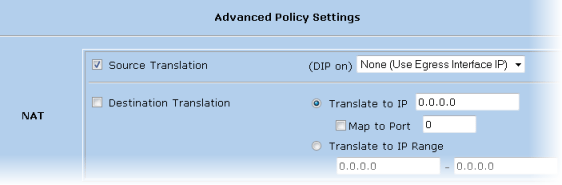
This is what gives you the blue policy action icon shown in the earlier screenshot. The firewall will NAT outbound SIP traffic on the MIP, but RTP media streams from the handsets will be NATed on the firewall egress interface (ethernet3). This is by design – don’t let anyone tell you this won’t work, because it does!
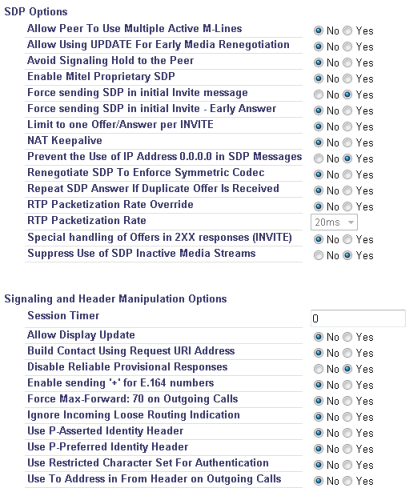
I can vouch for these settings, so if your test calls still aren’t connecting then it’s quite likely that either your firewall policy isn’t quite right (try temporarily relaxing the policies by adding some Any values), or the Mitel isn’t correctly configured. In my case I got Gamma Telecom to send over their best practice guide for the Mitel 3300 from their knowledgebase which revealed that a few settings had been set differently on ours including the contentious sounding Enable Mitel proprietary SDP which Gamma wanted disabled. Another crucial one is Suppress Use of SDP Inactive Media Streams – without it you won’t be able to transfer external calls to another handset. Their screenshot looked to be from an earlier release of the Mitel software so here is a view of our working settings taken from Trunks > SIP > SIP Peer Profile in the WebUI:
For inbound calls to your PBX, double-check how many digits of your DDI numbers the remote SIP endpoint is sending in the SIP message headers and configure the Mitel to match – we had a mismatch here with ours which again would have spoiled many of our earlier tests. Set the number of leading digits that get truncated off the incoming DDI to transform it into an internal extension number at Trunks > Trunk Attributes > Dial In Trunks Incoming Digit Modification – Absorb.
It’s worth stating that this Netscreen/Mitel configuration works with the default endpoint config at the Gamma Telecom end. During troubleshooting they changed many settings which may have complicated things even more, but I am told it has all been reset to the standard specification.
To debug the SIP ALG on the Netscreen download PuTTY and enable logging to a file. Then SSH into your Netscreen and type:
set dbuf size 512
clear dbuf
debug sip all
Now carry out your test call, then:
undebug all
get dbuf stream
set dbuf size 128
This will dump pages of output to the screen, too much for the buffer but now you can open the log file you told PuTTY to save.
There are so many variables to getting this to work, and you will most likely have to draw on the expertise of several different people, but the only way forward is careful methodical testing. Never change more than one thing at a time. In my case the working solution saw me use the exact same firewall settings I had used at the very beginning. The issues turned out to be solved by tweaking of the PBX and remote SIP gateway, though in the thick of it I also upgraded from ScreenOS 5.4.0r8 to 5.4.0r16. However, because the comms contractor kept sending different people to work on the problem the testing was not really consistent until it was just me alone dealing directly with Gamma Telecom support, in control of the firewall, and with WebUI access to the Mitel.
Good luck! If this page saves days of your life going stir crazy in a comms room, nights away at a remote site staying in a hotel etc., then I’d love to hear about it. As you can guess I wasn’t so lucky…
UPDATE – unfortunately transferring external calls is not currently possible with this setup. It looks like that ALG isn’t dealing correctly with the way the Mitel does this (a second INVITE, placing RTP stream on hold etc.).
UPDATE 2 – enabling the Mitel SIP Peer Profile setting Suppress Use of SDP Inactive Media Streams fixes call transfers with consultation (I updated the screenshot above). Blind call transfers still don’t work unfortunately.

 PC LOAD LETTER