Author Archives: patters

Compiling x64/x86 FFmpeg on 64bit Windows with libfaac and libmp3lame

Once I had compiled FFmpeg for 32bit Windows, I discovered that it’s probably ten times more difficult to find information about doing the same with free tools on 64bit editions of Windows. A perfect topic for PCLOADLETTER then!

For building FFmpeg we must use the build environment MinGW-w64 which is a separate version of MinGW. The complication is that even when compiling natively you need to use configuration options as if you’re cross compiling (for host type x86_64-w64-mingw32). It’s not strictly necessary with all packages, but some will fail to build without these parameters. As a result you have to search around trying to find all the necessary configure commands for each package, and they’re not always identical. It’s a slow and frustrating process. What’s even more confusing, is that some builds of MinGW-w64 are targetted at 32bit, some 64bit, and some both. What is more, I had to try three different ones before I found one that could compile LAME without errors (though that could be LAME’s fault).

Most people will want a toolchain with the flexibility to create both x64 and x86 binaries, so that is what I shall describe in this guide.

On the MinGW-w64 downloads site browse to the Multilib Toolchains (Targetting Win32 and Win64) section, and download the latest megasoft78 binary build prefixed with mingw-w64-bin_x86_64-mingw. Extract the contents of this archive to the root of your C: drive (which at time of writing will create a folder named mingw64_4.5.2_multilib).

There is no installer – it’s not as automated as the 32bit distribution of MinGW. I spent a long time trying to compile LAME with the official MSYS build and eventually gave up, chosing instead to use a working one made by a third party. Download MSYS_MinGW_GCC_460_x86-x64_Full.7z from xhmikosr.1f0.de. Extract that archive into C:\mingw64_4.5.2_multilib so you have a subfolder in there named MSYS.

Update – I now realise that this archive also includes the whole GCC toolchain as well, but by then I’d already written the guide :)

Download the latest DirectX SDK. Install it, but only select the following component:
DirectX SDK installation options

This document provides useful background information to the uninitiated. Crucially it explains that when you compile with a particular host type defined, most configure scripts will look for a compiler whose filename is prefixed with that host type. So gcc.exe might be present in the toolchain distro as x86_64-w64-mingw32-gcc.exe. The toolchain I just recommended you download does not contain prefixes, but we shall need them since FFmpeg’s configure script expects them. On Windows Vista or later (which should cover most 64bit Windows systems) we can use mklink.exe to create symbolic links. We’ll also copy some missing DirectX headers into the toolchain and configure MSYS.

Start a Command Prompt as Administrator:

cd \mingw64_4.5.2_multilib\bin\
for %i in (*.exe) do mklink x86_64-w64-mingw32-%i %i
copy /y "%DXSDK_DIR%\Include\*.*" C:\mingw64_4.5.2_multilib\x86_64-w64-mingw32\include\
cd \mingw64_4.5.2_multilib\msys\postinstall
pi
 

This will launch the post-install script which will configure a filesystem mount for /mingw. When asked, enter your mingw installation path as c:/mingw64_4.5.2_multilib

Once that’s complete, launch the MSYS shell from your Administrator command prompt:

C:\mingw64_4.5.2_multilib\MSYS\msys.bat
 

Download the source .tar.gz files of:

Copy those downloaded files to C:\mingw64_4.5.2_multilib\msys\home\administrator (since you’re running in the Administrator user context). In the MSYS shell this is your home directory (cd ~).

In the MSYS shell, run:

tar xvfz faac-1.28.tar.gz
tar xvfz lame-3.98.4.tar.gz
tar xvfz ffmpeg-HEAD-6fd00e9.tar.gz
 

For a 64bit compile of FFmpeg with libfaac and libmp3lame:

cd ~/faac-1.28
./configure --prefix=/usr/local/x86_64-w64-mingw32 --host=x86_64-w64-mingw32 --enable-static --disable-shared --with-mp4v2=no
make clean && make
make install
cd ..
cd lame-3.98.4
./configure --prefix=/usr/local/x86_64-w64-mingw32 --host=x86_64-w64-mingw32 --enable-static --disable-shared --disable-decoder --enable-nasm
make clean && make
make install
cd ..
cd ffmpeg-HEAD-6fd00e9
CPPFLAGS="$CPPFLAGS -I/usr/local/x86_64-w64-mingw32/include" ./configure --extra-ldflags='-L/usr/local/x86_64-w64-mingw32/lib' --prefix=/usr/local/x86_64-w64-mingw32 --enable-static --disable-shared --disable-ffplay --disable-ffserver --enable-memalign-hack --enable-libmp3lame --enable-nonfree --enable-libfaac --arch=x86_64 --enable-runtime-cpudetect --enable-w32threads --cross-prefix=x86_64-w64-mingw32- --target-os=mingw32
make clean && make
make install
 

The compiled ffmpeg.exe will be in C:\mingw64_4.5.2_multilib\MSYS\local\x86_64-w64-mingw32\bin.

In summary what’s happening is we’re compiling FAAC without MP4v2 support (compilation halts if that’s enabled), and we’re making sure the binaries are stored in /usr/local/x86_64-w64-mingw32. Likewise for LAME. FFmpeg needs to be told where to find these new libraries (and headers too). We’re also installing it to /usr/local/x86_64-w64-mingw32, so as to keep x64 and x86 binaries separated.


For a 32bit compile of FFmpeg with libfaac and libmp3lame:

cd ~/faac-1.28
CFLAGS="-m32" CXXFLAGS="-m32" ./configure --prefix=/usr/local/i686-pc-mingw32 --host=x86_64-w64-mingw32 --enable-static --disable-shared --with-mp4v2=no
make clean && make
make install
cd ..
cd lame-3.98.4
CFLAGS="-m32" CXXFLAGS="-m32" ./configure --prefix=/usr/local/i686-pc-mingw32 --host=x86_64-w64-mingw32 --enable-static --disable-shared --disable-decoder --enable-nasm
make clean && make
make install
cd ..
cd ffmpeg-HEAD-6fd00e9
CPPFLAGS="$CPPFLAGS -I/usr/local/i686-pc-mingw32/include" ./configure --extra-cflags=-m32 --extra-ldflags='-m32 -L/usr/local/i686-pc-mingw32/lib' --prefix=/usr/local/i686-pc-mingw32 --enable-static --disable-shared --disable-ffplay --disable-ffserver --enable-memalign-hack --enable-libmp3lame --enable-nonfree --enable-libfaac --arch=x86_32 --enable-runtime-cpudetect --enable-w32threads --cross-prefix=x86_64-w64-mingw32- --target-os=mingw32
make clean && make
make install
 

The compiled ffmpeg.exe will be in C:\mingw64_4.5.2_multilib\MSYS\local\i686-pc-mingw32\bin.

This is pretty much the same as before, but CFLAGS=”-m32″ and CXXFLAGS=”-m32″ force the 64bit-native C and C++ compilers to produce 32bit binaries. I found that useful option at the bottom of this FFmpeg wiki page. As usual, FFmpeg has its own way of specifying most of these settings (except CPPFLAGS). It is also instructed to use 32bit libraries via –extra-ldflags=’-m32′.


Footnote

Until I gave up and used the MSYS distro from xhmikosr.1f0.de, LAME persistently failed to compile with the error undefined reference to `init_xrpow_core_sse’. I tried a newer version of NASM than 2.09.08, replacing nasm.exe with yasm.exe, using LAME 3.98.2 instead of 3.98.4, disabling NASM in the configure, using the Unix makefile, all to no avail. Apart from a problem someone had compiling a Mac universal binary (fixed by using compiler options I could not use with MinGW), the only other link I could find about this is here, and that’s also unsolved. Even taking the nasm.exe (which I notice is 32bit) from the working MSYS bundle and trying it with the SourceForge ‘official’ MSYS bundle, I cannot get LAME to compile. I had no such problem when using the normal MinGW on my 32bit PC from my previous post on this subject, despite compiling my own nasm.exe. If you have any insight into why this might be, please leave a comment!


Windows 7 new user profile – MSOE.DLL could not be loaded error

Since my Windows 7 deployment I get an error every time a new user logs in (or logs in following a profile reset).

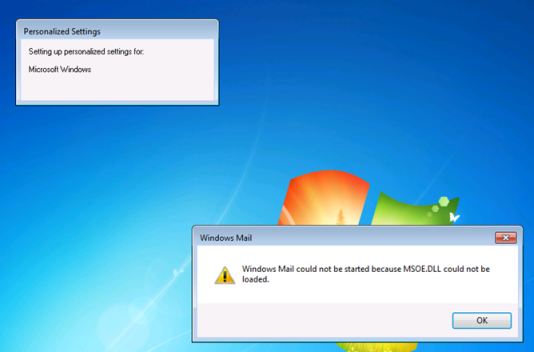
Windows Mail could not be started because MSOE.DLL could not be loaded

Since you can click past it I wasn’t initially too concerned but I soon came to realize that there’s pretty much no information on the Web about this problem. Anything the search engines turn up is invariably about Outlook Express on Windows 98/Me.

It seems to be caused when some kind of IE First Run process opens Internet Explorer with an MSN page and presumably tries to register the default email client (which is not yet set to Outlook, despite it being installed). The strange thing is that Windows Mail is not even available on Windows 7. Microsoft discontinued it after Vista in favour of Windows Live Mail. WinMail.exe is present on the system but it’s hidden, and that MSOE.DLL has been purposely omitted. Apparently you can get it working again by supplying a copy from a Vista PC.

The problem is that this error looks important enough for a new user to contact the helpdesk about. The other issue is that it significantly delays that first logon, sometimes by several entire minutes. The error occurs immediately after you enter your credentials (you can hear the alert sound) but it happens while the desktop is still hidden from view by the Windows 7 splash screen. Eventually the Preparing your desktop splash screen times out and you can click OK:

Windows Mail could not be started because MSOE.DLL could not be loaded

Notice the label in that floating window – it’s setting up a component which is titled as Microsoft Windows.

Eventually I discovered a KB article relating to Internet Explorer 5 personalized settings, which was when Microsoft introduced this method of installation.

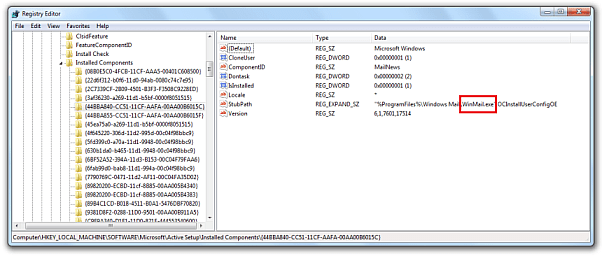
Having consulted that document I viewed HKLM\SOFTWARE\Microsoft\ActiveSetup\InstalledComponents in Regedit and saw that there is indeed a component with the name “Microsoft Windows” which is invoking WinMail.exe, intending to register it as a mail and news (nntp) client:

WinMail.exe ActiveSetup parameters

I have no idea why it’s doing this since WinMail.exe is intentionally disabled in Windows 7. It would seem logical that deleting this whole key should fix the problem (I backed it up first of course). In testing this didn’t seem to work though.

However I did notice that sometimes I got the error on screen twice and other times only once. Exasperated I searched the registry for instances of WinMail.exe until I discovered the reason: the entire ActiveSetup branch of the registry also exists under HKLM\Software\WOW6432Node\Microsoft, for the 32bit version of Internet Explorer on 64bit systems. Once both keys had been deleted the error disappeared.

I was then able to refine this – instead of deleting the whole key you only need to set to the single DWORD value IsInstalled to zero. Do this to both instances and the problem is fixed! In my environment I used my existing VBScript startup script which worktations inherit by Group Policy. Excerpt below:

If InStr (strOS,"Microsoft Windows 7") Then
  'Prevent Windows from trying to invoke the non-existent Windows Mail for new user profile setup
  On Error Resume Next
  strKey = "SOFTWARE\Microsoft\Active Setup\Installed Components\{44BBA840-CC51-11CF-AAFA-00AA00B6015C}"
  objReg.SetDWORDValue HKEY_LOCAL_MACHINE,strKey,"IsInstalled",0
  strKey = "SOFTWARE\Wow6432Node\Microsoft\Active Setup\Installed Components\{44BBA840-CC51-11CF-AAFA-00AA00B6015C}"
  objReg.SetDWORDValue HKEY_LOCAL_MACHINE,strKey,"IsInstalled",0
  On Error Goto 0

Compiling FFmpeg for Windows with libfaac and libmp3lame

Having realised how simple it is to compile stuff on my Synology NAS I decided to finally get something built on Windows using free tools. It’s not really much different, but I had to do a lot of searching to finally gather all the necessary configure parameters.

First we need to set up the build environment. MinGW stands for ‘Minimalist GNU for Windows’. Download the MinGW-get installer, which will install everything you’ll need including MSYS which is a Unix shell complete with all the essential binaries. Run the MinGW-get installer and select Download latest repository catalogs.
In the options add the C++ compiler (needed for FAAC) and select MSYS Basic System and MinGW Developer Toolkit.

Now download the source .tar.gz files of:

Launch MinGW Shell from the Start Menu.
Copy those downloaded files to C:\MinGW\msys\1.0\home\yourusername
For each one run:

tar xvfz packagename.tar.gz
 

Then in order, cd into each extracted directory and…

For NASM and yasm:

./configure
make
make install
 

For FAAC (we need to disable the mp4v2 option to avoid a nasty compiler error – took me a long time to discover):

./bootstrap CC='gcc -mno-cygwin'
./configure --prefix=/mingw --exec-prefix=/mingw --enable-static --disable-shared --with-mp4v2=no
make
make install
 

For LAME:

./configure --prefix=/mingw --exec-prefix=/mingw --enable-static --disable-shared --disable-decoder --enable-nasm
make
make install
 

For FFmpeg:

./configure --enable-static --disable-shared --disable-ffplay --disable-ffserver --enable-memalign-hack --enable-libmp3lame --enable-nonfree --enable-libfaac --arch=x86 --enable-runtime-cpudetect --enable-w32threads
make
make install
 

The compiled ffmpeg.exe will be in C:\MinGW\msys\1.0\local\bin

Update – I tried to set this up on my work PC which runs 64 bit Windows 7 and I discovered that it’s a world of pain, so I’ll have to amend this post once I solve it.

5.1 channel audio through ordinary headphones using MPC-HC

Blown-Away Man

Though I have owned a surround sound system before, I don’t currently have the space for one. I was recently considering buying gaming headphones with support for Dolby Digital 5.1 channel audio which I could also use for watching films. With some more reading I discovered that these hardware solutions will only work with a Dolby Digital source (AC-3). The problem is that I have a lot of content with DTS audio which the chips in these products don’t support, not to mention MP4 files with multichannel AAC audio.

Reading the specs of these headphones, I discovered that they license a technology called Dolby Headphone – some clever signal processing developed by Lake DSP in Sydney. Early 5.1 channel headphones actually contained multiple tweeters mounted at different positions inside each ‘can’ which apparently weren’t very convincing, but this better approach is more of an emulation – one that relies on the fact that you only have two ears. It’s able to model the audio delays and reflections of a room containing a 5.1 setup, plus it seems to boost up the low frequencies so you’re really aware of the LFE channel. I don’t really understand why there isn’t much awareness of Dolby Headphone. It’s not at all new – look at this 1998 press release!

What’s also not very widely known is that Dolby Headphone can be encoded in software, through the likes of PowerDVD’s audio decoder, regardless of whether your sound chip is Dolby Headphone certified (as some now are). It’s also not particularly processor intensive – my Sony Vaio P can play H.264 movies and process DH with its Intel GMA 500 GPU and meagre 1.33GHz Intel Atom Z520 CPU.


What does Dolby Headphone sound like?

Listen for yourself – plug in some headphones and try these DH encoded samples. The choice of movie trailer isn’t exactly showcasing the 360 degree soundstage, but it was quite tricky to encode so I didn’t want the hassle of sampling a scene from an actual film. I can assure you that the action sequences in District 9 for instance sound a whole lot better with Dolby Headphone enabled.

5.1 channel test Dolby Headphone DH1

I Am Legend trailer 2ch downmix by FAAD decoder normalized (no DH)

I Am Legend trailer 5.1ch Dolby Headphone DH1

These samples are 192Kbps MP3 files for size reasons. The slight metallic high-end ringing to the deep bass is an encoder artifact from the conversion to MP3 using the LAME encoder, and it was still present when I tried 320Kbps. The channel test clip was taken from http://www.lynnemusic.com/surround.html and the I Am Legend trailer was from http://www.h264info.com/clips.html.


How to get it working for AC-3, AAC, and DTS multichannel sources

In a previous post I explained how to setup Media Player Classic Home Cinema to use a third party h.264 decoder with DXVA support. MPC-HC has several key advantages as a media player – it’s open source, it’s lean, it’s extremely configurable, and it plays pretty much any format. I use it for my Sony Vaio P to keep CPU use as low as possible on its rather limited Intel Atom processor. Many people use MPC-HC for their Home Theatre PCs, hence this article.

A guide for configuring Dolby Headphone using PowerDVD’s CyberLink Audio Decoder already exists (with files):
http://www.head-fi.org/forum/thread/405417/guide-dolby-headphone-in-mpc-zoom-player

However that information isn’t sufficient. The complication is that when this decoder is used outside the PowerDVD software, it only works with DTS audio streams even though it should also support AC-3. Reading around, it seems that the AC-3 support works in Windows XP but not in Vista nor in Windows 7.

The next piece of the puzzle can be found here on the forum for Zoom Player, a commercial media player:
http://forum.inmatrix.com/index.php?showtopic=7224

The important point is that the CyberLink decoder can accept a multichannel LPCM input, so you can use another decoder (ffdshow tryouts in this case) to convert the source bitstream into LPCM first, then feed that to the CyberLink decoder. This means that multichannel AAC audio found in MP4 containers could have Dolby Headphone applied too. The above post describes how to do this for Zoom Player, but we’re interested in MPC-HC. The next obstacle is figuring out how to link multiple decoders together in MPC-HC – something I couldn’t find any info about despite spending hours searching online.

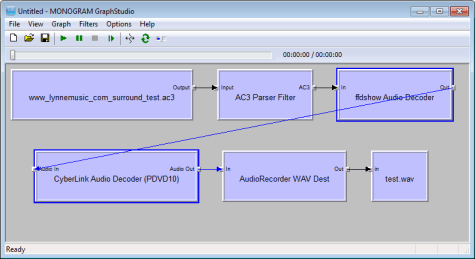
The key to understanding this is knowing how the modular Windows DirectShow media layer works. If you’ve already played with MPC-HC you will be familiar with adding and removing filters, as well as the concepts of ones that are built into MPC-HC and those that are external. All these DirectShow filters have ‘pins’ which are their inputs and outputs – their connection points in other words. Each pin has a defined list of media types it will and won’t accept. As long as you comply with this, they can be threaded together to create a ‘graph’. The simplest way to illustrate this is with a screenshot of the aptly named GraphStudio, and this example shows the combination of filters I used to make one of the sample audio clips earlier in this post:

So how can we construct a similar sequence in MPC-HC? In the end I finally found the crucial bit of information in a single sentence of the excellent self-explanatory and unofficial All the things you may want to know about Media Player Classic – HomeCinema:

When a video file is loaded in MPC-HC, MPC-HC will run through this list from top to bottom and load the relevant filter(s), create a graph from them and play the file.

Bingo! All you need to do is explicitly list them in the right order in MPC-HC’s External Filters window and MPC-HC should thread them together, compatible pins permitting. Sure enough, it works.

Would you believe it, there is yet another hitch – the CyberLink Audio Decoder expects LPCM input channels to be in a certain order, one that differs from the default order in ffdshow. This is trivial to fix, though it will mess things up if you rely on ffdshow to decode other media formats.


The guide

You’ll need MPC-HC obviously, the CyberLink Audio Decoder will need to be installed (from PowerDVD), and you’ll need ffdshow tryouts installed (I used the SVN release, since the beta is years old).

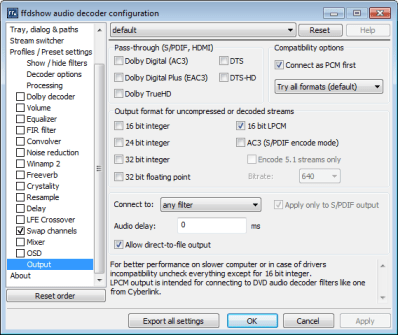
Once ffdshow is installed, open up its Audio Decoder configuration utility from the Start Menu. In the Output section select 16bit LPCM and apply.

Disable the Mixer and configure the Swap Channels menu as follows. Note the different order:

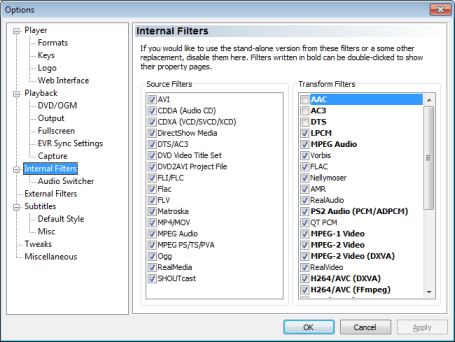
Open MPC-HC and hit O to bring up the options menu. In the Internal Filters section de-select AAC, AC3 and DTS from Transform Filters on the right.

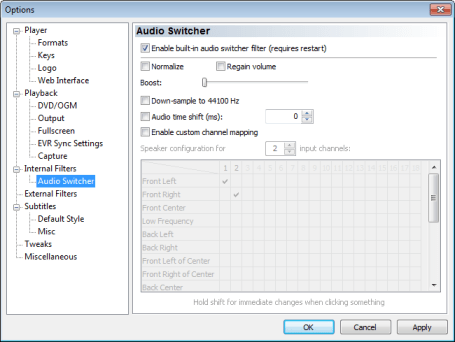
UPDATE – Contrary to what I had originally written here, do not disable the built-in audio switcher! I hadn’t understood that this is needed for when you have a video file with multiple audio tracks. If it’s not enabled then all audio tracks play simultaneously. You could consider disabling Regain volume if you want to minimize the amount of additional processing.

Audio switcher settings

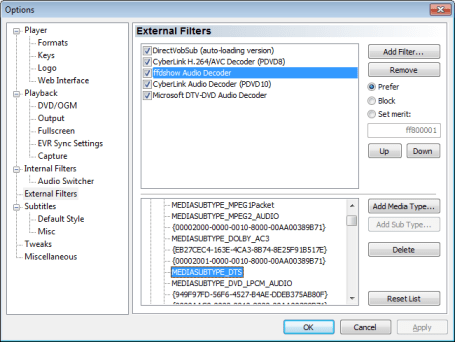
In the External Filters section make sure that ffdshow is set to prefer, and is listed above CyberLink Audio Decoder (also set to prefer). Use Add Filter… to set Microsoft DTV-DVD Audio Decoder to Block.

Remember that DTS audio bitstreams don’t require the ffdshow treatment. To avoid having to reconfigure this for different movie formats we can customize the recognized media types for the ffdshow filter. As per the screenshot above, select ffdshow Audio Decoder then scroll down until you find MEDIASUBTYPE_DTS and delete it. DTS files will now skip ffdshow and will be entirely handled by CyberLink Audio Decoder. If you ever need to revert this change click Reset List.

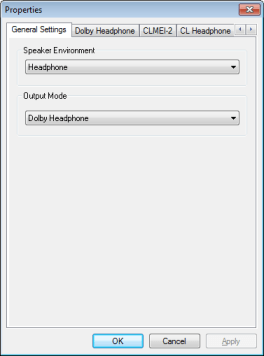
Open a movie file in MPC-HC, then select Play -> Filters -> CyberLink Audio Decoder and you will be able to select Dolby Headphone like so:

On the next tab you can choose between three DH modes. I found a nice succinct guide to the three modes here:
http://www.head-fi.org/forum/thread/444681/headphones-with-good-sound-stage-better-with-dolby-headphone-or-no-need-for-it#post_6003214

Sadly it seems that every time you load a new file into MPC-HC you need to re-enable Dolby Headphone (the setting doesn’t stick for some reason). Also, owing to the channel order swapping in ffdshow you’ll find that in ordinary stereo mode you’re only getting the Front Left and Front Center channels. As a result you’ll probably want to de-select the Swap Channels setting in the ffdshow Audio decoder tool when you’re not using headphones. A small price to pay though… Enjoy!


Further reading

There is a guide to using Dolby Headphone for listening to two channel music in the audio player foobar2000 here:
http://www.head-fi.org/forum/thread/447089/5-1-headphone-experience-foobar-configuration-for-all-stereo-music-files

I’ve given it a try and I don’t really think it’s worth it. When I had a actual surround system I used to play all my music on Dolby Pro Logic IIx and it sounded very good using all the speakers. It meant you could be sitting anywhere in the room and still get nice separation and so on. However, creating those additional channels only to merge them back down to two channels often doesn’t seem to add much since they were virtual to start with. In side by side listening comparisons I often preferred the original stereo mix, but admittedly it does seem to vary with the way they’ve been mastered (remember, to hear the original stereo you have to remove all selected DSPs, not just DH).

Serviio 0.5.2 DLNA server on Synology NAS

last updated 24/08/2011 – fixed typos in locale section
Serviio-Synology

This guide is now redundant – I have released a Synology package for Serviio 0.6!


Serviio is an excellent free Java DLNA media server by Petr Nejedly which focuses on minimizing the amount of unnecessary media transcoding, and maximizing the use of renderer devices’ supported features. Some of the more main-stream servers like Windows Media Player just brute-force everything to MPEG2 video and MP3 audio, which degrades quality and wastes power. Though some servers like Mezzmo are better and will play Matroska files, even they tend to transcode all audio to AC-3 regardless of source type. As a Java app Serviio will run on anything that has a JVM, and the media tool it relies on is the open source and therefore highly portable FFmpeg. All these design priorities make Serviio an ideal choice to run on a NAS device since, when paired with a renderer with good format support like a Sony Bluray Player, the NAS will barely ever be transcoding.

I was about to buy a new large external hard disk, but once I realised that Serviio could probably run on a NAS I started looking at one of these instead. Synology seemed to offer a lot of value and seemed to have the sort of user-community enjoyed by my old Linksys NSLU2, which I promptly sold on eBay for almost what I had paid for it in 2007. I considered the value DS110j model but I decided to go for the more expensive DS111 on the basis that the double CPU speed and RAM would probably be a wise move.

This guide outlines how to get Serviio 0.5.2 running on the Marvell Kirkwood ARM CPUs found in most of the 2011 product line-up, but Synology devices also exist with Freescale PowerPC and Intel Atom processors. The key problem is finding a Java virtual machine, but FFmpeg also needs compiling from source. This is because although there is an FFmpeg binary bundled with DSM 3.0, it’s too old and lacks support for features critical to Serviio. This guide could be used for other CPU architectures, but the compilation options for FFmpeg need adapting.

In the Synology DSM go to Control Panel > Terminal > enable SSH.

Read this Synology wiki document about modifying your NAS carefully and install the bootstrap for your model.

Download the PuTTY SSH client.

Connect to your NAS’s IP address using SSH. Use the root account (same password as admin). I suggest that you perform the mod at the bottom of this post to enable colour directory listings and a more descriptive shell prompt which should reduce the chance of accidentally being in the wrong directory.

We need to install the development tools. Type:

ipkg install optware-devel
 

It will halt and complain that package wget-ssl clashes with wget. Continue with:

ipkg remove wget
cp /usr/syno/bin/wget /opt/bin
ipkg install wget-ssl
ipkg update
ipkg upgrade
ipkg install optware-devel
 

This time it will finish successfully.

Update – It seems that there is a serious problem with running ipkg on a clean install of DSM 3.1. This guide was written before it was released, and though I have since upgraded my Synology I haven’t encountered that issue, but there have been many comments about it. User mayk on the Synology forum seems to have the solution here. Use the extra wget verbosity switch to find out the exact package URL for the following two packages, then manually download them with wget and install:

cd /volume1/@tmp
ipkg install -verbose_wget libidn
wget url1
ipkg install -verbose_wget wget-ssl
wget url2
ipkg install filename1
ipkg install filename2
 

Next we need to install Lame MP3 encoder, providing libmp3lame which FFmpeg will be compiled to depend on, and the Nano text editor (much easier to use than vi):

ipkg install lame
ipkg install nano
 

JamVM is a JVM that gets mentioned a lot in connection with NAS systems, but it’s only Java 1.5, and Serviio needs version 1.6. Download the Java SE Embedded Runtime from Oracle, selecting the ARM v5 Linux version (note that there is a PowerPC e500v2 version – the CPU core in Synology products which use the Freescale mpc85x3). Unfortunately for PowerPC Synology owners, this depends on a higher version of glibc than the Synology DSM provides for this architecture. Until JamVM supports Java 1.6, or Synology update to glibc 2.4 you won’t be able to follow this guide on PowerPC models. This may have changed since DSM 3.1 was released.

You will need to sign up to receive the download link by email. It’s free to use for non-commercial self-educational use. Use your computer to save it into the top level shared folder of your NAS, which will probably be /volume1/public on the NAS filesystem. Then:

cd /volume1/public
mv ejre-1_6_0_21-fcs-b09-linux-arm-sflt-eabi-headless-27_sep_2010.tar.gz /volume1/@tmp
cd /volume1/@tmp
tar xvzf ejre-1_6_0_21-fcs-b09-linux-arm-sflt-eabi-headless-27_sep_2010.tar.gz
mkdir /opt/java
mv ejre1.6.0_21 /opt/java
 

Synology’s Linux build has no localisation support built in, though it does use UTF-8 character encoding for the filesystem. That’s no problem for storage, however the Java VM inherits the locale setting of the host OS. Since this is undefined Serviio, and all other Java software, will default to US-ASCII which is a big problem if you have filenames with non-US characters. The solution is to obtain the missing files to add locale support from the Synology toolchain, which is distributed under the GPL:

#-----for ARM CPU
cd /volume1/@tmp
wget http://sourceforge.net/projects/dsgpl/files/DSM%203.1%20Tool%20Chains/Marvell%2088F628x%20Linux%202.6.32/gcc421_glibc25_88f628x.tgz
tar xvfz gcc421_glibc25_88f628x.tgz
cd arm-none-linux-gnueabi/arm-none-linux-gnueabi/libc/usr/bin
cp locale /opt/bin
cp localedef /opt/bin
cp -R arm-none-linux-gnueabi/arm-none-linux-gnueabi/libc/usr/share/i18n /usr/share
#-----keep another copy safe in case DSM is reinstalled later
cp -R arm-none-linux-gnueabi/arm-none-linux-gnueabi/libc/usr/share/i18n /opt/share
mkdir /usr/lib/locale
localedef -c -f UTF-8 -i en_US en_US.utf8

#-----for Intel CPU
cd /volume1/@tmp
wget http://sourceforge.net/projects/dsgpl/files/DSM%203.1%20Tool%20Chains/Intel%20x86%20Linux%202.6.32/gcc420_glibc236_pineview.tgz
tar xvfz gcc420_glibc236_pineview.tgz
cd i686-linux-gnu/i686-linux-gnu/bin
cp locale /opt/bin
cp localedef /opt/bin
cp -R i686-linux-gnu/i686-linux-gnu/share/i18n /usr/share
#-----keep another copy safe in case DSM is reinstalled later
cp -R i686-linux-gnu/i686-linux-gnu/share/i18n /opt/share
mkdir /usr/lib/locale
localedef -c -f UTF-8 -i en_US en_US.utf8
 

Now use nano to edit some configuration files (Ctrl-o saves, and Ctrl-x exits).
First edit the profile for all bash shell users:

nano /opt/etc/profile
 

Make the changes shown in bold:

#
# Bash initialization script
#

PS1=”[\u@\h \W]$ ”
PATH=/opt/sbin:/opt/bin:/sbin:/bin:/usr/sbin:/usr/bin:/opt/java/ejre1.6.0_21/bin
LD_LIBRARY_PATH=/opt/lib:${LD_LIBRARY_PATH}
JAVA_HOME=/opt/java/ejre1.6.0_21
LANG=en_US.utf8

export PS1 PATH LD_LIBRARY_PATH JAVA_HOME LANG


Save and exit. Next edit the profile for all ash shell users (root):

nano /etc/profile
 

At the last line make the changes in bold:

PATH=/opt/java/ejre1.6.0_21/bin:/opt/bin:/opt/sbin:$PATH
JAVA_HOME=/opt/java/ejre1.6.0_21
LANG=en_US.utf8
export JAVA_HOME LANG


Save and exit. Now install the Serviio application:

cd /volume1/@tmp
wget http://download.serviio.org/releases/serviio-0.5.2-linux.tar.gz
tar xvzf serviio-0.5.2-linux.tar.gz
mv serviio-0.5.2 /opt/serviio
 

In the DSM Control Panel got to Web Services > Web Applications tab > Enable Web Station.
Install AcidumIrae’s PHP web UI for Serviio. You will need to have enabled Web Station for the directory /volume1/web to exist.

wget http://labs.softjourn.com/attachments/download/67/serviio-0.5.2.1b.zip
unzip serviio-0.5.2.1b.zip
mv serviio-0.5.2 /volume1/web/serviio
 

You should already be able to browse to http://your_NAS_IP/serviio and see the user interface, though it will complain with a big red X that Serviio is not running.

FFmpeg depends on the libbz2 and zlib libraries, and although both are installed along with the optware-devel package, FFmpeg will only look for them in /lib rather than in their actual location in /opt/lib. Copies of the existing symbolic links will be fine:

cp /opt/lib/libbz2.so.1.0 /lib
cp /opt/lib/libz.so.1 /lib
 

Compile the patched version 26303 of FFmpeg from the Serviio download page. Running cat /proc/cpuinfo it is clear that the DS111 is an ARM 5TE platform so I enabled those specific optimizations:

cd /volume1/@tmp
wget http://download.serviio.org/opensource/ffmpeg-26303.tar.gz
tar xvzf ffmpeg-26303.tar.gz
cd ffmpeg
./configure --arch=arm --enable-armv5te --prefix=/opt --extra-cflags='-I/opt/include' --extra-ldflags='-L/opt/lib' --enable-static --disable-shared --disable-ffplay --disable-ffserver --enable-libmp3lame
make
 

Notice that the ./configure command is line wrapped – it’s all one command. The make command takes approximately 25 minutes on the 1.6GHz CPU and will show many warnings during compilation, but this is expected.

Update – Thanks to bakman for pointing out that for Intel Atom CPUs you will need to install the assembler YASM and also use the following ./configure parameters:

ipkg install yasm
./configure --arch=x86_64 --enable-ssse3 --prefix=/opt --extra-cflags='-I/opt/include' --extra-ldflags='-L/opt/lib' --enable-static --disable-shared --disable-ffplay --disable-ffserver --enable-libmp3lame
 

Another Update – Thanks to gregorio for parameters for Freescale PowerPC processors:

./configure --arch=powerpc --disable-altivec --prefix=/opt --extra-cflags='-I/opt/include' --extra-ldflags='-L/opt/lib' --enable-static --disable-shared --disable-ffplay --disable-ffserver --enable-libmp3lame
 

When the compile is done, install it.

make install
 

Try running ffmpeg and check the compile time to make sure the newly compiled one is running. You should see this but with your compilation date and time:

FFmpeg version UNKNOWN, Copyright (c) 2000-2011 the FFmpeg developers
built on Feb 6 2011 01:14:38 with gcc 4.2.3
configuration: –arch=arm –enable-armv5te –prefix=/opt –extra-cflags=-I/opt/include –extra-ldflags=-L/opt/lib –enable-static –disable-shared –disable-ffplay –disable-ffserver –enable-libmp3lame
libavutil 50.36. 0 / 50.36. 0
libavcore 0.16. 0 / 0.16. 0
libavcodec 52.108. 0 / 52.108. 0
libavformat 52.92. 0 / 52.92. 0
libavdevice 52. 2. 3 / 52. 2. 3
libavfilter 1.72. 0 / 1.72. 0
libswscale 0.12. 0 / 0.12. 0
Hyper fast Audio and Video encoder
usage: ffmpeg [options] [[infile options] -i infile]… {[outfile options] outfile}…

Use -h to get full help or, even better, run ‘man ffmpeg’

If you see the text below then something is wrong – this is the version included with DSM 3.0:

FFmpeg version SVN-r20167-snapshot, Copyright (c) 2000-2009 Fabrice Bellard, et al.

In the DSM User Control Panel create a new user called serviio and set a password. Give that user access to the paths that contain the media you want to serve. Click the User Home button and enable the User Home Service. Go back to your SSH session and type:

nano /etc/passwd
 

Be very careful editing this file. A wrong move here could trash your system. Notice that the serviio user has a shell of /sbin/nologin. Change this to /bin/sh like the admin user has. Nano may try to line wrap this line as you type if you added an long account description. If it does, delete the carriage return before the line break and pull it back onto one line. Save and exit.

Now we’ll create the Serviio daemon start and stop script:

nano /volume1/@tmp/S99serviio.sh
 

Paste in the following text (mouseover and use the icon in the top right to copy):

#!/bin/sh

User=serviio

case "$1" in

stop)
        echo "Stop Serviio..."
        su -l $User -c "/opt/serviio/bin/serviio.sh -stop" > /dev/null 2>&1 &
        ;;

start)
        # start Serviio in background mode
        su -l $User -c "/opt/serviio/bin/serviio.sh" > /dev/null 2>&1 &
        echo "Start Serviio..."

        #check libs FFmpeg depends on (in case DSM was upgraded)
        if [ ! -f /lib/libbz2.so.1.0 ]; then
                cp /opt/lib/libbz2.so.1.0 /lib
        fi
        if [ ! -f /lib/libz.so.1 ]; then
                cp /opt/lib/libz.so.1 /lib
        fi
        ;;

restart)
        $0 stop
        sleep 1
        $0 start
        ;;
*)
        echo "usage: $0 { start | stop | restart}" >&2
        exit 1
        ;;

esac
 

Now make it executable and set the serviio user to be the owner of the Serviio folder (so it can create the media database, and log files):

chmod +x /volume1/@tmp/S99serviio.sh
chown -R serviio /opt/serviio
 

Test the script manually by running:

/volume1/@tmp/S99serviio.sh start
ps
 

The running process list should show the serviio user running the Serviio launcher shell script and the JVM like so:

 2542 root      9080 S N  /usr/syno/sbin/synomkflvd
 2589 root      3908 S    /usr/syno/sbin/sshd
 2591 root      5376 S    /usr/syno/apache/bin/httpd -f /usr/syno/apache/conf/
 2599 root      5944 S    /usr/syno/apache/bin/httpd -f /usr/syno/apache/conf/
 2600 root      5936 S    /usr/syno/apache/bin/httpd -f /usr/syno/apache/conf/
 2628 root     58920 S    /usr/syno/apache/bin/httpd
 2687 nobody   58920 S    /usr/syno/apache/bin/httpd
 2688 nobody   58920 S    /usr/syno/apache/bin/httpd
 2689 nobody   59500 S    /usr/syno/apache/bin/httpd
 2695 root     11560 S    /usr/syno/sbin/mDNSResponder -f /tmp/mDNSResponder.c
 2703 root      5568 S    /usr/syno/apache/bin/httpd -f /usr/syno/apache/conf/
 2949 root      5568 S    /usr/syno/apache/bin/httpd -f /usr/syno/apache/conf/
 3025 root      5568 S    /usr/syno/apache/bin/httpd -f /usr/syno/apache/conf/
 3087 root      8664 S N  /bin/ntfs-3g -o uid=1024,gid=100 /dev/sdk1 /volumeUS
 3518 root      8852 S    /usr/syno/sbin/cnid_metad
 3524 root     15132 S    /usr/syno/sbin/afpd -c 256 -g guest -n SynologyDS111
 3566 nobody   58920 S    /usr/syno/apache/bin/httpd
 7747 root      6660 S    sshd: root@pts/0
 7826 root      5404 S    -ash
13567 serviio   2940 S    -sh -c /opt/serviio/bin/serviio.sh
13570 serviio   2940 S    /bin/sh /opt/serviio/bin/serviio.sh
13575 serviio   501m S    /opt/java/ejre1.6.0_21/bin/java -Xmx384M -Djava.net.
13917 root      5404 R    ps
 

Stop the daemon with:

/volume1/@tmp/S99serviio.sh stop
 

Check the web UI or the process list again and make sure it did indeed stop. If it’s all ok, we need to move the daemon launcher script so it starts automatically on boot:

mv /volume1/@tmp/S99serviio.sh /opt/etc/init.d
 

Shutdown the NAS and restart.

Update – previously I had used the directory /usr/syno/etc/rc.d, but this is destroyed when the DSM software is updated. /usr/local/etc/rc.d is the official Synology location for 3rd party daemon init scripts but I found that it doesn’t work, so I used /opt/etc/init.d instead which also survives a DSM upgrade. I just tested this by upgrading to DSM 3.1-1605 and Serviio remained intact. I only had to copy the sym links for the libraries FFmpeg needs (“cp /opt/lib/libbz2.so.1.0 /lib” and “cp /opt/lib/libz.so.1 /lib”).


Web UI integration with the Synology DSM

I read the official Synology notes for 3rd party developers and decided to make some icons. The result is pretty neat:
Open an SSH session:

cd /usr/syno/synoman/webman/3rdparty
wget http://dl.dropbox.com/u/1188556/blog/serviio_syno_DSM.zip
unzip serviio_syno_DSM.zip
rm serviio_syno_DSM.zip
nano serviio/config
 

The file loaded into nano will look like this, and you need to edit the IP address to match the IP of your Synology (either put your syno on a static IP, or set a reservation in your broadband router’s DHCP server options).

{
 ".url": {
    "org.serviio.serviio": {
      "type": "legacy",
      "allUsers": true,
      "title": "Serviio",
      "desc": "DLNA Media Server",
      "icon": "images/icon_{0}.png",
      "url": "http://192.168.1.202/serviio/index.php"
    }
  }
}
 

I can’t find a way to avoid manually specifying the IP address like this – relative paths can’t be used because the Synology runs two different webservers: the DSM one on port 5000 without PHP, and the PHP-enabled Web Station one on port 80.

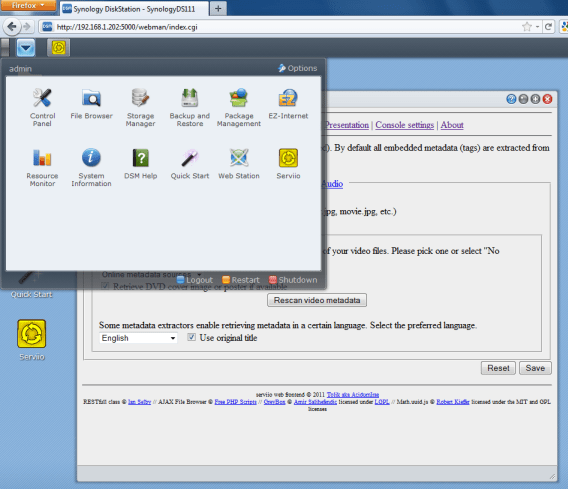
Log out of DSM and log back in. You will see the Serviio icon in the pull down menu in the top left, which you can drag to the desktop if you prefer:
 

Serviio settings

Navigate to the Transcoding tab. Set the transcoded files location to /volume1/@tmp. Failure to do this will result in temporary files being written to /tmp which will fill up the partition it’s on the moment you remux a 4GB movie, which would prevent you from logging into the NAS.

I recommend de-selecting Generate thumbnails for local videos in the Metadata tab. Note that you have to click Save on each tab or any change will not take effect. As you’ll see if you have a DLNA renderer that supports thumbnails, Serviio retrieves good ones from the online databases it checks so they’re not really needed. Often FFmpeg will get stuck trying to generate a thumbnail for a video and will lock the CPU at 100% for long periods of time. This issue was raised in this Serviio forum thread.

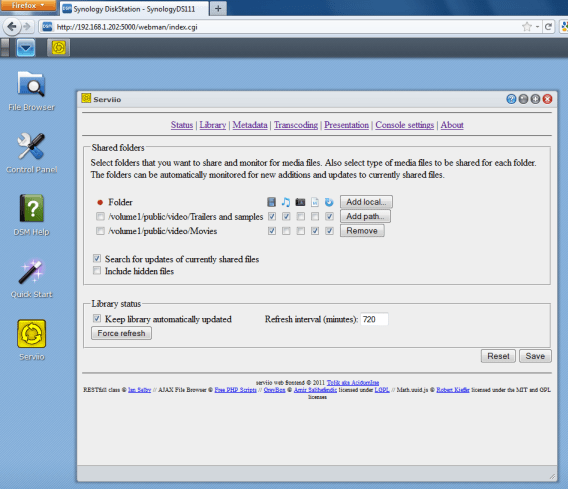
You can use the Library tab to add the media folders you want to share. Note that the Add Local… button will fail because the web service user does not have access to the root of the filesystem (probably a good thing security-wise). Use Add Path… instead and express the paths as I have done in the first screenshot above. Be sure that the serviio user has been granted read privileges over the folders you add (User Control Panel in DSM).

Update – If you really want to use the Ajax file browser UI, then go to DSM Control Panel > Web Services > PHP Settings tab > open_basedir and append /volume1: to the start of that list. Then on the Web Applications tab, disable Web Station, Ok, enable Web Station. Go back to your SSH session and run:

nano /volume1/web/serviio/afb/config.php
 

Change the value of $path from / to /volume1/public (or the top level shared folder where your media resides). You’ll notice however that when you use Add local button in the Serviio Library tab it’s very buggy. It will only list a maximum of 5 child folders from each node.


Performance

The Synology seems perfectly able to transcode DTS audio in a hi-def Matroska file down to 2 channel AC3 in MPEG-TS while copying the H.264 stream. The CPU use leaps up to 100% but I guess that’s because it’s running ahead transcoding down to the end of the file (and is CPU-bound).

If I play something that’s only remuxing the container and copying both audio and video streams then the CPU stays at around 40% (because it’s I/O-bound) then 5 minutes into a film it falls away to pretty much idle – I guess it has finished remuxing to the temporary file.

Memory use even while running Serviio is around 20% at idle, 30% during a remux with audio transcode, though I have noticed that with a larger library this creeps up to around 70%. I have a 2011 product so it has 256MB of RAM. This seems to indicate that the value line of products (with the j suffix) like the DS211j should run Serviio on their 128MB. They have a 1.2GHz CPU though versus 1.6GHz on mine (and the DS110j is only 800MHz), so it would need testing by someone.

All in all it would seem that the Synology products are very capable Serviio appliances!


Uninstalling

Log in as root and stop Serviio, then delete a couple of libraries which had been copied to /lib:

/opt/etc/init.d/S99serviio.sh stop
rm /lib/libbz2.so.1.0
rm /lib/libz.so.1
 

In the DSM User Control Panel delete the user called serviio. Undo the changes that you made to /opt/etc/profile and /etc/profile (the JAVA_HOME and java path modifications marked in bold earlier in the guide).

To remove the web UI, in DSM go to Web Services > Web Applications tab > Disable Web Station. Then:

rm -r /volume1/web/serviio
rm -r /usr/syno/synoman/webman/3rdparty/serviio
 

Finally, re-download the bootstrap for your model of NAS and run it again. It will tell you to delete a few folders and restart. This will completely trash all optware ipkg packages (i.e. everything in /opt) and undo everything else you did in this guide without affecting your data partitions. If you had any other ipkg packages installed since installing Serviio, these would also be lost.

Synology DiskStation SSH Tunnelling

Included in the SSH specification is the hugely overlooked ability to tunnel traffic. Looking on the Synology forums and the Web in general I saw plenty of articles and blog posts on how to enable port forwarding on your router for all the various services these appliances can provide. Many of these services transmit their data in non-encrypted form, with passwords being sent in clear text. However, there is a better way – one that can allow you secure remote access to absolutely anything on your home LAN. I had used this method to connect to my hacked TiVo many years ago because its web interface didn’t have the option of SSL. I did find some Synology-specific info about it, but I suspect it was from much earlier DSM versions which perhaps didn’t have a decent SSH daemon, and so called for additional packages to be installed. I was sure that there must be a simple way to tweak the config of the existing daemon. Luckily I found this blog post which seems to be quite hard to find via Google.

UPDATE – no config changes are necessary, at least with DSM 3.2 onwards (can’t remember for 3.1).

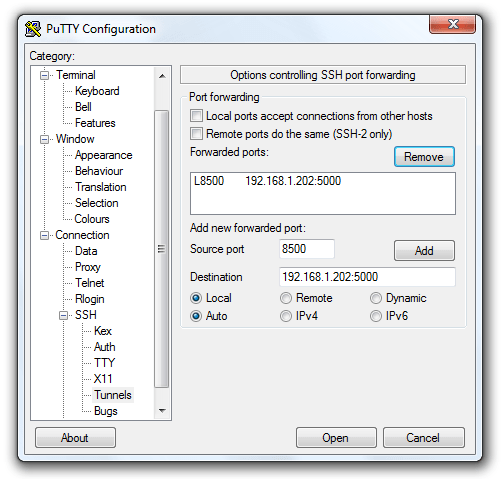
The concept is simple. You connect via SSH with PuTTY, but in setting up the connection you define some port mappings. So let’s say you wanted to be able to remotely use the DSM software on TCP5000, you can define a local port of say 8500 and remap that to the private IP of your Synology NAS at home on port 5000 (so 192.168.1.202:5000 in my case):

PuTTY tunnel settings

Don’t forget to click Add. Also in the options navigate to Window > Translation and set the character set to UTF-8.

Once you’re connected in PuTTY, point a browser to http://localhost:8500 and you’ll be connected to the DSM at the other end of the SSH tunnel – and securely too.

If you’re using a Mac or Linux computer the normal SSH client can be configured similarly from the terminal, e.g.:
ssh root@mynasip -L 8500:192.168.1.202:5000 -L 8123:192.168.1.202:8123

One final little mod is to enable coloured output in directory listings, and displaying of the current directory path in the shell prompt. Type:

echo alias ls="'ls --color'" >> ~/.profile
echo export PS1="'\w\$ '" >> ~/.profile
 

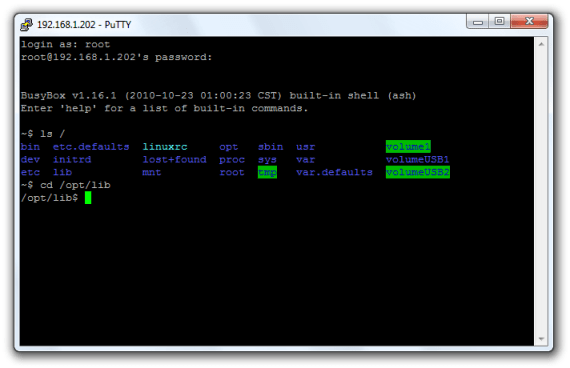
This will take effect at next logon. Directories are blue, executables are green, and symbolic links are cyan.

Shell colour directory listing

Catalyst 6500 Supervisor 2 firmware

I recently had a Catalyst 6500 Supervisor 2 fail and needed a complete replacement. It was one of a redundant pair and when the replacement unit arrived it had different firmware on it. Redundant pairs should have matched firmware, so I had to update it. Just in case this ever happens again, I wanted to record this information somewhere because it’s quite a tricky process.

How to upgrade ROMMON bootrom:
http://www.cisco.com/en/US/docs/switches/lan/catalyst6500/hardware/Config_Notes/78_13488.html#wp146316

upgrade rom-monitor slot 2 rp file tftp://x.x.x.x/c6msfc2-rm2.srec.122-17r.S5
 

Apart from the ROMMON flash regions, there are two flash filesystems on a Supervisor Engine 2 with MSFC and PFC (WS-X6K-SUP2-2GE)

  • bootflash:
  • sup-bootflash:

and if the second unit is present

  • slavebootflash:
  • slavesup-bootflash:

The route processor (rp) bootimage (e.g. c6msfc2-boot-mz.121-19.E1a.bin) should be on bootflash:

The full image (e.g. c6k222-pk9s-mz.122-17d.SXB4.bin) should be on sup-bootflash:

You can run limited commands on the standby supervisor using:

remote login module 2
 

You can query the ROMMON boot rom status like so:

show rom-monitor slot 1 rp
 

Gold means the version in ROM, F1 and F2 are the two flash regions. rp is the route processor, sp is the switch processor.

slot 1 (as route processor boots)

System Bootstrap, Version 12.2(17r)S5, RELEASE SOFTWARE (fc1)
Technical Support: http://www.cisco.com/techsupport
Copyright (c) 2005 by cisco Systems, Inc.
Cat6k-MSFC2 platform with 524288 Kbytes of main memory

slot 2 (before update)

System Bootstrap, Version 12.1(11r)E1, RELEASE SOFTWARE (fc1)
TAC Support: http://www.cisco.com/tac
Copyright (c) 2002 by cisco Systems, Inc.
Cat6k-MSFC2 platform with 524288 Kbytes of main memory

Configuring Ericsson / Aastra VoIP handsets by DHCP

Manually configuring VoIP handsets is a horrible job, and of course leaves you in a complete mess if you ever make any changes to those settings. I recently subnetted a building which was one flat network and wanted to prioritise VoIP traffic. Fortunately the Ericsson and Aastra handsets can be configured by DHCP, but typically it’s something you have to pester your telecoms provider for information about. Where I work this information was not volunteered when our Ericsson MD110 PABX was IP-enabled a few years ago. The reason I’m writing this up is that newer firmwares have changed this behaviour.

The handsets will boot from their bootrom firmware and then check their software firmware against the files on the ‘software server’, updating if out of date. This software server will typically be your DNA server. The files are served by IIS and are within the default Inetpub folder structure.

The handset settings are configured from DHCP on option 43, but this presents problems in infrastructures which contain other hardware which also depends on option 43. Fortunately, Microsoft Windows DHCP server allows configurable Vendor Classes – it can respond differently to requests based on their vendor class identifier string which they declare during DHCP discover and DHCP request, thus allowing re-use of the same option numbers. However, configuring this isn’t particularly intuitive hence my writing this up.

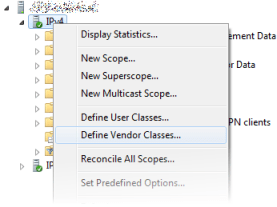
First right-click on your parent IPv4 tree in the DHCP MMC snap-in:

Microsoft DHCP server - Define Vendor Classes

Now create as follows:

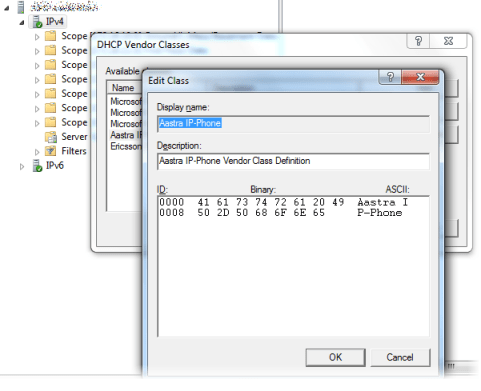
Microsoft DHCP server - Define Vendor Class Aastra IP Phone

I discovered using Wireshark that newer firmwares since the Aastra rebranding identify themselves with the string Aastra IP-Phone whereas older ones use Ericsson IP-Phone. You should really create one for each, just in case you plug in an older handset one day.

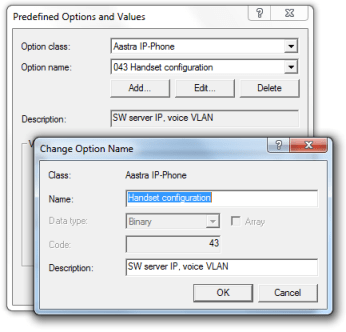
Again by right-clicking on the parent IPv4 item select Set Predefined Options and complete as follows:

Microsoft DHCP server - Define option 43 Aastra IP Phone

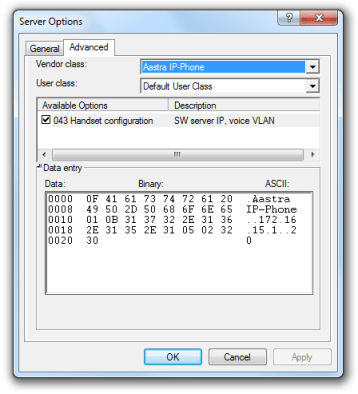
At the root level of your IPv4 tree, select Server Options. Add a new option, but use the advanced tab:

Aastra IP Phone handset configuration options

This is the tricky part. Consider the binary data:

0f 41 61 73 74 72 61 20 49 50 2d 50 68 6f 6e 65 01 0b 31 37 32 2e 31 36 2e 31 35 2e 31 05 02 32 30

The bold hex numbers describe the following

  • 0f means 15 bytes in the following ASCII string Aastra IP-Phone
  • 01 0b means vendor-specific tag 01, followed by a 0b (11 in decimal) byte ASCII string
  • 05 02 means vendor-specific tag 05, followed by a 2 byte ASCII string

The tags are defined as follows:

  • Tag 01 – software server IP address
  • Tag 02 – proxy server IP address
  • Tag 03 – proxy port (must be defined if tag 02 is used)
  • Tag 04 – telephony domain name
  • Tag 05 – VLAN id 1 for the telephone
  • Tag 06 – VLAN id 2 for the telephone
  • Tag 07 – VLAN id 3 for the telephone

Since Vendor Classes can only be defined on a per DHCP server basis we can’t have dedicated voice VLANs per subnet unfortunately, to reflect how you separate your workstation VLANs. Since all your VoIP handsets will end up in the same VLAN, Ericsson added support for configuring two additional VLANs (using Tags 06 & 07). These additional VLANs will only get used if the handset is unable to get a DHCP lease on the VLAN defined in the preceeding tag.

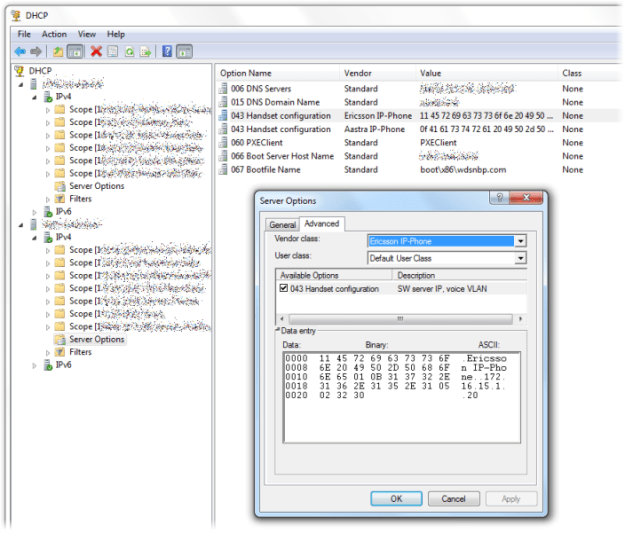
As before you will need to define one set of option 43 settings for Aastra handsets, and another for Ericsson handsets:

Vendor Class DHCP option 43 settings for Aastra & Ericsson handsets

As the phone starts up it will request and obtain a lease on the native VLAN for the switch port it is connected to, will then read the option 43 settings, release that IP, and request a new lease on the specified VLAN.

Additional configuration such as NTP server settings, daylight saving time corrections, CoS, PC port VLAN etc. can all be configured in the model-specific config files in Inetpub on the DNA server.

Live H.264 streaming from Digital Rapids to Helix and Wowza

Helix Mobile Server 14

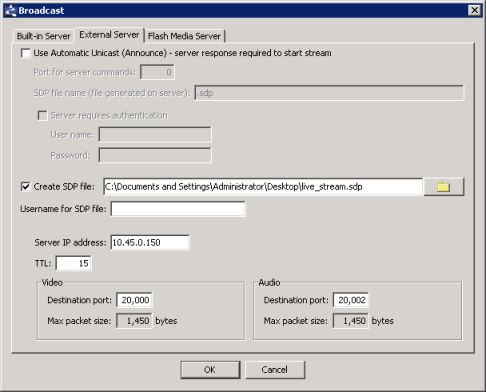
I had a few difficulties with getting this set up so it’s probably worth sharing them here. Digital Rapids apparently don’t support live broadcasting from their hardware encoder companion software ‘Stream’ to Helix Mobile Server even though the latter supports RTP and SDP, and the encoder clearly offers these up as possible exports when you’re using the Digital Rapids AVC for Web codec profile (an optional extra purchase):

Stream encoder RTP broadcast SDP settings

What happens is that when you copy the SDP file into your Helix server’s Content/rtpencodersdp folder and try to connect to the stream pointing a media player at rtsp://helixserver/rtpencoder/live_stream.sdp it will fail, with the following error appearing in rmerror.log:

21-Sep-2010 13:47:14.062 tmplgpln(6076): 32: Error retrieving URL `rtpencoder/live_stream.sdp’ (Invalid path)

Following contact with Helix support, it turns out that the SDP file which the encoder creates does not declare the bandwidth of the audio track using a b= line as per RFC 4566 – though apparently this is an optional field. You will need to manually add this. 64Kbps results in b=AS:64 as below:

v=0
o=- 1287599430 1287599438 IN IP4 10.45.0.155
s=Session Streamed by Digital Rapids Corp Stream Server
t=0 0
a=type:broadcast
c=IN IP4 10.45.0.150/15
m=audio 20002 RTP/AVP 97
a=rtpmap:97 MPEG4-GENERIC/90000/2
a=fmtp:97 streamtype=5;profile-level-id=1;mode=AAC-hbr;sizelength=13;indexlength=3;indexdeltalength=3;bitrate=64000;config=1390
a=control:trackID=1
b=AS:64
m=video 20000 RTP/AVP 96
a=rtpmap:96 H264/90000
a=fmtp:96 packetization-mode=1;profile-level-id=4D4020;sprop-parameter-sets=J01AIJZWDQ/8mApEAAADAAQAAAMAyhA=,KO8GDMg=
a=cliprect:0, 0, 416, 234
a=control:trackID=2

I also discovered that QuickTime Player is not a reliable player to use for testing as it sometimes crashes, and will not play H.264+AAC streams which VLC has no issue with. This view was echoed by Helix support.

I did have another problem – one of aspect ratios. The Digital Rapids Stream encoder will author files with garbage aspect ratio metadata if the resolution isn’t exactly 16:9 to the nearest even number of pixels. I read somewhere else that the chosen picture width should be a multiple of the x part of the aspect ratio. Here is FFMPEG’s analysis of a non-compliant resolution:

Stream #0.0(eng): Video: h264, yuv420p, 412×232 [PAR 37376:14889 DAR 401453:90053], 399 kb/s, 25 fps, 25 tbr, 25 tbn, 50 tbc

and a correct 16:9 resolution:

Stream #0.0(eng): Video: h264, yuv420p, 416×234 [PAR 1:1 DAR 16:9], 399 kb/s, 25 fps, 25 tbr, 25 tbn, 50 tbc


Wowza Media Server 2.1.2

Setting this up was also a little bit confusing, given that the encoder offers you so little insight into what the problem is if it doesn’t start. Anyway, there are excellent tutorials on the Wowza forums – this is the one we need.

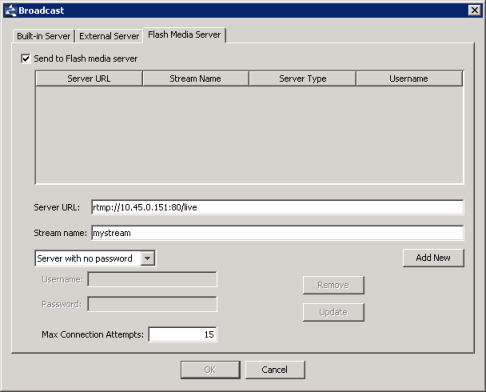
As you can see from the screenshot I run Wowza Media Server on port 80 rather than 1935 to make sure that clients using restricted and proxied wifi networks (hotels etc.) are not prevented from viewing the streams:

Digital Rapids Stream RTMP media server settings

There is a gotcha though. In the forum tutorial they mention setting up security, but this is only for RTP encoders, not RTMP. I had been setting the credentials in the dialog above, but in fact you need to leave the drop-down on Server with no password.

Fortunately you can secure RTMP stream publishing in Wowza – you will need to make the following additions to live/application.xml to invoke an additional module:

       <Module>
              <Name>ModuleSecureURLParams</Name>
              <Description>ModuleSecureURLParams</Description>
              <Class>com.wowza.wms.plugin.security.ModuleSecureURLParams</Class>
       </Module> 
</Modules>
<!-- Properties defined here will be added to the IApplication.getProperties() and IApplicationInstance.getProperties() collections -->
<Properties>
       <Property>
              <Name>secureurlparams.publish</Name>
              <Value>mysecret4231.doPublish</Value>
       </Property>
</Properties>

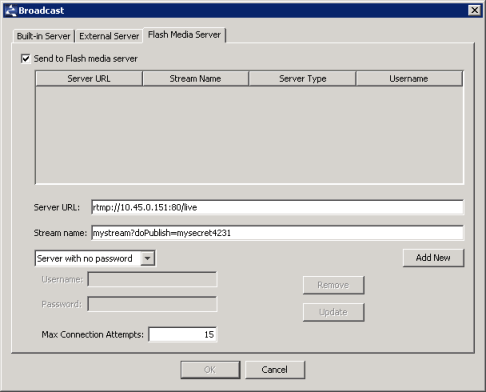
You would then append this secret as a query string on the stream name as below:

Security settings for RTMP stream publishing

The mount point for testing with VLC for this example would be still be rtsp://10.45.0.151:80/live/mystream
or from an iPhone http://10.45.0.151/live/mystream/playlist.m3u8 (assuming AVC Level 3.0 or lower and standard AAC audio).

Enabling Network Level Authentication on Windows XP by script

Migrating to Windows 7 has thrown up another problem – users wanting to connect from home computers running XP cannot use the Remote Desktop Client to connect to their newly upgraded office PCs. The Network Level Authentication change to the Remote Desktop Client was made because the original RDP is susceptible to Man-in-the-middle attacks.

Rather than leaving the new systems vulnerable by allowing connections from all clients in Computer Propertes > Remote settings, I discovered that Windows XP SP3 does in fact offer NLA support however it’s disabled by default. Somewhat frustratingly, the steps outlined in Microsoft KB 951608 require Registry edits which I would not want to encourage non-IT-savvy people to try. Giving out a .reg file is not really a good idea here either since these are additions to existing values, so forced replacements could interfere with certain vendors’ VPN clients etc.

Here’s a VBScript for the task which will only install on XP SP3 and will detect if the modifications have already been made. You could easily target it at a whole group of PCs by iterating through an array of hostnames.

'Enables Network Level Authentication on XP SP3 (disabled by default)
'which allows you to use the Remote Desktop Client 6.1 to connect to
'Windows 7 and Windows Server 2008 R2 without degrading security

Option Explicit

Const HKEY_LOCAL_MACHINE = &H80000002

Dim strLsaKey, strLsaValue, strHostname, size, arrMultiRegSZ, objReg, objWMI, colItems, i, found, modified
Dim objItem, SPlevel, strOSVer, strSecProvKey, strSecProvValue, strValue

strLsaKey = "SYSTEM\CurrentControlSet\Control\Lsa"
strLsaValue = "Security Packages"
strSecProvKey = "SYSTEM\CurrentControlSet\Control\SecurityProviders"
strSecProvValue = "SecurityProviders"
strHostname = "."
modified = false
found = false

Set objWMI = GetObject("winmgmts:{impersonationLevel=impersonate}!\\" & strHostname & "\root\cimv2")
Set colItems = objWMI.ExecQuery("SELECT * FROM Win32_OperatingSystem")
For Each objItem In colItems
  strOSVer = objItem.Version
  SPlevel = objItem.ServicePackMajorVersion
Next
If Not Left(strOSVer,3) = "5.1" Then
  WScript.Echo "This script is only intended for Windows XP."
  WScript.Quit
End If
If Not SPlevel >= 3 Then
  WScript.Echo "Please install the latest Windows XP Service Pack from Windows Update."
  WScript.Quit
End If

Set objReg = GetObject("winmgmts:{impersonationLevel=impersonate}!\\" & strHostname & "\root\default:StdRegProv")
objReg.GetMultiStringValue HKEY_LOCAL_MACHINE, strLsaKey, strLsaValue, arrMultiRegSZ
size = Ubound(arrMultiRegSZ)
For i=0 to size
  If arrMultiRegSZ(i) = "tspkg" Then
    found = true
  End If
Next
If found Then
  WScript.Echo "tspkg already added to HKLM\SYSTEM\CurrentControlSet\Control\Lsa"
Else
  ReDim Preserve arrMultiRegSZ(size + 1)
  arrMultiRegSZ(size + 1) = "tspkg"
  objReg.SetMultiStringValue HKEY_LOCAL_MACHINE, strLsaKey, strLsaValue, arrMultiRegSZ
  modified = true
End If

objReg.GetStringValue HKEY_LOCAL_MACHINE, strSecProvKey, strSecProvValue, strValue

If Instr(strValue,"credssp.dll") Then
  WScript.Echo "credssp.dll already added to HKLM\SYSTEM\CurrentControlSet\Control\SecurityProviders"
Else
  strValue = strValue & ", credssp.dll"
  objReg.SetStringValue HKEY_LOCAL_MACHINE, strSecProvKey, strSecProvValue, strValue
  modified = true
End If
If modified Then
  WScript.Echo "Settings updated. You will need to restart for the changes to become active."
End If

Set objReg = nothing
Set objWMI = nothing