Author Archives: patters

Printing and Windows 7 rollout

The goal is installing drivers automatically as printers are connected at logon, without user interaction.
If your users are non-privileged, you will need to add a Group Policy setting to suppress the elevation prompts. Using a PC running Vista or later with the Group Policy Management MMC tool, set:

  • Computer Configuration > Policies > Administrative Templates > Printers > Point and Print Restrictions

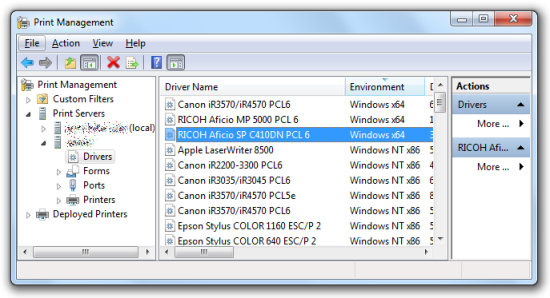
If your print servers are likely to remain on Windows 2003, you will most likely need to find a way of loading Windows 7 drivers for x86 and x64 architectures. You can’t do this on the Windows 2003 host, however you can accomplish this by using a Windows 7 machine and loading Print Management from Administrative Tools. Then right-click on Print Servers branch and add your 2003 print server. Now you can add the necessary drivers.

Print Management

The final problem is an intermittent one. Occasionally you will find that documents won’t print, and when you investigate, you will find a document in front of the print job in the print queue called Local Downlevel Document.

According to this thread, it transpires that Windows Vista and newer introduced a new protocol (Asynchronous RPC) and for some reason the OS is too stupid to actually check whether the remote print server supports it before attempting to use it (Windows 2003 does not support it).

The workaround is to set to disable Async RPC on Vista/Windows 7 clients, again by Group Policy. Set the following Registry value:

HKLM\Software\Policies\Microsoft\Windows NT\Printers\EnabledProtocols
Type: DWORD
Data: 6

DXVA H.264 playback on Intel GMA 500 with subtitles (Windows 7)

Update – This guide was updated on 04/04/2012

Out of the box, Windows 7’s Windows Media Player (WMP) will play HD video using the Intel GMA 500 and DirectX Video Acceleration (DXVA) to do the decode. Using the Matroska Splitter you will also be able to play MKV files. However, they may occasionally stutter and use a fair amount your humble Atom Z series CPU’s power (around 40-50% of 1.33GHz), and you won’t be able to use subtitles.

The PowerDVD H.264 decoder on the other hand will use about 10-20% less CPU, is less prone to locking up, and by using Media Player Classic Home Cinema (MPC-HC) you gain subtitle rendering support. Apparently PowerDVD does itself support MKVs with subtitles but on the several occasions I have attempted this with the trial version it has locked up and crashed. If you don’t have the PowerDVD decoder, you can use the ‘ffdshow tryouts’ open source decoder which is a very good alternative, but seems to suffer some screen tearing during high motion scenes while subtitles are enabled.

Ingredients

  • Media Player Classic Home Cinema (MPC-HC 1.60.4014 at the time of updating this document) – don’t confuse with Media Player Classic, this is a separate version
  • Matroska Splitter (optional) – this reads the MKV container format. MPC-HC has its own implementation included but you could use this if you want to play MKV files in Windows Media Player
  • Optional DirectVobSub subtitle renderer for Windows Media Player (will not work for MKVs), useful for Xvid/DivX files though
  • PowerDVD’s H.264 decoder CyberLink Combo MPEG-2/H.264/VC1 Decoder v.1.0.4960.3320
  • or ffdshow tryouts decoder – don’t use the beta release, it doesn’t have the DXVA decoder. I tested with the SVN build.
  • DirectX End-User Runtimes (June 2010) – required for the EVR Custom Presenter renderer which is needed for subtitle compositing

Method

Firstly disable Aero.

If you want to have subtitles in WMP for Xvid/DivX movies then download and register vsfilter.dll. To do this, copy the DLL to C:\Windows\System32 and open a Command Prompt using right-click & “Run as Administrator”. Then type
regsvr32 c:\windows\system32\vsfilter.dll

If later on you want to remove this, just open the Command Prompt as Administrator and type
regsvr32 /u c:\windows\system32\vsfilter.dll

When it’s registered you can open an Xvid AVI file in WMP and, as long as there’s an SRT subtitle file with the same filename as the AVI then you will see your subtitles. There will be a new icon in the system tray which will allow you to toggle subs, as well as choose the language if there are several sets of subs.

Now install Haali Splitter if you want MKV support in WMP and other players. When you load a MKV, it behaves in a similar way to VSFilter (icon in systray), except it’s even more versatile since MKV containers can have different soundtracks too.

Next, install MPC-HC.

Now use WinRAR to extract the DirectX End-User Runtime file you downloaded. In WinRAR, select File > Open, then change the filename dropdown from All archives to All archives including self-extracting. Browse to your downloaded directx_Jun2010_redist.exe and open it. Inside you will find some more archives. Drag and drop to extract the file Jun2010_d3dx9_43_x86.cab, then open this in WinRAR too. Extract the file d3dx9_43.dll into the folder C:\Program Files\Media Player Classic – Home Cinema.

Finally, install the Cyberlink H.264 decoder or ffdshow. During setup ffdshow will offer a choice of decoders to use, pick libavcodec (not ffmpeg-mt).

Now we need to configure MPC-HC. Load it then go to View -> Options.
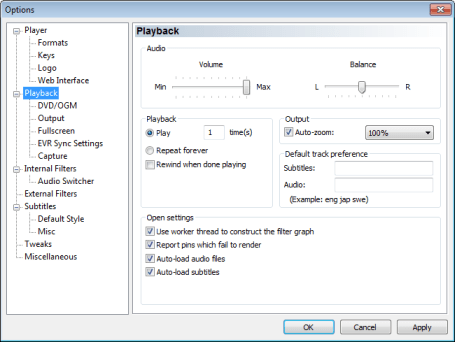
Go to Playback, and make sure Auto-load subtitles is set (assuming you want them). Note that you can also set language code preference orders for audio and subs:

Auto load subtitles

Move to the section called Output. If you will never use subtitles select EVR and don’t touch anything else.
If you do want subtitle support, use EVR Custom Presenter, reduce the EVR buffers from 5 to 4, and check the Alternative Vsync and D3D Fullscreen boxes. With the default settings the additional load of compositing subtitles brings the framerate down below 24fps, however by using these last two options we can just maintain 24fps.

Output settings

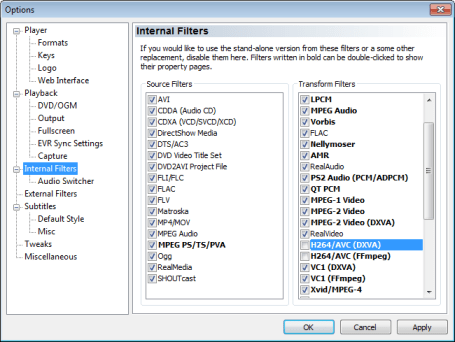
Now select the heading Internal filters and uncheck both H.264 options on the right. This stops MPC-HC using its own support for those features, since we’re going to use external modules for those. If you’re using the CyberLink Video Decoder version I posted above you can optionally uncheck the MP4/MOV and MKV source filters which will cause the CyberLink ones to be used instead (it doesn’t seem to improve performance).

Internal filters

Under the heading External Filters click Add. Then browse to the CyberLink Video Decoder and add it. Make sure to set it to Prefer on the right as shown. If you’re using ffdshow then instead add ffmpeg DXVA video decoder an set to Prefer.
If you installed the Vsfilter.dll subtitle driver (some other media players/codec packs will register this) we need to add DirectVobSub (auto-loading version) too, but select Block on the right. This prevents it from loading, since we’re using MPC-HC’s subtitle renderer. Apparently the way DirectVobSub renders is fundamentally incompatible with DXVA:

External filters

Close MPC-HC for the settings to take effect. At this point it’s a good idea to associate .mkv files with MPC-HC. If videos are launched by double clicking like this, when you pin MPC-HC to your Start Menu it will have that child menu showing you the last ten or so files you launched which is very useful.

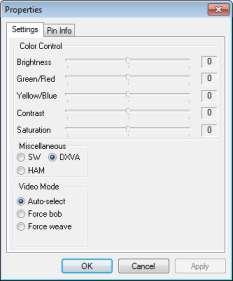
Start an H.264 encoded MKV in MPC-HC and as it starts to play, right-click on the video window and select Filters -> CyberLink Video Decoder. Check that DXVA is selected. I believe that HAM mode uses OpenCL on GPUs that support it (the GMA 500 doesn’t) which if I remember was recommended for ATI GPUs, the early ones having glitchy DXVA implementations apparently. If you’re using EVR Custom Presenter you wont be able to do this with D3D Fullscreen enabled, so toggle it and reload MPC-HC to verify this step.

CyberLink decoder filter settings

Close and reopen MPC-HC and you should be done! Though using D3D Fullscreen reduces tearing and seems to keep the framerate higher when using the EVR Custom Presenter renderer you cannot right-click and see the normal MPC-HC GUI elements. You have to use Ctrl-C to exit playback to modify settings. Two essential keyboard shortcuts are A to switch audio track, and S to switch subtitle track, though shortcut keys do exist for just about everything, and can be customised in the Player > Keys menu in Options.

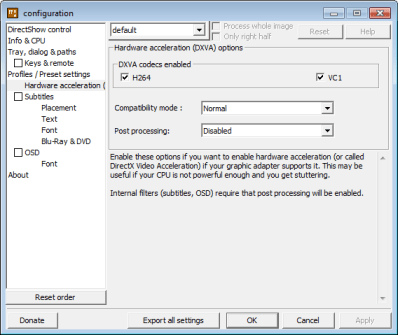
If using ffdshow you also need to enable hardware acceleration by running Start Menu > All Programs > ffdshow > DXVA video decoder configuration:

DXVA decoder settings

ffdshow’s built-in subtitle rendering seems to produce smeary artifacts on the picture so ignore those options and use MPC-HC’s subtitles instead.

If you have a video that won’t playback nicely with this setup then it’s likely that the bitrate is too high for the GMA 500 to cope with (a straight 1:1 rip from Blu-ray for instance) or perhaps the file has not been encoded to be fully DXVA compliant (quite likely with older stuff). Framerates over 24fps cannot really be played unfortunately.
There are some H.264 movie trailers available here for testing.
In my experience the GMA 500 in my VAIO P will play most 1080p content perfectly well, even outputting to a TV at 1920 x 1080. If in doubt about whether it’s dropping frames, while using EVR Custom Presenter you can press CTRL-J several times to view the frame rate (get rid of the graph and verbose text – they slow it down even more!).

Further reading

This handy guide explains in detail what all the options in MPC-HC mean.

Continue to DXVA VC-1 playback on Intel GMA 500 or learn how to get a surround sound experience from ordinary headphones.

Time lapse video in Apple iMovie 9

iMovie 9 allows you to speed up and slow down clips, but only to a maximum of 2000%. I recently needed to squeeze 25 minutes down to less than 30 seconds, which is more than that limit. I realised that I could speed up the clip, export, then re-import but that would result in a drop in quality caused by yet another transcode.

When you edit the speed of a clip, iMovie asks you to convert the source clip. It’s already performing one transcode to a QuickTime .mov file if it’s not already in that format. Fortunately it’s possible to edit the headers of this resulting .mov file using an Apple developer tool called Dumpster, available here:

http://developer.apple.com/quicktime/download/

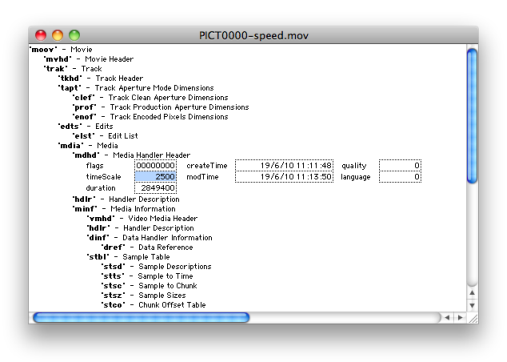
You need to expand the branches (work on a copy of your file for safety) and navigate to the timeScale atom:

moov > trak > mdia > mdhd > timeScale

Dumpster QuickTime header editing

I edited this from 50 frames per second to 2500 (so 50x faster). This will give the desired result, allowing fine tuning back in iMovie but if you want to be really thorough you should also edit the duration of your clip. Not doing this means that the clip still shows up as being its original length in the iMovie thumbnails, with the last frame of video displayed over and over. To fix that follow this method:

http://www.dvinfo.net/forum/high-definition-video-editing-solutions/472820-changing-frame-rate-mov-file.html

Set custom LCD panel text on PowerEdge R710 servers

I recently bought a pair of these servers to take over VMware duties from a pair of HP ProLiant DL380 G5 servers. Having had a few bad Dell experiences years ago I had stopped buying PowerEdge machines as I considered their design to be inferior (think PE1850) but I’m pleasantly surprised by these R710 machines.

One thing I couldn’t figure out once they were racked, was how to set the custom LCD text when an iDRAC6 card is present.

In the server’s own BIOS options there is a Custom LCD field but entering text here and restarting doesn’t change the panel – it still just shows the Service Tag. Strangely, the iDRAC BIOS doesn’t offer you any control here at all, it just lists what the custom string currently is.

To make matters worse, I had accidentally got the desired result on one of the servers, but couldn’t get the second one configured. The answer lies with the buttons next to the LCD. Though you can view IP settings, temperature, power usage, etc., there is also a Setup option. With 48GB of RAM, each POST of the machine takes about 5 minutes so I had been too cautious to mess about with these options in case I undid some of my initial iDRAC config. I assumed that they would only provide a subset of the BIOS options. Wrong! You need to use the panel – even the iDRAC WebUI doesn’t seem to configure the LCD screen.

As it turns out, this is what you have to do on the front panel:

  • Push the select button (the tick or check symbol)
  • Press right and highlight Setup
  • Push the select button again
  • Scroll right until you see Set Home, and select
  • Then select Name
  • Scroll all the way right until User string, and select
  • Save: Yes

Though I don’t have any to test, I assume the PowerEdge R610 + iDRAC6 will be similar.

Simple batch script for file renaming

Ever ended up with 100 files you need to rename? Like removing  ” copy” from each filename after a batch Photoshop action? Or removing ” (small)” after resizing a big folder of images using the Image Resizer Powertoy? When you start looking online for a tool to do this most of them are commercial software, even for something so outwardly simple.

Here’s something I wrote a while ago for a colleague who runs Photoshop actions. It seemed like an easy challenge but the script actually took a while to figure out, mainly because I was determined that it should call no additional programs. I managed in the end using a couple of neat tricks: delayed variable expansion, and the little-known string replace function of the Set command. I also allowed drag & drop for the target folder containing the files you want renaming.

The script below targets .jpg files but I’ve highlighted the lines you would need to edit to change its behaviour:

::simple batch file renamer
::
::EXPLANATION - delayed variable expansion must be enabled since we want to
::expand the vars on each pass, not just once as the whole FOR loop is parsed.
::The SET command includes some simple string substitution methods (see SET /?)
::Below, I am setting newname=oldname with " (small)" substituted to ""
::The script displays what it's about to do before it does it and also supports
::dragging and dropping of the target folder.
::
@echo off
setlocal ENABLEDELAYEDEXPANSION
set folderpath=
if "%~1"=="" (
  echo No target folder was dragged ^& dropped - using local directory.
) else (
  echo Opening folder %1
  set folderpath=%1\
)
echo.
call :rename echo
echo.
echo Proceed with rename? (CTRL-C to cancel).
pause
call :rename
goto :eof

:rename
for %%i in (%folderpath%*.jpg) do (
  set oldname=%%~ni%%~xi
  ::to replace " (Small)" with ""
  set newname=!oldname: ^(Small^)=!
  %1 ren "%%~fi" "!newname!"
)

Changing IP settings fast

When I need to keep changing TCP/IP settings to test networking configs it’s a real pain to have to keep opening up the adapter properties (especially on Windows 7) and usually I’m in too much of a hurry to lookup up the netsh command syntax. For that reason I’m posting this small script. Save it as ipset.cmd.

Note: using netsh to revert to DHCP seems to be intermittent if no DHCP server is available – e.g. if the adapter has no link.

Windows 7

@echo off
If "%1" == "" (
  echo Configures Local Area Connection
  echo   ipset address/maskbits gateway (dns)
  echo   ipset 192.168.1.99/24 192.168.1.254
  echo   ipset 192.168.1.99/24 192.168.1.254 8.8.8.8
  echo   ipset dhcp
  echo.
  goto :eof
)
If "%1" == "dhcp" (
  netsh interface ip set dnsservers name="Local Area Connection" source=%1
  netsh interface ip set address name="Local Area Connection" source=%1
  goto :eof
)
netsh interface ip set address name="Local Area Connection" source=static address=%1 gateway=%2
If "%3" == "" (
  :: OpenDNS public DNS servers
  netsh interface ip set dnsservers name="Local Area Connection" source=static address=208.67.222.222
  netsh interface ip add dnsservers name="Local Area Connection" address=208.67.222.220
) else (
  netsh interface ip set dnsservers name="Local Area Connection" source=static address=%3
)

Windows XP

@echo off
If "%1" == "" (
  echo Configures Local Area Connection
  echo   ipset address mask gateway
  echo   ipset 192.168.1.99 255.255.255.0 192.168.1.254
  echo   ipset dhcp
  echo.
  goto :eof
)
If "%1" == "dhcp" (
  netsh int ip set address local source=%1
  netsh int ip set dns local source=%1
  goto :eof
) else (
  netsh int ip set address local static %1 %2 %3 1
  :: OpenDNS public DNS servers
  netsh int ip add dns local 208.67.222.222 index=1
  netsh int ip add dns local 208.67.222.220 index=2
)

SIP with NAT on Netscreen Firewalls or: How I Learned to Stop Worrying and Love the ALG

The place where I work recently set up new additional business premises. The telephony system is a Mitel 3300 using SIP trunks directly from the cloud (Gamma Telecom). I’ve named the SIP provider only because this is likely to be important as a confirmed working example of Netscreen + Mitel + Gamma. This setup all seemed like a great idea until I wasted about a solid week of my time when it didn’t work as expected. A communications solutions provider designed and installed everything under contract but we supplied our own firewall – a Juniper Netscreen NS-50. Having used CheckPoint and Cisco PIX, I much prefer the Juniper for its decent GUI and instant policy changes (unlike CheckPoint). Our main motivation for using it was for consistency since we run another Netscreen at our main site.

Despite having many man-days of the comms company’s network specialists, Mitel specialists, dozens of packet traces, conversations with the SIP provider, and the reseller which supports our Netscreen, we made very little progress. The comms company were convinced the Netscreen was at fault despite never having flagged it up as a potential concern months earlier. Things were made more difficult by the lack of documented user experiences online which is why I’m writing this up. Many people using SIP tend to be using it between buildings, or to an internal gateway – not an external gateway on the public Internet. Also, it seems that other SIP-enabled PBXs can act as a media proxy which keeps things simple. However, although a Mitel PBX handles the call setup, each individual handset sends and receives media streams directly from the remote media gateway.

Can the Netscreen ALG translate Mitel 3300 SIP traffic? YES!

Despite most online opinions telling you to disable it, the Netscreen’s SIP ALG does indeed work correctly (running ScreenOS 5.4.0r16 in this case). Using an external SIP provider you absolutely will require a functioning ALG for inbound calls. Without it, you would need either a public IP for each handset in your organization, or a static translation in your firewall for each handset, or even a private tunnel to the SIP provider allowing them to route traffic for your private addresses. These aren’t very practical, though the last one can be implemented as a last ditch solution. I came very close to having to do that.

Before you start, read the ScreenOS 5.4 manual’s chapter on Voice over IP, particularly from page 23 onwards.

Configure your PBX as a MIP on the Untrust interface (typically Ethernet 3 on a Netscreen), making sure to create it on the trust-vr router (there’s a dropdown as you create the MIP).

Now create an Untrust to Trust policy as below. Leave the Application dropdown set to None (this will autoselect the most appropriate ALG – obviously SIP in this case):
Untrust-Trust firewall policy for SIP

Next create the Trust to Untrust policy defining the Source as network(s) which will include your PBX’s private address and those of all of your handsets. Widen the netmask if you need to. Note that I’ve had to include both the SIP and the Media gateways for the Destination:

Trust-Untrust firewall policy for SIP

From the outset the Netscreen was indeed translating IP addresses in the SDP fields of the packet datagrams, but the contractors were convinced that the ALG was faulty because it was trying to carry out call setup and media streaming on different IPs. As Gamma later pointed out – this is completely acceptable. Their endpoint does the same after all.

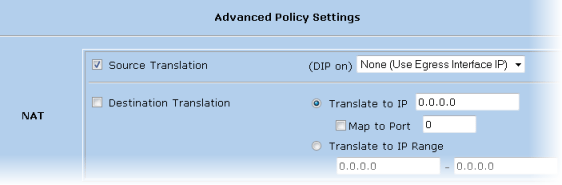
Though I was already doing this, according to Juniper KB7407 for the SIP ALG to work correctly you will need to use Policy-based NAT, not Interface-based – i.e. the Trust interface will need to be in Route mode, not NAT mode. Then for each Trust to Untrust policy you will need to click on Advanced and enable source translation like so:
Policy-based NAT

This is what gives you the blue policy action icon shown in the earlier screenshot. The firewall will NAT outbound SIP traffic on the MIP, but RTP media streams from the handsets will be NATed on the firewall egress interface (ethernet3). This is by design – don’t let anyone tell you this won’t work, because it does!

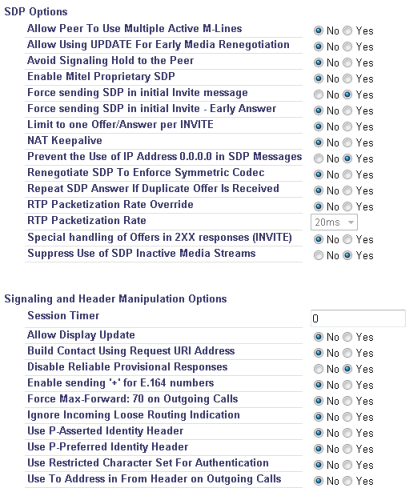
I can vouch for these settings, so if your test calls still aren’t connecting then it’s quite likely that either your firewall policy isn’t quite right (try temporarily relaxing the policies by adding some Any values), or the Mitel isn’t correctly configured. In my case I got Gamma Telecom to send over their best practice guide for the Mitel 3300 from their knowledgebase which revealed that a few settings had been set differently on ours including the contentious sounding Enable Mitel proprietary SDP which Gamma wanted disabled. Another crucial one is Suppress Use of SDP Inactive Media Streams – without it you won’t be able to transfer external calls to another handset. Their screenshot looked to be from an earlier release of the Mitel software so here is a view of our working settings taken from Trunks > SIP > SIP Peer Profile in the WebUI:

SIP peer profile settings

For inbound calls to your PBX, double-check how many digits of your DDI numbers the remote SIP endpoint is sending in the SIP message headers and configure the Mitel to match – we had a mismatch here with ours which again would have spoiled many of our earlier tests. Set the number of leading digits that get truncated off the incoming DDI to transform it into an internal extension number at Trunks > Trunk Attributes > Dial In Trunks Incoming Digit Modification – Absorb.

It’s worth stating that this Netscreen/Mitel configuration works with the default endpoint config at the Gamma Telecom end. During troubleshooting they changed many settings which may have complicated things even more, but I am told it has all been reset to the standard specification.

To debug the SIP ALG on the Netscreen download PuTTY and enable logging to a file. Then SSH into your Netscreen and type:

set dbuf size 512
clear dbuf
debug sip all

Now carry out your test call, then:

undebug all
get dbuf stream
set dbuf size 128

This will dump pages of output to the screen, too much for the buffer but now you can open the log file you told PuTTY to save.

There are so many variables to getting this to work, and you will most likely have to draw on the expertise of several different people, but the only way forward is careful methodical testing. Never change more than one thing at a time. In my case the working solution saw me use the exact same firewall settings I had used at the very beginning. The issues turned out to be solved by tweaking of the PBX and remote SIP gateway, though in the thick of it I also upgraded from ScreenOS 5.4.0r8 to 5.4.0r16. However, because the comms contractor kept sending different people to work on the problem the testing was not really consistent until it was just me alone dealing directly with Gamma Telecom support, in control of the firewall, and with WebUI access to the Mitel.

Good luck! If this page saves days of your life going stir crazy in a comms room, nights away at a remote site staying in a hotel etc., then I’d love to hear about it. As you can guess I wasn’t so lucky…

UPDATE – unfortunately transferring external calls is not currently possible with this setup. It looks like that ALG isn’t dealing correctly with the way the Mitel does this (a second INVITE, placing RTP stream on hold etc.).

UPDATE 2 – enabling the Mitel SIP Peer Profile setting Suppress Use of SDP Inactive Media Streams fixes call transfers with consultation (I updated the screenshot above). Blind call transfers still don’t work unfortunately.

Moving your SQL 2005 databases ready for VSS off-host backups

Many storage vendors now offer hardware Volume ShadowCopy Service providers for their storage arrays which allow the SAN itself to carry out the snapshot, rather than the underlying OS. These providers are Exchange- and SQL-aware so they will quiesce the transaction logs just before the snapshot.

The big win here is off-host backup – the target server asks the SAN to snap the data volume then carries on as normal. The backup media server meanwhile will mount this SAN snapshot and back it up directly from the SAN. In this way you can backup SQL and Exchange environments in the middle of the day without any performance degradation (assuming of course that you have the IOPS headroom on the SAN). Symantec Backup Exec 12.5 and later supports this technology but it must be purchased as an option – Advanced Disk-based Backup Option or ADBO.

However, to off-host backup Exchange or SQL you will need to have both the databases/mail stores and the transaction logs on the same SAN LUN. This flies in the face of the old wisdom of segregating logs onto RAID1 spindles, but it’s important to realise that a modern SAN makes this perfectly viable. The EqualLogic PS4000XV in my environment for instance has a write latency of <1.0ms in RAID50. Microsoft used to recommend keeping SQL logs on disk with a write latency sub 10ms (now they say 1-5ms).

Moving all of the transaction logs on a crowded SQL server is tricky for several reasons:

  • the Transact-SQL database alter command requires you to know the database’s logical filenames. On an SQL 2005 server, these are largely predictable but it gets complicated when some of the DBs have migrated from SQL 2000 and if some of them were restored from backups of databases with different names (dev or test versions which then went into production for example).
  • the system databases are likely to be on C: and if you want to grab all DBs in one backup job these will need moving too (TempDB is usually ignored by most backup software and can stay where it is).
  • though some guides on the Web suggest detaching and re-attaching the DBs – this is a surefire way to end up with a total disaster since the re-attached DBs will have new GUIDs which will wreck SharePoint amongst others.

Backing up then restoring your databases specifying new file paths is one method but the danger is that you would need to isolate them so that no changes occurred during that time window (which could be a long time).

Moving user databases

The best solution for these is 99% careful preparation work – to build a long list of T-SQL database alter commands to change the SQL file references, and a batch script to move the actual files to the database drive. You can also use this as an opportunity to clean up any badly named files, and move ones that are in the wrong place.

It is highly recommended that if you haven’t already done so, you should set the following registry values on the SQL server which will guard against future inconsistencies. If they already exist, check they’re still valid:

HKEY_LOCAL_MACHINE\SOFTWARE\Microsoft\Microsoft SQL Server\MSSQL.1\MSSQLServer\DefaultData
HKEY_LOCAL_MACHINE\SOFTWARE\Microsoft\Microsoft SQL Server\MSSQL.1\MSSQLServer\DefaultLog
HKEY_LOCAL_MACHINE\SOFTWARE\Microsoft\Microsoft SQL Server\MSSQL.1\MSSQLServer\BackupDirectory
HKEY_LOCAL_MACHINE\SOFTWARE\Microsoft\Microsoft SQL Server\MSSQL.1\MSSQLServer\FullTextDefaultPath

For each database you need to run the following Transact-SQL:

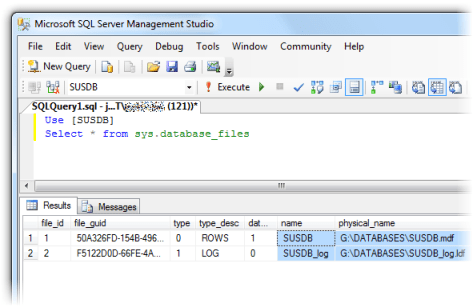
Use [DBname]
Select * from sys.database_files

This will return all the files in the filegroup including full text catalogs (if they exist) together with their logical names (name column):
Database logical filenames

In this example the transaction log is already in the desired location, but it if was in say C:\TRANSACTIONS LOGS we would need to write:

alter database [SUSDB] modify file (name = SUSDB_log, filename = 'G:\DATABASES\SUSDB_log.ldf')

You would then add this to your file move batch script:

move /y "C:\TRANSACTION LOGS\SUSDB_log.LDF" G:\DATABASES\SUSDB_log.ldf

My method was to run a full SQL backup to commit the transaction logs (less data to move), run the alter database commands all at once (which don’t take effect until the SQL Server service next starts), stop the SQL Server service, run the file move batch script, check for any errors, then start the SQL Server service again. Once it’s up, you can try to expand each database in SQL Management Studio. Any databases with damaged file paths will not expand. Refer back to your command prompt window to try and figure out what went wrong (usually a typo).

In this way you should be able to move all of the logs with a bare minimum of downtime – several minutes in my case.

Moving system databases

Moving system databases is fairly straightforward, but it will require a little more downtime. Again, I’d probably leave TempDB where it is to separate its I/O from the rest as it can be high and we don’t need to back it up. If you do want to move it, the procedure is the same as any non-system database. The rest though are special cases.

Run the following and note the current file locations which will probably be in C:\Program Files\Microsoft SQL Server\MSSQL.1\MSSQL\DATA

use model
select * from sys.database_files
use msdb
select * from sys.database_files
use master
select * from sys.database_files

Now close SQL Management Studio and run the following from a Command Prompt (the parameters are case sensitive!):

net stop mssqlserver
net start mssqlserver /c /m /T3608

Open SQL Management Studio again but read this carefully. With these startup parameters, SQL Server will only allow a single connection. The default behaviour of the GUI is to open the Object Explorer window once you connect, which counts as a connection. You need to click on the Disconnect button, and close the Object Explorer child window. You should then be able to open a New Query.
If you closed the Object Explorer without disconnecting you’ll get the error “Server is in single user mode. Only one administrator can connect at this time.” and you’ll need to stop and start the service again, as above, and repeat. Next:

sp_detach_db 'model'
sp_detach_db 'msdb'

Move the files to the new location (logs and databases remember), then run the following taking care to substitute in your new file paths:

sp_attach_db 'model','G:\DATABASES\model.mdf','G:\DATABASES\modellog.ldf'
sp_attach_db 'msdb','G:\DATABASES\msdbdata.mdf','G:\DATABASES\msdblog.ldf'

Stop the SQL Server service. Start it again normally (no parameters) and check you can expand model and msdb in Management Studio.

We just have the master database left to move. Stop the SQL Server service again. Move master’s log and database files to the new location. On the SQL server machine’s console, open Start Menu > Programs > Microsoft SQL Server 2005 > Configuration Tools > SQL Server Configuration Manager.
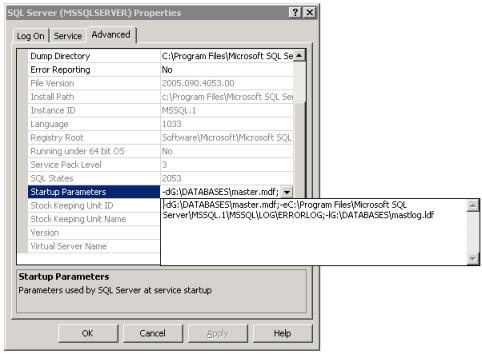
In the category SQL 2005 Services, select SQL Server (MSSQLSERVER) and look at the Properties. Select the Advanced tab. Select Startup Parameters and pull down the dropdown next to it.
Change the value from the defaults of:

-dC:\Program Files\Microsoft SQL Server\MSSQL.1\MSSQL\DATA\master.mdf;-eC:\Program Files\Microsoft SQL Server\MSSQL.1\MSSQL\LOG\ERRORLOG;-lC:\Program Files\Microsoft SQL Server\MSSQL.1\MSSQL\DATA\mastlog.ldf

to your new file paths (don’t change the error log path by accident):

-dG:\DATABASES\master.mdf;-eC:\Program Files\Microsoft SQL Server\MSSQL.1\MSSQL\LOG\ERRORLOG;-lG:\DATABASES\mastlog.ldf

SQL Server Configuration Manager
Finally, start the SQL Server Service. Done!

The trouble with full-text catalogs

If you rely on the EqualLogic Auto-Snaphot Manager to tell you whether your databases now support SAN snapshots you could be in for a surprise when you backup using ADBO in Backup Exec:

V-79-57344-34086 – ADBO: Offhost backup initialization failure on: “myhostname.domain.com”.
Snapshot provider error (0xE0008526): Backup Exec could not locate a Microsoft Volume Shadow Copy Services (VSS) software or hardware snapshot provider for this job. Select a valid VSS snapshot provider for the target computer.
Check the Windows Event Viewer for details.

This is an awful error message because it doesn’t really describe the problem (and you won’t find anything meaningful in the Event Viewer). It almost looks like a registration failure of the Hardware VSS Provider, which is misleading, and caused me about 2 hours of out-of-hours work reinstalling it, taking the server offline, etc. to satisfy Symantec Support. However, run a job with the same selection list but using normal AOFO (Advanced Open File Backup) and you get:

AOFO: Initialization failure on: “myhostname.domain.com”. Advanced Open File Option used: Microsoft Volume Shadow Copy Service (VSS).
V-79-10000-11219 – VSS Snapshot error. The volume or snapped volume may not be available or may not exist. Check the configuration of the snapshot provider, and then run the job again.
The following volumes are dependent on resource: “C:” “D:” “G:”.

Much clearer – there’s a dependency on the D: drive being detected, the drive I migrated from. By chance I changed the backup selection list realised that some databases backed up while others didn’t. The cause turned out to be a full text catalog.

The EqualLogic ASM only checks the database and log files, not full-text catalogs. Moving these seems to be pretty difficult. Microsoft have an MSDN document describing database moves (see section on catalogs further down the page). I have tried following this process to the letter, and when that didn’t work I tried various permutations of stopping the SQL Server service, the SQL FullText Search service (which seems to autorestart), the SQL Server Agent service, copying the files, not copying the files (expecting SQL to move them) etc. No combination seemed to work for me. What I found was that, while it is easy enough to move the catalog path like so:

alter database [ExampleDB] modify file (name = [sysft_ExampleDB], filename = 'G:\DATABASES\FTData\ExampleDB')

there is some meta data that does not get updated and the ADBO backup will still fail when the VSS provider checks all the file dependencies.
sys.database_files shows the correct paths. Eventually I discovered that

Select * from sys.fulltext_catalogs

still showed the old location for the catalogs. The only way I could find to get this to update was to rebuild the full-text catalog in SQL Management Studio – expand the database > Storage > Full Text Catalogs > right-click > Rebuild.

For me this was acceptable and quick, but I imagine some infrastructures might not be so tolerant of a rebuild.

Outlook stationery – scripting default font and HTML signature

Many organizations decide to use a house style for email, and being able to force a default font is the only reliable way to get this consistent. I do this with the login script.

What’s difficult about it is that it’s not just a minor registry edit – the font styles are actually written in HTML and then stored in binary in the registry. The best way to get them modified is to use an Outlook client to make the changes, then grab them from the registry. They’re stored at:

HKEY_CURRENT_USER\Software\Microsoft\Office\12.0\Common\MailSettings

In Outlook you need to edit the stationery in Tools > Options > Mail Format tab > Stationery and Fonts, making sure to change the font for both new messages and replies.

The registry values which are modified are:

  • ComposeFontComplex
  • ComposeFontSimple
  • ReplyFontComplex
  • ReplyFontSimple

Here’s what my ComposeFontComplex looks like converted back to text:

<html>

<head>
<style>

 /* Style Definitions */
 span.PersonalComposeStyle
	{mso-style-name:"Personal Compose Style";
	mso-style-type:personal-compose;
	mso-style-noshow:yes;
	mso-style-unhide:no;
	mso-ansi-font-size:10.0pt;
	mso-bidi-font-size:11.0pt;
	font-family:"Verdana","sans-serif";
	mso-ascii-font-family:Verdana;
	mso-hansi-font-family:Verdana;
	mso-bidi-font-family:"Times New Roman";
	mso-bidi-theme-font:minor-bidi;
	color:windowtext;}
-->
</style>
</head>

</html>

The cleanest way to script this is to export the values from regedit (they will be in hex) and insert them into the script unmodified with the line breaks intact. Then you just quote and line-wrap them, split them into an array on the ”,” character and use a hex-to-binary function before inserting them into the user registry. Here is my example OutlookStationery subroutine for reference  (note that it’s not a working script – some objects are defined elsewhere, e.g. objReg, the Active Directory job title, name, surname etc.):

Sub OutlookStationery
  'Standardized Outlook signature based on AD data
  WScript.Echo "Updating Outlook signature and default font"
  Dim objWord, objDoc, objSelection, objEmailOptions, objSignatureObject, objSignatureEntries, objLink
  Set objWord = CreateObject("Word.Application")
  Set objDoc = objWord.Documents.Add()
  Set objSelection = objWord.Selection
  Set objEmailOptions = objWord.EmailOptions
  Set objSignatureObject = objEmailOptions.EmailSignature
  Set objSignatureEntries = objSignatureObject.EmailSignatureEntries
  objSelection.TypeText strFirstName & " " & strSurname
  objSelection.TypeText(Chr(11))
  objSelection.TypeText strTitle
  objSelection.TypeText(Chr(11))
  objSelection.TypeText(Chr(11))
  objSelection.TypeText "Tel +xx xxx xxxx " & strExtension
  objSelection.TypeText(Chr(11))
  objSelection.TypeText "Fax +xx xxx xxxx xxxx"
  objSelection.TypeText(Chr(11))
  objSelection.TypeText "Web "
  Set objLink = objSelection.Hyperlinks.Add(objSelection.Range,"http://mycompanywebsite.com/",,"My Company Website","companywebsite.com")
  objSelection.TypeText(Chr(11))
  objSelection.TypeText(Chr(11))
  objSelection.TypeText "The Company Name"
  objSelection.TypeText(Chr(11))
  objSelection.TypeText "Address Line 1"
  objSelection.TypeText(Chr(11))
  objSelection.TypeText "Address City"
  objSelection.TypeText(Chr(11))
  objSelection.TypeText(Chr(11))
  objselection.Font.Bold = True
  objSelection.TypeText "Company"
  objselection.Font.Bold = False
  objSelection.TypeText " strapline goes here"
  Set objSelection = objDoc.Range()
  objSelection.Font.Name = "Verdana"
  objSelection.Font.Size = "10"
  objSignatureEntries.Add "Standard Signature", objSelection
  objSignatureObject.NewMessageSignature = "Standard Signature"
  objSignatureObject.ReplyMessageSignature = ""
  objDoc.Saved = True
  objWord.Quit

  'Force the default font for Outlook messages. The hex arrays are captures from a Regedit export, line breaks intact for easy later amendment
  Dim arrComposeFontComplexHex, arrComposeFontComplex, arrReplyFontComplexHex, arrReplyFontComplex
  Dim arrComposeFontSimpleHex, arrComposeFontSimple, arrReplyFontSimpleHex, arrReplyFontSimple

  arrComposeFontComplexHex = Split ("3c,68,74,6d,6c,3e,0d,0a,0d,0a,3c,68,65,61,64,3e,0d,0a," &_
   "3c,73,74,79,6c,65,3e,0d,0a,0d,0a,20,2f,2a,20,53,74,79,6c,65,20,44,65,66,69," &_
   "6e,69,74,69,6f,6e,73,20,2a,2f,0d,0a,20,73,70,61,6e,2e,50,65,72,73,6f,6e,61," &_
   "6c,43,6f,6d,70,6f,73,65,53,74,79,6c,65,0d,0a,09,7b,6d,73,6f,2d,73,74,79,6c," &_
   "65,2d,6e,61,6d,65,3a,22,50,65,72,73,6f,6e,61,6c,20,43,6f,6d,70,6f,73,65,20," &_
   "53,74,79,6c,65,22,3b,0d,0a,09,6d,73,6f,2d,73,74,79,6c,65,2d,74,79,70,65,3a," &_
   "70,65,72,73,6f,6e,61,6c,2d,63,6f,6d,70,6f,73,65,3b,0d,0a,09,6d,73,6f,2d,73," &_
   "74,79,6c,65,2d,6e,6f,73,68,6f,77,3a,79,65,73,3b,0d,0a,09,6d,73,6f,2d,73,74," &_
   "79,6c,65,2d,75,6e,68,69,64,65,3a,6e,6f,3b,0d,0a,09,6d,73,6f,2d,61,6e,73,69," &_
   "2d,66,6f,6e,74,2d,73,69,7a,65,3a,31,30,2e,30,70,74,3b,0d,0a,09,6d,73,6f,2d," &_
   "62,69,64,69,2d,66,6f,6e,74,2d,73,69,7a,65,3a,31,31,2e,30,70,74,3b,0d,0a,09," &_
   "66,6f,6e,74,2d,66,61,6d,69,6c,79,3a,22,56,65,72,64,61,6e,61,22,2c,22,73,61," &_
   "6e,73,2d,73,65,72,69,66,22,3b,0d,0a,09,6d,73,6f,2d,61,73,63,69,69,2d,66,6f," &_
   "6e,74,2d,66,61,6d,69,6c,79,3a,56,65,72,64,61,6e,61,3b,0d,0a,09,6d,73,6f,2d," &_
   "68,61,6e,73,69,2d,66,6f,6e,74,2d,66,61,6d,69,6c,79,3a,56,65,72,64,61,6e,61," &_
   "3b,0d,0a,09,6d,73,6f,2d,62,69,64,69,2d,66,6f,6e,74,2d,66,61,6d,69,6c,79,3a," &_
   "22,54,69,6d,65,73,20,4e,65,77,20,52,6f,6d,61,6e,22,3b,0d,0a,09,6d,73,6f,2d," &_
   "62,69,64,69,2d,74,68,65,6d,65,2d,66,6f,6e,74,3a,6d,69,6e,6f,72,2d,62,69,64," &_
   "69,3b,0d,0a,09,63,6f,6c,6f,72,3a,77,69,6e,64,6f,77,74,65,78,74,3b,7d,0d,0a," &_
   "2d,2d,3e,0d,0a,3c,2f,73,74,79,6c,65,3e,0d,0a,3c,2f,68,65,61,64,3e,0d,0a,0d," &_
   "0a,3c,2f,68,74,6d,6c,3e,0d,0a", ",")

  arrReplyFontComplexHex = Split ("3c,68,74,6d,6c,3e,0d,0a,0d,0a,3c,68,65,61,64,3e,0d,0a," &_
   "3c,73,74,79,6c,65,3e,0d,0a,0d,0a,20,2f,2a,20,53,74,79,6c,65,20,44,65,66,69," &_
   "6e,69,74,69,6f,6e,73,20,2a,2f,0d,0a,20,73,70,61,6e,2e,50,65,72,73,6f,6e,61," &_
   "6c,52,65,70,6c,79,53,74,79,6c,65,0d,0a,09,7b,6d,73,6f,2d,73,74,79,6c,65,2d," &_
   "6e,61,6d,65,3a,22,50,65,72,73,6f,6e,61,6c,20,52,65,70,6c,79,20,53,74,79,6c," &_
   "65,22,3b,0d,0a,09,6d,73,6f,2d,73,74,79,6c,65,2d,74,79,70,65,3a,70,65,72,73," &_
   "6f,6e,61,6c,2d,72,65,70,6c,79,3b,0d,0a,09,6d,73,6f,2d,73,74,79,6c,65,2d,6e," &_
   "6f,73,68,6f,77,3a,79,65,73,3b,0d,0a,09,6d,73,6f,2d,73,74,79,6c,65,2d,75,6e," &_
   "68,69,64,65,3a,6e,6f,3b,0d,0a,09,6d,73,6f,2d,61,6e,73,69,2d,66,6f,6e,74,2d," &_
   "73,69,7a,65,3a,31,30,2e,30,70,74,3b,0d,0a,09,6d,73,6f,2d,62,69,64,69,2d,66," &_
   "6f,6e,74,2d,73,69,7a,65,3a,31,31,2e,30,70,74,3b,0d,0a,09,66,6f,6e,74,2d,66," &_
   "61,6d,69,6c,79,3a,22,56,65,72,64,61,6e,61,22,2c,22,73,61,6e,73,2d,73,65,72," &_
   "69,66,22,3b,0d,0a,09,6d,73,6f,2d,61,73,63,69,69,2d,66,6f,6e,74,2d,66,61,6d," &_
   "69,6c,79,3a,56,65,72,64,61,6e,61,3b,0d,0a,09,6d,73,6f,2d,68,61,6e,73,69,2d," &_
   "66,6f,6e,74,2d,66,61,6d,69,6c,79,3a,56,65,72,64,61,6e,61,3b,0d,0a,09,6d,73," &_
   "6f,2d,62,69,64,69,2d,66,6f,6e,74,2d,66,61,6d,69,6c,79,3a,22,54,69,6d,65,73," &_
   "20,4e,65,77,20,52,6f,6d,61,6e,22,3b,0d,0a,09,6d,73,6f,2d,62,69,64,69,2d,74," &_
   "68,65,6d,65,2d,66,6f,6e,74,3a,6d,69,6e,6f,72,2d,62,69,64,69,3b,0d,0a,09,63," &_
   "6f,6c,6f,72,3a,23,31,46,34,39,37,44,3b,0d,0a,09,6d,73,6f,2d,74,68,65,6d,65," &_
   "63,6f,6c,6f,72,3a,64,61,72,6b,32,3b,7d,0d,0a,2d,2d,3e,0d,0a,3c,2f,73,74,79," &_
   "6c,65,3e,0d,0a,3c,2f,68,65,61,64,3e,0d,0a,0d,0a,3c,2f,68,74,6d,6c,3e,0d,0a", ",")

  arrComposeFontSimpleHex = Split ("3c,00,00,00,1f,00,00,f8,00,00,00,40,c8,00,00,00,00,00," &_
   "00,00,00,00,00,ff,00,22,56,65,72,64,61,6e,61,00,00,00,00,00,00,00,00,00,00," &_
   "00,00,00,00,00,00,00,00,00,00,00,00,00,00,00,00,00", ",")

  arrReplyFontSimpleHex = Split ("3c,00,00,00,1f,00,00,f8,00,00,00,00,c8,00,00,00,00,00,00," &_
   "00,1f,49,7d,00,00,22,56,65,72,64,61,6e,61,00,00,00,00,00,00,00,00,00,00,00," &_
   "00,00,00,00,00,00,00,00,00,00,00,00,00,00,00,00", ",")

  arrComposeFontComplex = ArrayHexToDec(arrComposeFontComplexHex)
  arrReplyFontComplex = ArrayHexToDec(arrReplyFontComplexHex)
  arrComposeFontSimple = ArrayHexToDec(arrComposeFontSimpleHex)
  arrReplyFontSimple = ArrayHexToDec(arrReplyFontSimpleHex)

  objReg.SetBinaryValue HKEY_CURRENT_USER,"Software\Microsoft\Office\12.0\Common\MailSettings", "ComposeFontComplex", arrComposeFontComplex
  objReg.SetBinaryValue HKEY_CURRENT_USER,"Software\Microsoft\Office\12.0\Common\MailSettings", "ReplyFontComplex", arrReplyFontComplex
  objReg.SetBinaryValue HKEY_CURRENT_USER,"Software\Microsoft\Office\12.0\Common\MailSettings", "ComposeFontSimple", arrComposeFontSimple
  objReg.SetBinaryValue HKEY_CURRENT_USER,"Software\Microsoft\Office\12.0\Common\MailSettings", "ReplyFontSimple", arrReplyFontSimple
End Sub

Function ArrayHexToDec(arrHex)
  Dim i, arrDec
  ReDim arrDec(UBound(arrHex))
  For i = 0 to UBound(arrHex)
    If arrHex(i) = "00" Then
      arrDec(i) = 0
    Else
      arrDec(i) = CByte("&H" & arrHex(i))
    End If
  Next
  ArrayHexToDec = arrDec
End Function

Growing a system or boot partition on a live server

I migrated most of the infrastructure I work on to vSphere 4.0 last year and since then have live-resized a fair few disks as needed. For most of these it was the data partition that was increasing so it was a quick case of growing the vmdk, then loading up diskpart in the VM, selecting the partition, and typing extend.

However, as any reader of VMware or Microsoft KB articles will know – you cannot do this to a system/boot volume, only data volumes. Or can you?

I was recently shown a fantastic tool for this purpose – Extpart, which is made by Dell. Amazingly, it’s seven whole years old! If you read this, help spread the word.

If you’re on a 64bit machine you’ll find that it refuses to run. The .exe on the Dell site is actually a self-extracting zip file, not the tool itself. Use an archiver (7-Zip, WinRAR, etc.) and you’ll be able to extract it.