Author Archives: patters

Optimizing virtual SQL Server performance

Some months ago I implemented these steps and saw a striking improvement in the performance of our applications (between 2x and 4x depending on the query):

  • Firstly, if you’re using iSCSI, make sure the network switches are ones which have been validated as ok by your storage vendor. I’ve run into poor performance using ones which ought to have worked and offered all the required features (Flow Control, Jumbo Frames), but which in reality were causing problems.
  • If you’re using iSCSI with a software initiator (be it at hypervisor or guest OS level), consider using Jumbo Frames to reduce I/O related CPU activity.
  • Move your VMDKs to a new SAN VMFS volume that is Thick-Provisioned. Although in my environment the EqualLogic array extends LUNs by 16MB at a time, over time this can fragment things appreciably. With a 1TB LUN this can get pretty bad.
  • Use Storage vMotion to make the VMDK files Thick Provisioned too. This eliminates fragmentation of the VMDK since it’s no longer growing in small increments. I think this made quite a big difference, despite a whitepaper from VMware denying a performance impact. The reasoning is that since the storage array has a big cache, having the data fragmented all over the disks shouldn’t really matter that much. I don’t really believe it, and my own results seemed to prove otherwise (what about a backup operation which will need to read your data sequentially in one long pass?). My SQL server vMotion operations were very slow compared to other servers, suggesting they were heavily fragmented in their old location.
  • Move all of your databases (including these system ones: msdb, model, master), their logs, and fulltext catalogs to a SAN LUN directly attached inside the Guest VM using Microsoft iSCSI initiator and your SAN vendor’s Integration Tools. If you use Vmxnet3 adapters then the TCP calculation overhead will be handled by the hypervisor which in turn can be passed to Broadcom bnx2 TOE NICs if you’re using vSphere 4.1. Having the databases on a separate LUN allows off-host backup of the databases using Backup Exec with your SAN vendors’ SQL-aware VSS Hardware Provider. Database backups can then occur at any time without any impact to the SQL server’s performance. I have written a dedicated post on this subject.
  • Create that SAN partition with its NTFS blocks aligned with the SAN’s own disk blocks to ensure no needless multiplication of I/O (64KB offset for EqualLogic – full explanation here).
  • Keep TempDB on the C: drive in its default location. That way I/O to that database is segregated and can be cached differently since it is using VMware’s iSCSI initiator and not the Microsoft initiator. Typically TempDB has high I/O, but it’s not a database that you need to back up so you don’t need to be able to snapshot it on the SAN.
  • Create an SQL management task to rebuild and defragment the database indexes and update their statistics every week (say, Sunday at 3:00am).
  • Change database file autogrow amounts from 1MB to 64MB to mitigate NTFS-level fragmentation of the database MDF files as they grow.

Dell OptiPlex GX280 Windows 7 drivers

Dell do not make any Windows 7 drivers available for the OptiPlex GX280 even though this machine can run it acceptably (32bit only). Where I work there are a few of these machines which will be kept as spares if any of the main stock of OptiPlex GX620 machines fail and need repairing, and for miscellaneous duties like driving plasma screens in reception etc.

These machines use the Intel 915G integrated video card which frustrated people by being advertised as Vista-ready (supporting Aero Glass transparency in the Vista Beta) but then having Aero support withdrawn completely. Since there is no WDDM driver for this chip, we need to use the XDDM (XP Display Driver Model) driver. For some laptops Windows Update will detect and install this driver, but not in this case. Intel also seem to hide it away on their download site. It can be found by navigating:

Graphics > Laptop Graphics Controllers > Mobile Intel® 915GM/GMS, 910GML Express Chipset Family > Windows XP Professional

…or directly from here.

The SoundMAX Integrated Audio is detected and installed by Windows Update, but if you’re maintaining a WIM image or building an unattended install you’ll need to isolate the driver files. These are also available at Microsoft Update Catalog – search for SoundMAX Integrated Digital Audio, order by date and look for the Windows 7 driver published on 10/31/2006 version 5.12.01.7010.

Upgrading vSphere ESXi 4.0 to 4.1 with Dell EqualLogic storage

There are several big motivators to moving over to vSphere 4.1 with respect to storage. Firstly, there’s support for vStorage APIs in new EqualLogic array firmwares (starting at v5.0.0 which sadly, together with 5.0.1 have been withdrawn pending some show-stopping bugs). VM snapshot and copy operations will be done by the SAN at no I/O cost to the hypervisor. Next there’s the support for vendor-specific Multipathing Extension Modules – EqualLogic’s one is available for download under the VMware Integration category. Finally, there’s the long overdue TCP Offload Engine (TOE) support for Broadcom bnx2 NICs. All of this means a healthy increase in storage efficiency.

If you’re upgrading to vSphere 4.1 and have everything set up as per Dell EqualLogic’s vSphere 4.0 best practice documents you’ll first need to:

  • Upgrade the hypervisors using vihostupdate.pl as per VMware’s upgrade guide, taking care to backup their configs first with esxcfg-cfgbackup.pl
 

Once that’s done choose an ESXi host to update, and put it in Maintenance Mode.

Make a note of your iSCSI VMkernel port IP addresses.

Make sure your ScratchConfig (Configuration -> Advanced Settings) is set to local storage. Reboot and check the change has persisted.

If the server has any Broadcom bnx2 family adapters they will now be treated as iSCSI HBAs so they will each have a vmhba designation. So, to unassign the previous explicit bindings to the Software iSCSI Initiator you need to check for its new name in the Storage Adapters configuration page.

You can’t unbind the VMkernel ports while there is an active iSCSI session using them so edit the properties of the Software iSCSI Initiator and remove the Dynamic and Static targets, then perform a rescan. Find your bound VMkernel ports using the vSphere CLI (replacing vmhba38 with the name of your software initiator):

bin\esxcli --server svr --username user --password pass swiscsi nic list -d vmhba38

Remove each bound VMkernel port like so (assuming vmk1-4 were listed as bound in the last step):

bin\esxcli --server svr --username user --password pass swiscsi nic remove -n vmk1 -d vmhba38
bin\esxcli --server svr --username user --password pass swiscsi nic remove -n vmk2 -d vmhba38
bin\esxcli --server svr --username user --password pass swiscsi nic remove -n vmk3 -d vmhba38
bin\esxcli --server svr --username user --password pass swiscsi nic remove -n vmk4 -d vmhba38

Now you can disable the Software iSCSI Initiator using the vSphere Client and then remove all the VMkernel ports and your iSCSI vSwitches.

Take note at this point that, according to the release notes PDF for the EqualLogic MEM driver, the Broadcom bnx2 TOE-enabled driver in vSphere 4.1 does not support jumbo frames. This information is further on in the document and unfortunately I only read it after I had already configured everything with jumbo frames so I had to start again. Any improvement they offer is kind of moot here since the Broadcom TOE will take over all the strenuous TCP calculation duties from the CPU, and is probably able to cope with traffic at line speed even at 1500 bytes per packet. I guess it could affect performance at the SAN end so perhaps they will work on supporting a 9000 byte MTU in forthcoming releases.

Make sure you set the MTU back to 1500 for any software initiators running in your VMs that used jumbo frames!

Re-patch your cables so you’re using your available TOE NICs for storage. On a server like the Dell PowerEdge R710 the four Broadcom TOE NICs are in fact two dual chips. So if you want to maximize your fault tolerance, be sure to use vmnic0 & vmnic2 as your iSCSI pair, or vmnic1 & vmnic3.

Log in to your EqualLogic Group Manager and delete the CHAP user you were using for the Software iSCSI Initiator for this ESXi host. Create new entries for each hardware HBA you will be using. Copy the intiator names from the vSphere GUI, and be sure to grant them access in the VDS/VSS pane too. Add these users to the volume permissions, and remove the old one.

Using vSphere CLI install the Mutipath Extension Module:

setup.pl --install --server svr --username root --password pass --bundle dell-eql-mem-1.0.0.130413.zip

Reboot the ESXi host and run the setup script in interactive configuration mode. For multiple value answers, comma separate them:

setup.pl --server svr --username root --password pass --configure

If you have Broadcom TOE NICs say yes to hardware support. This script will set up the vSwitch and the VMkernel ports and take care of the bindings (thanks Dell!):

Configuring networking for iSCSI multipathing:
vswitch = vSwitchISCSI
mtu = 1500
nics = vmnic1 vmnic3
ips = 192.168.100.95 192.168.100.96
netmask = 255.255.255.0
vmkernel = iSCSI
EQL group IP = 192.168.100.112
Creating vSwitch vSwitchISCSI.
Setting vSwitch MTU to 1500.
Creating portgroup iSCSI0 on vSwitch vSwitchISCSI.
Assigning IP address 192.168.100.95 to iSCSI0.
Creating portgroup iSCSI1 on vSwitch vSwitchISCSI.
Assigning IP address 192.168.100.96 to iSCSI1.
Creating new bridge.
Adding uplink vmnic1 to vSwitchISCSI.
Adding uplink vmnic3 to vSwitchISCSI.
Setting new uplinks for vSwitchISCSI.
Setting uplink for iSCSI0 to vmnic1.
Setting uplink for iSCSI1 to vmnic3.
Bound vmk1 to vmhba34.
Bound vmk2 to vmhba36.
Refreshing host storage system.
Adding discovery address 192.168.100.112 to storage adapter vmhba34.
Adding discovery address 192.168.100.112 to storage adapter vmhba36.
Rescanning all HBAs.
Network configuration finished successfully.

Now go back to your active HBAs and enter the new CHAP credentials. Re-scan and you should see your SAN datastores.

Recreate a pair of iSCSI VM Port Groups for any VMs that may use their own software initiators (very convenient for off-host backup of Exchange or SQL), making sure to explicitly set only one network adapter active, and the other to unused. Reverse the order for the second VM port group. Notice that setup.pl has done this for the VMkernel ports which it created.

Reboot again for good measure since we’ve made big changes to the storage config. I noticed at this point that on my ESXi hosts the Path Selection Policy for my EqualLogic datastore reset itself to Round Robin (VMware). I had to manually set it back to DELL_PSP_EQL_ROUTED. Once I had done that it persisted after a reboot.

Migrating roaming profiles to Windows 7

Though a Microsoft user migration tool exists, I only want the bare minimum to be carried across from XP and I definitely want automation to ensure consistency. I made this script to be run by support technicians while logged in on newly installed Windows 7 as the user being migrated. The My Documents folder redirection is particularly important – the script mounts the old XP profile’s registry hive from the server, and checks whether My Documents was correctly redirected to the home drive. If not, the script will migrate the files from the old location. This tidies up any old inconsistent user profiles. Having My Documents on the home drive keeps profile size down for faster logins when roaming and helps to reduce the chance of a user losing data if their hard disk fails.

I spent a while wondering how to keep this as a single script despite the need to use RunAs for the Registry hive mount before hitting on the idea of recursion – see highlight below (%0 is the running script’s full name with path, %~nx0 is just the filename and extension). Despite the /env in the command which is supposed to make the invoked process share the main user environment, only some things are in fact shared. %TEMP% is for instance, though environment variables are not. So I pass the username as a command line, and recover the results of the Registry parse from a temporary file.

UPDATE – Since the file copying can take a long while I have made the My Documents path checking the first task, a failure of which will quit the script. There is now a five second delay between mounting the Registry hive and querying it) which should stop the script having to be run twice.

@echo off
set FServer=YourServerHere
echo .:: User profile migration script for user %USERNAME%
echo.

if not "%1" == "" goto checkxpreg

echo .:: We need admin rights to mount and check the user's XP profile registry hive
runas /env /noprofile /user:%USERDOMAIN%\Administrator "%~nx0 %USERNAME%"

if exist %TEMP%\XPMyDocsPath.txt type %TEMP%\XPMyDocsPath.txt
if not exist %TEMP%\XPMyDocsPath.txt (
  echo .:: ERROR the XP profile registry hive has not mounted - run the script again!
  goto :eof
)

if exist %TEMP%\DocsNeedMoving.txt (
  echo.
  echo .:: Migrating content to H:\ ready for Windows 7
  xcopy /y /e /c "\\%FSERVER%\profiles$\%USERNAME%\My Documents\*.*" "H:\"
)
if not exist %TEMP%\DocsNeedMoving.txt (
  echo.
  echo .:: No documents need moving
)
echo.

echo .:: My Documents redirection to root of H: drive
reg add "HKCU\Software\Microsoft\Windows\CurrentVersion\Explorer\Shell Folders" /v Personal /t REG_SZ /d "H:" /f
reg add "HKCU\Software\Microsoft\Windows\CurrentVersion\Explorer\User Shell Folders" /v Personal /t REG_EXPAND_SZ /d %%HOMEDRIVE%% /f
echo.

echo .:: IE Favorites
xcopy /y /e /c \\%FSERVER%\profiles$\%USERNAME%\Favorites\*.* %USERPROFILE%\Favorites\
echo.

echo .:: Outlook signatures
xcopy /y /e /c "\\%FSERVER%\profiles$\%USERNAME%\Application Data\Microsoft\Signatures\*.*" %USERPROFILE%\AppData\Roaming\Microsoft\Signatures\

echo .:: Outlook nicknames file
if not exist %USERPROFILE%\AppData\Roaming\Microsoft\Outlook\*.* md %USERPROFILE%\AppData\Roaming\Microsoft\Outlook
copy /y "\\%FSERVER%\profiles$\%USERNAME%\Application Data\Microsoft\Outlook\*.nk2" %USERPROFILE%\AppData\Roaming\Microsoft\Outlook\
echo.

echo .:: Word user templates
xcopy /y /e /c "\\%FSERVER%\profiles$\%USERNAME%\Application Data\Microsoft\Templates\*.*" %USERPROFILE%\AppData\Roaming\Microsoft\Templates\
echo.

echo .:: Desktop files and shortcuts
xcopy /y /e /c \\%FSERVER%\profiles$\%USERNAME%\Desktop\*.* %USERPROFILE%\Desktop\
echo.

:: Stop the shell from changing the display name of the folder to My Documents on the fileserver
if exist H:\Desktop.ini (
  attrib -r -s -h H:\Desktop.ini
  del H:\Desktop.ini
)
:: Cleanup
if exist %TEMP%\DocsNeedMoving.txt del %TEMP%\DocsNeedMoving.txt
del %TEMP%\XPMyDocsPath.txt

pause
goto :eof

:checkxpreg
if exist del %%TEMP%\DocsNeedMoving.txt
reg load "HKEY_USERS\TempXPRegHive" "\\%FSERVER%\profiles$\%1\NTUSER.DAT"
echo .:: Waiting 5 seconds - Registry hive mount seems unreliable if queried immediately
ping 1.1.1.1 -n 1 -w 5000 > nul
for /f "tokens=2* delims= " %%a in ('reg query "HKEY_USERS\TempXPRegHive\Software\Microsoft\Windows\CurrentVersion\Explorer\Shell Folders" /v Personal') do set TempMyDocs=%%b
echo XP profile My Documents=%TEMPMYDOCS%> %TEMP%\XPMyDocsPath.txt
echo %TEMPMYDOCS% | find /I "%1" && date /t> %TEMP%\DocsNeedMoving.txt
reg unload "HKEY_USERS\TempXPRegHive"
set TempMyDocs=

vSphere CLI libeay32.dll error on 64bit Windows 7

If you install the latest build of vSphere CLI 4.1 on Windows 7 x64 some of the commands will fail, with perl.exe throwing the following error:

The ordinal 3212 could not be located in the dynamic link library LIBEAY32.dll

There isn’t much to go on when you look up the error – just a lot of people saying you should delete all older copies of LIBEAY32.dll from your system.

Fortunately there is a neater solution, and I’m surprised VMware haven’t fixed this problem yet (4.0 also had the same issue).

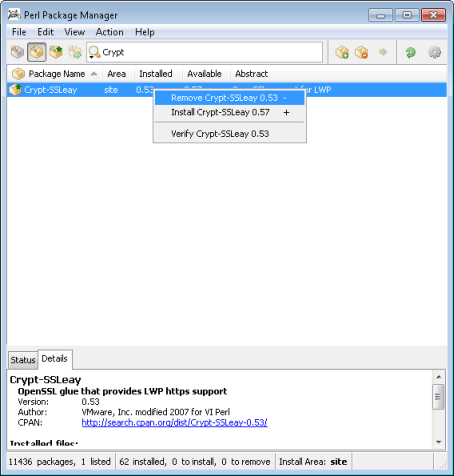
  • Open your CLI command prompt as Administrator. Type ppm and hit enter (Perl Package Manager).
  • Now look for a module called Crypt-SSLeay. You’ll see that CLI’s bundled ActivePerl distribution includes version 0.53, but there is a newer version 0.57 available:ActiveState Perl PPM
  • Remove this as shown, then go to File -> Run Marked Actions
  • Click on the grey box icon on the left of the toolbar. These are available packages which are not currently installed. Search for Crypt-SSLeay once again, install, and Run Marked Actions. Exit.

Problem solved!

Upgrading to vCenter 4.1 with bundled SQL Express Edition – database migration fails

My infrastructure uses a bundled SQL Express Edition database because it isn’t hugely complex, and I didn’t want too much dependency on other servers (themselves VMs). I encountered problems upgrading the vCenter database while moving from Windows Server 2003 R2 SP2 x86 to Windows 2008 R2. I was migrating from vSphere 4.0U1 to 4.1. Perhaps this precise combination of versions was the problem, or perhaps it was that my database started life as VirtualCenter 3.5.

The process seems simple enough – unzip and run the Data Migration Tool from the installation media on the source vCenter server, move this folder (now with \data added) to the destination server and launch the install.bat script. However, there seem to be two major snags. The first is that the backup process will fail:

DB logs: HResult 0x2, Level 16, State 1 Named Pipes Provider: Could not open a connection to SQL Server

VMware has a knowledgbase article about this. They claim it’s caused by a misconfiguration of the SQL 2005 Express Edition instance which is pretty rich considering it was set up by their own installer. Make the named pipe change they suggest and it will work. Now unplug this machine from the LAN or disconnect its network adapter in vSphere if it’s a VM – remember you can connect the VI Client directly to the hypervisor which is hosting it.

The destination server needs to be configured with the same hostname as the source. I had then assumed that the restore tool would need to be run after a new install of vCenter 4.1 was placed on the destination server, so I installed vCenter. Then I discovered that the install.bat script in the datamigration folder refuses to run if it detects the product is already present. So naturally I uninstalled it and tried again. Perhaps this is what messed things up, or perhaps it’s because I’m using Windows 2008 R2.

Anyway, the datamigration\install.bat script kicks off the main product installer, supposedly importing all your backed up settings.

According to the vCenter 4.1 Upgrade Guide page 40 item 10 you are supposed to:

Select Install SQL Server 2005 Express instance (for small-scale deployments) and click Next.

Item 16 on the same page states that:

When the vCenter Server installation finishes, click Finish. The data migration tool restores the backed up configuration data.

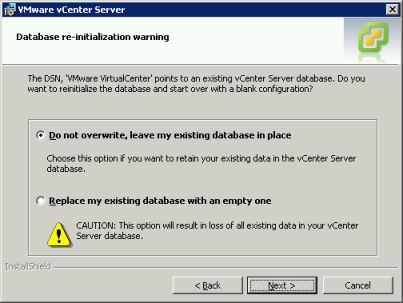
If you do this you may, like me, discover that it actually doesn’t work and you end up with a completely blank database instance. Consulting datamigration\logs\restore.log I found no reference at all to any database restore.

My workaround

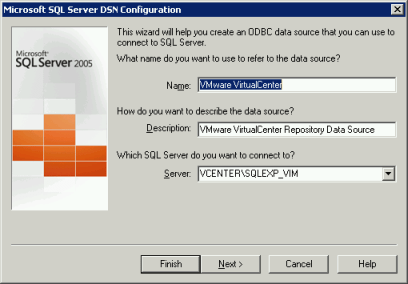
Go to your original vCenter server. Open the Data Sources MMC snap-in. In System DSN you should see an entry like so:

Note down the details, then create the same entry on your destination server (this will create a 64bit DSN). Notice how on page 38 of the Upgrade Guide it specifically states that:

If you use the data migration tool to migrate a SQL Server Express database located on the vCenter Server system to a new system, you do not need to create the 64-bit DSN. The data migration tool creates the DSN as part of the installation process

Apparently sometimes you do need to create the DSN.

On the destination server, copy the file \datamigration\data\vc\vc_upgraded_db and paste it in C:\temp. Rename it to vc_upgraded_db.bak.

Still on the destination server download, install and run the 64bit SQL Management Studio Express. Even if you’ve uninstalled vCenter, the SQL Express Edition instance will be left behind. If there’s not already one from a failed install, create a local database called VIM_VCDB. Restore the backup in C:\temp\vc_upgraded_db.bak over the top, paying attention to select Options -> Overwrite Existing Database and browsing to the target file locations of both the mdf and ldf files – the old database was found in C:\Program Files\Microsoft SQL Server\MSSQL.1\Data but on the 64bit system it’s C:\Program Files (x86)\…

Right-click your database, and select Properties. In Options, make sure your database recovery model is set to Simple. If you don’t do this your transaction log will fill up in a couple of days and the vCenter services will stop. In my case it seemed to have defaulted to Bulk-Logged.

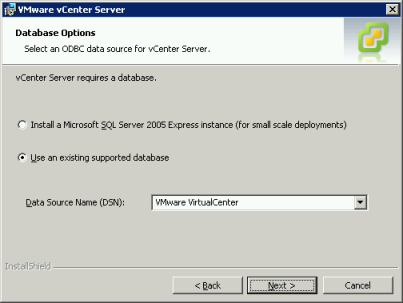
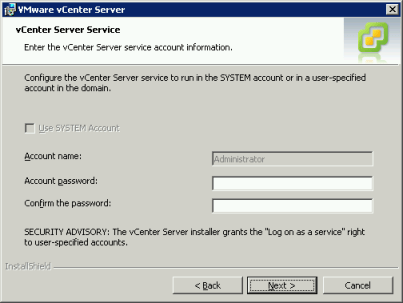
Once that’s done you’ll need to update your newly created DSN to set the default database to VIM_VCDB. Now run datamigration\install.bat once again but this time opt to use an existing database as shown below:

Strangely, you will find that the you cannot use the SYSTEM account for the vCenter services however this can easily be changed in the Services MMC snap-in later.

And that’s it. You should end up with a working install with your data intact. One final tweak is to delay launch of the vCenter services so they don’t fail to start up at boot time.

UPDATE – after wasting a number of hours today with this, I’ve done some more searching and found this VMware KB article which basically just admits that the Data Migration Tool sometimes doesn’t work, and won’t even report errors in the log! When I download something as important as this, I sort of take it for granted that I won’t have to Google “vcenter data management tool does not migrate database” the moment I try using it (can’t believe I didn’t try that).

Dell OptiPlex GX620 Windows 7 drivers

Dell do not make any Windows 7 drivers available for the OptiPlex GX620 even though this machine is still a perfectly capable workstation. Where I work they make up most of our inventory and they are all being upgraded to 3GB of RAM ready for the roll-out. The Pentium D CPU runs in x64 mode, and even the Pentium 4 HT 3.40GHz sold in early configs is 64bit capable.

Windows 7 includes a driver for the Intel 945G integrated video card, though Windows Update will suggest a newer one. There is an issue with this (see my post for details), so you should use version 8.15.10.1912 instead which you can find at Microsoft Update Catalog using a search string of Intel 82945G Express and sorting by version number. You’ll need to use Internet Explorer because it requires an ActiveX control to be installed.  Download both of the two matches – one is x86, the other x64 but you can’t tell them apart until they are downloaded.

The SoundMAX Integrated Audio is detected and installed by Windows Update, but if you’re maintaining a WIM image or building an unattended install you’ll need to isolate the driver files. These are also available at Microsoft Update Catalog – search for SoundMAX Integrated Digital Audio, order by version and look for version 5.12.2.7010 for x64 and 5.12.1.7010 for x86.

Windows 7, IE8 and Adobe Flash flickering

I’m rolling out 64bit Windows 7 where I work and, though initial test PCs seemed fine in this regard, I discovered that Dell OptiPlex GX620 machines built using my unattended install have a flickering problem on web pages with Javascript content and Flash in IE8. Uninstall Adobe Flash and the problem disappears. Installing the latest build of Flash 10.1 doesn’t help, even disabling hardware acceleration in the Flash player settings.

Researching the problem online turns up little, though I did spot a few clues which led me to a solution:

  • This thread on the Microsoft forums feature quite a lot of people with the same issue name-checking Intel 945G chipset, but also ATI. Having had an ATI card of my own, I found that their driver releases can be pretty rough around the edges to say the least
  • This thread mentions that the problem tends to manifest itself with Windows 7 x64 (though I don’t have any of the affected models running x86 builds to test)
  • This thread on Overclockers.co.uk also mentions the Intel GMA 950
  • My own work PC (an iMac with an ATI card running Windows 7 x64), does not exhibit this problem, nor do Optiplex 745 (Intel Q965), nor Optiplex 780 (Intel Series 4) models
  • One Optiplex 620 which I built by hand to use as an early performance test machine does not exhibit the problem. If I remember correctly, I only installed drivers which were missing once Windows was installed…

So, as much as people seem to be blaming Adobe, it does look like a display driver issue. However I was using the most up to date Intel 945G driver version (8.15.10.1930).

Because I had injected this driver during the unattended install OfflineServicing phase, removing it in Device Manager and selecting Delete the driver software for this device did not work. The device was re-detected as Standard VGA Graphics Adaptor for a few seconds, then the same Intel driver was installed once again. So I had to:

  • Device Manager > select the Graphics card > Update Driver > Browse my computer for driver software > Let me pick from a list of device drivers on my computer > Intel(R) 82945G Express Chipset Family (Microsoft Corporation – WDDM 1.0)

Then after a reboot the problem disappeared. The original driver included with Windows 7  (8.15.10.1749) is clearly better than the newer one from the Intel website. It turned out that my working early test build machine was running 8.15.10.1912, though I cannot find that on Intel’s site.

UPDATE – The 8.15.10.1912 driver can be obtained from Microsoft Update Catalog using the search string Intel 82945G Express then ordering by version number. You’ll need to use Internet Explorer because it requires an ActiveX control to be installed. You’ll see there are two corresponding downloads. Add them both to the basket – one is the x86, the other is x64 but you won’t be able to tell them apart until they’re downloaded.

People building machines from a deployment image will therefore need to make sure that the newest Intel Display driver  is not added to their WIM or unattended build if it will be used on PCs with 945G chipsets. In the case of my unattended, I add drivers specifically by WMI model string so I shall move the Intel driver out of the Common folder and add it only to those builds which need it. I guess another issue will be that Windows Update will offer the newer Intel driver too.

UPDATE 2 – I have built another workstation from an unattended install with that 8.15.10.1912 driver and it also exhibits the Flash flickering problem (even though it’s fine on a system built by hand). So it looks like something to do with how the driver is added during the offlineServicing phase that is causing the problem. Once again, this does not affect Intel GMA drivers added during unattended installs for other non-GMA 950 chipsets. So for now I am leaving all OptiPlex GX620 systems on the generic Windows-included driver.

DXVA VC-1 playback on Intel GMA 500

This will only work on Vista or Windows 7. I suggest using the following test clips since they are already on your computer if using Windows 7:

  • C:\Users\Public\Videos\Sample Videos\Wildlife.wmv
  • C:\Windows\Performance\WinSAT\Clip_1080_5sec_VC1_15mbps.wmv

As you can see from the DXVA Checker tool, the GMA 500 can decode VC-1 in hardware. Though Windows 7 includes DXVA hardware assisted playback of H.264 out of the box, for some reason it only considers the GMA 500 capable of VC-1 motion compensation acceleration which is a small part of the entire decode process – so VC-1 playback is choppy.

The good news is that for Windows Vista Intel released a bundle of DXVA codecs for the GMA 500. They’re not available from the Intel drivers website but fortunately Sony’s US site has them. The installer will only extract the drivers if it’s running on a Vaio P, but you can use a tool like Universal Extractor to unpack them (look in \tempexefolder). On Windows 7 you will need to run Setup.exe in Vista compatibility mode otherwise it will fail.

Once the decoder is installed you may notice that you cannot get it to work in Media Player Classic Home Cinema, even by forcing it to be the preferred decoder (as with H.264 in my other post). This is because MPC-HC works with the DirectShow multimedia framework, but the Intel VC-1 decoder is written for Media Foundation – Microsoft’s replacement framework which launched with Windows Vista.

This unfortunately means that you’re limited to using Windows Media Player for hardware accelerated VC-1 content, so subtitles are not going to be possible. The next problem is that WMP aggressively selects its own decoder in favour of the Intel one. There is no neat way to set preference order as with DirectShow, so we need to make some Registry edits.

Open Regedit and navigate to HKLM\Software\Classes\MediaFoundation\Transforms\Preferred.

Export the whole branch and keep it somewhere safe (say foundation-orig.reg). Still in Regedit, right-click on this Preferred key and edit the permissions. Take ownership (Advanced > Owner tab), then grant Full Control to Administrators.

At the level \Transforms notice that there is an entry with a long alphanumeric CLSID for each registered decoder. Find the one called WMVideo Decoder MFT, which should be {82d353df-90bd-4382-8bc2-3f6192b76e34}. Find the CLSID for Intel® Media Codecs VC-1 Decoder for Intel® System Controller Hub, which ought to be {2b53d708-ffe1-4da3-b3a8-f8ec247c374f}.

Using Notepad, load the registry backup of the Preferred key you exported. This is a list of video formats also represented by CLSIDs, together with the CLSID of the decoder which will be used to play them back. So all we need to do is replace all instances of {82d353df-90bd-4382-8bc2-3f6192b76e34} with {2b53d708-ffe1-4da3-b3a8-f8ec247c374f} and save as foundation-mod.reg (always keep the original just in case!). Then double-click it and commit the changes.

Now if you run DXVA Checker and click on Check DirectShow/MediaFoundation Decoders at the bottom and browse to a VC-1 clip, you should see the following:

Intel Media Codec VC-1 DXVA

Note that some guides will tell you to take ownership then rename the file C:\WINDOWS\SYSTEM32\WMVDECOD.DLL which may well achieve the same result, but it will break the Windows Experience Index test process – it plays a WMV clip with this decoder during the benchmark and will fail with an error if that file is missing.

By switching between the original and modified .reg files and comparing playback you’ll notice that the Intel VC-1 decoder uses around 50% CPU on a 1.33GHz Atom Z520 Vs. 100% and stuttering with the Windows one.

Update – the Intel decoder seems to have difficulty rendering crossfades, as you can see from the artifacting while playing this nVidia demo clip and some of the content on the Microsoft WMV HD content showcase. It’s a shame the decoder doesn’t seem to be actively maintained, however all of these clips are years old so perhaps they were encoded with immature encoders.

Update 2 – I have since noticed that the clips from Microsoft’s showcase and that nVidia one are not in fact VC-1. They’re WMV3 which was a slightly earlier codec. The true VC-1 clips which I have tried are decoded without artifacts. You can check the video codec used in a file by running ffmpeg -i on them.

Continue to DXVA H.264 playback on Intel GMA 500 with subtitles (Windows 7)

Customizing Windows 7 unattend.xml

Windows 7, like Vista, uses an XML answer file to configure the OS install. What’s neat about this is that even though you use the WAIK‘s WSIM tool to edit and validate it, you can customize it and add your own sections for software packages etc. as you can see from the example below, though these custom sections will need to be inserted after the sections that WSIM validates. This answer file can easily be parsed with VBScript using MSXML DOM, allowing for variables like passwords, driver sets, product keys and so on to be inserted at build time.

Why use an unattended install?

If you’ve always used an unattended install to build your workstations, you’ll know that they can be extremely versatile. If you already have a scripted build for XP with applications then chances are you’ll want to tweak those scripts to work with Windows 7. Sure, Sysprep images are handy too, but unless all your machines are the same, or all your packaged app requirements are identical, then you’ll need to add a load of scripted customization to them anyway. Which begs the question: why not just use an unattended install? That way you eliminate application problems that sometimes surface after image-based deployment. In a previous job I remember Roxio deployment in particular was a nightmare for this reason.

Microsoft have certainly made things considerably easier with the release of the Microsoft Deployment Toolkit 2010 but, though it offers a great introduction into the process of automated system building, it lacks the flexibility of rolling your own build process – in particular if you already have a host database. When I decide to rebuild a machine, it boots Windows PE from WDS, looks up its MAC address in the host database and reads the model type from WMI and will offer default choices in my build script menus based on that. It also works out which is the nearest site file server to use for the install.

The problem with Sysprep deployment if you have a very mixed hardware environment is that you either have to:

  • Create a WIM image for each different hardware type (lots of boring maintenance when changes are required)
  • Add a huge bulk of drivers to a single WIM image with DISM
  • Use the AuditSystem phase to connect to a driver share and re-detect all the hardware

Since Windows Vista and later versions effectively just install a WIM and run a hardware detection phase during their normal install process, Sysprep no longer offers much of a speed improvement over an unattended build.

Device drivers

Additional mass storage and networking drivers that will be essential during setup are detected in the Windows PE instance (which we booted from WDS) Driver Store and ‘reflected’ into the installed OS. As you build your custom Windows PE boot image, add these using DSIM as described in my post on the subject.

Since we can read the PC model name from the BIOS via WMI, we can add a tailored device path to the offlineServicing phase of setup. This allows for easy maintenance of driver bundles, since we can arrange them by model type (which certainly beats having dozens of SoundMAX audio drivers lumped together), and we can limit which drivers are offered to each model – particularly useful when a driver causes problems for some models, as with the GMA950 driver and Adobe Flash on Intel 945G motherboards.

I noticed that this is in fact considerably neater that the method used in MDT2010’s ZTIDrivers.wsf script, which copies drivers to the local system then invokes the AuditSystem phase, running the PnP detection routines a second time, slowing down the install. Useful for an OEM like Dell I suppose, whose PCs are often started from their factory image with no connectivity, but not ideal for corporate LANs.

Sample autounattend.xml with custom sections at the end

Note 1 – I couldn’t find any examples of this online, but I discovered that the values for pre-populating the Internet Explorer 8 Search Providers can be obtained by configuring a workstation, then harvesting the registry settings from HKCU\Software\Microsoft\Internet Explorer\SearchScopes. I have highlighted the relevant lines in the XML below.

Note 2 – Somewhat confusingly, in the offlineServicing phase Microsoft-Windows-PnpCustomizationsNonWinPE will fail to connect to your file server for drivers unless you connect to its FQDN (assuming the unattended launched the OS build from a share referencing just the NetBIOS name). Fail to do this and %systemroot%\panther\setupact.log will reveal that it fails to connect with error 0x4C3 (multiple credentials on connection to the same server). What’s bizarre is that there certainly aren’t multiple credentials in use – I use the same ones throughout. I wrote up this problem and solution in this thread on the MSFN Forums. I suspect this might be caused because I launch setup.exe from a network drive rather than mounting the OS WIM image from a WDS server (I wanted to maintain consistency with my other legacy OS builds). I have highlighted this on line 57.

<?xml version="1.0" encoding="utf-8"?>
<unattend xmlns="urn:schemas-microsoft-com:unattend">
    <settings pass="windowsPE">
        <component name="Microsoft-Windows-International-Core-WinPE" processorArchitecture="amd64" publicKeyToken="31bf3856ad364e35" language="neutral" versionScope="nonSxS" xmlns:wcm="http://schemas.microsoft.com/WMIConfig/2002/State" xmlns:xsi="http://www.w3.org/2001/XMLSchema-instance">
            <SetupUILanguage>
                <UILanguage>en-US</UILanguage>
            </SetupUILanguage>
            <InputLocale>0809:00000809</InputLocale>
            <SystemLocale>en-GB</SystemLocale>
            <UILanguage>en-US</UILanguage>
            <UserLocale>en-GB</UserLocale>
        </component>
        <component name="Microsoft-Windows-Setup" processorArchitecture="amd64" publicKeyToken="31bf3856ad364e35" language="neutral" versionScope="nonSxS" xmlns:wcm="http://schemas.microsoft.com/WMIConfig/2002/State" xmlns:xsi="http://www.w3.org/2001/XMLSchema-instance">
            <ComplianceCheck>
                <DisplayReport>Never</DisplayReport>
            </ComplianceCheck>
            <Diagnostics>
                <OptIn>false</OptIn>
            </Diagnostics>
            <DiskConfiguration>
                <WillShowUI>Always</WillShowUI>
            </DiskConfiguration>
            <DynamicUpdate>
                <Enable>true</Enable>
                <WillShowUI>OnError</WillShowUI>
            </DynamicUpdate>
            <ImageInstall>
                <OSImage>
                    <InstallFrom>
                        <MetaData wcm:action="add">
                            <Key>/IMAGE/NAME</Key>
                            <Value>Windows 7 PROFESSIONAL</Value>
                        </MetaData>
                    </InstallFrom>
                </OSImage>
            </ImageInstall>
            <UserData>
                <AcceptEula>true</AcceptEula>
                <FullName>IT</FullName>
                <Organization>My company</Organization>
                <ProductKey>
                    <WillShowUI>OnError</WillShowUI>
                </ProductKey>
            </UserData>
            <EnableNetwork>true</EnableNetwork>
        </component>
    </settings>
    <settings pass="offlineServicing">
        <component name="Microsoft-Windows-PnpCustomizationsNonWinPE" processorArchitecture="amd64" publicKeyToken="31bf3856ad364e35" language="neutral" versionScope="nonSxS" xmlns:wcm="http://schemas.microsoft.com/WMIConfig/2002/State" xmlns:xsi="http://www.w3.org/2001/XMLSchema-instance">
            <DriverPaths>
                <PathAndCredentials wcm:action="add" wcm:keyValue="common">
                    <Credentials>
                        <Domain>domain.com</Domain>
                        <Password>Password</Password>
                        <Username>unattended</Username>
                    </Credentials>
                    <Path>\\myserver.domain.com\UNATTENDED\drivers\7-x64\common</Path>
                </PathAndCredentials>
                <PathAndCredentials wcm:action="add" wcm:keyValue="build">
                    <Credentials>
                        <Domain>*value to be set by install.vbs*</Domain>
                        <Password>*value to be set by install.vbs*</Password>
                        <Username>*value to be set by install.vbs*</Username>
                    </Credentials>
                    <Path>*value to be set by install.vbs*</Path>
                </PathAndCredentials>
            </DriverPaths>
        </component>
    </settings>
    <settings pass="generalize">
        <component name="Microsoft-Windows-PnpSysprep" processorArchitecture="amd64" publicKeyToken="31bf3856ad364e35" language="neutral" versionScope="nonSxS" xmlns:wcm="http://schemas.microsoft.com/WMIConfig/2002/State" xmlns:xsi="http://www.w3.org/2001/XMLSchema-instance">
            <PersistAllDeviceInstalls>true</PersistAllDeviceInstalls>
        </component>
    </settings>
    <settings pass="specialize">
        <component name="Microsoft-Windows-IE-InternetExplorer" processorArchitecture="amd64" publicKeyToken="31bf3856ad364e35" language="neutral" versionScope="nonSxS" xmlns:wcm="http://schemas.microsoft.com/WMIConfig/2002/State" xmlns:xsi="http://www.w3.org/2001/XMLSchema-instance">
            <Home_Page>http://mycompany.com</Home_Page>
            <CompanyName>My Company</CompanyName>
            <FavoritesOnTop>true</FavoritesOnTop>
            <FilterLevel>High</FilterLevel>
            <Help_Page></Help_Page>
            <DisableFirstRunWizard>true</DisableFirstRunWizard>
            <DisableWelcomePage>true</DisableWelcomePage>
            <PlaySound>true</PlaySound>
            <ShowInformationBar>true</ShowInformationBar>
            <UserAgent></UserAgent>
            <Window_Title_CN></Window_Title_CN>
            <SearchScopes>
                <Scope wcm:action="add">
                    <ScopeDefault>true</ScopeDefault>
                    <ScopeKey>Search1</ScopeKey>
                    <ScopeDisplayName>Google</ScopeDisplayName>
                    <ScopeUrl>http://www.google.com/search?q={searchTerms}&amp;sourceid=ie7&amp;rls=com.microsoft:{language}:{referrer:source}&amp;ie={inputEncoding?}&amp;oe={outputEncoding?}</ScopeUrl>
                    <FaviconURL>http://www.google.com/favicon.ico</FaviconURL>
                    <SuggestionsURL>http://clients5.google.com/complete/search?q={searchTerms}&amp;client=ie8&amp;mw={ie:maxWidth}&amp;sh={ie:sectionHeight}&amp;rh={ie:rowHeight}&amp;inputencoding={inputEncoding}&amp;outputencoding={outputEncoding}</SuggestionsURL>
                </Scope>
                <Scope wcm:action="add">
                    <ScopeKey>Search2</ScopeKey>
                    <ScopeDisplayName>Bing</ScopeDisplayName>
                    <FaviconURL>http://www.bing.com/favicon.ico</FaviconURL>
                    <ScopeUrl>http://www.bing.com/search?q={searchTerms}&amp;form=IE8SRC&amp;src=IE-SearchBox</ScopeUrl>
                    <SuggestionsURL>http://api.bing.com/qsml.aspx?query={searchTerms}&amp;market={Language}&amp;form=IE8SSC&amp;maxwidth={ie:maxWidth}&amp;rowheight={ie:rowHeight}&amp;sectionHeight={ie:sectionHeight}</SuggestionsURL>
                </Scope>
            </SearchScopes>
            <EnableLinksBar>false</EnableLinksBar>
            <PrintBackground>true</PrintBackground>
        </component>
        <component name="Microsoft-Windows-RemoteAssistance-Exe" processorArchitecture="amd64" publicKeyToken="31bf3856ad364e35" language="neutral" versionScope="nonSxS" xmlns:wcm="http://schemas.microsoft.com/WMIConfig/2002/State" xmlns:xsi="http://www.w3.org/2001/XMLSchema-instance">
            <fAllowFullControl>true</fAllowFullControl>
            <fAllowToGetHelp>true</fAllowToGetHelp>
        </component>
        <component name="Microsoft-Windows-Security-SPP-UX" processorArchitecture="amd64" publicKeyToken="31bf3856ad364e35" language="neutral" versionScope="nonSxS" xmlns:wcm="http://schemas.microsoft.com/WMIConfig/2002/State" xmlns:xsi="http://www.w3.org/2001/XMLSchema-instance">
            <SkipAutoActivation>true</SkipAutoActivation>
        </component>
        <component name="Microsoft-Windows-Shell-Setup" processorArchitecture="amd64" publicKeyToken="31bf3856ad364e35" language="neutral" versionScope="nonSxS" xmlns:wcm="http://schemas.microsoft.com/WMIConfig/2002/State" xmlns:xsi="http://www.w3.org/2001/XMLSchema-instance">
            <ComputerName>*</ComputerName>
            <ProductKey>XXXXX-YYYYY-ZZZZZ-YYYYY-XXXXX</ProductKey>
            <RegisteredOrganization>My Company</RegisteredOrganization>
            <RegisteredOwner>IT</RegisteredOwner>
        </component>
        <component name="Microsoft-Windows-TerminalServices-LocalSessionManager" processorArchitecture="amd64" publicKeyToken="31bf3856ad364e35" language="neutral" versionScope="nonSxS" xmlns:wcm="http://schemas.microsoft.com/WMIConfig/2002/State" xmlns:xsi="http://www.w3.org/2001/XMLSchema-instance">
            <fDenyTSConnections>false</fDenyTSConnections>
        </component>
        <component name="Microsoft-Windows-UnattendedJoin" processorArchitecture="amd64" publicKeyToken="31bf3856ad364e35" language="neutral" versionScope="nonSxS" xmlns:wcm="http://schemas.microsoft.com/WMIConfig/2002/State" xmlns:xsi="http://www.w3.org/2001/XMLSchema-instance">
            <Identification>
                <Credentials>
                    <Domain>*value to be set by install.vbs*</Domain>
                    <Password>*value to be set by install.vbs*</Password>
                    <Username>*value to be set by install.vbs*</Username>
                </Credentials>
                <JoinDomain>domain.com</JoinDomain>
                <MachineObjectOU>OU=Windows 7,OU=Workstations,DC=domain,DC=com</MachineObjectOU>
            </Identification>
        </component>
        <component name="Networking-MPSSVC-Svc" processorArchitecture="amd64" publicKeyToken="31bf3856ad364e35" language="neutral" versionScope="nonSxS" xmlns:wcm="http://schemas.microsoft.com/WMIConfig/2002/State" xmlns:xsi="http://www.w3.org/2001/XMLSchema-instance">
            <DomainProfile_EnableFirewall>false</DomainProfile_EnableFirewall>
        </component>
        <component name="Microsoft-Windows-TerminalServices-RDP-WinStationExtensions" processorArchitecture="amd64" publicKeyToken="31bf3856ad364e35" language="neutral" versionScope="nonSxS" xmlns:wcm="http://schemas.microsoft.com/WMIConfig/2002/State" xmlns:xsi="http://www.w3.org/2001/XMLSchema-instance">
            <UserAuthentication>1</UserAuthentication>
        </component>
    </settings>
    <settings pass="oobeSystem">
        <component name="Microsoft-Windows-International-Core" processorArchitecture="amd64" publicKeyToken="31bf3856ad364e35" language="neutral" versionScope="nonSxS" xmlns:wcm="http://schemas.microsoft.com/WMIConfig/2002/State" xmlns:xsi="http://www.w3.org/2001/XMLSchema-instance">
            <SystemLocale>en-GB</SystemLocale>
            <UILanguage>en-GB</UILanguage>
            <UserLocale>0809:00000809</UserLocale>
        </component>
        <component name="Microsoft-Windows-Shell-Setup" processorArchitecture="amd64" publicKeyToken="31bf3856ad364e35" language="neutral" versionScope="nonSxS" xmlns:wcm="http://schemas.microsoft.com/WMIConfig/2002/State" xmlns:xsi="http://www.w3.org/2001/XMLSchema-instance">
            <RegisteredOrganization>My Company</RegisteredOrganization>
            <RegisteredOwner>IT</RegisteredOwner>
            <TimeZone>GMT Standard Time</TimeZone>
            <OEMInformation>
                <Manufacturer>*</Manufacturer>
                <Model>*</Model>
            </OEMInformation>
            <OOBE>
                <HideEULAPage>true</HideEULAPage>
                <NetworkLocation>Work</NetworkLocation>
                <ProtectYourPC>1</ProtectYourPC>
            </OOBE>
            <UserAccounts>
                <AdministratorPassword>
                    <Value>MwBifhgftytredjghAcwB0AHIAYQ584jkhkgtEAcwBzAHcAbwByAGQA</Value>
                    <PlainText>false</PlainText>
                </AdministratorPassword>
                <LocalAccounts>
                    <LocalAccount wcm:action="add">
                        <Password>
                            <Value>QQBTAEUANABoAGchgfhgfd357wrysAHMAcwB3AG8AcgBkAA==</Value>
                            <PlainText>false</PlainText>
                        </Password>
                        <Name>cust_localuser</Name>
                        <DisplayName>cust_localuser</DisplayName>
                        <Description>Dummy user required for unattended - delete later</Description>
                        <Group>users</Group>
                    </LocalAccount>
                </LocalAccounts>
            </UserAccounts>
            <VisualEffects>
                <FontSmoothing>ClearType</FontSmoothing>
            </VisualEffects>
            <FirstLogonCommands>
                <SynchronousCommand wcm:action="add">
                    <Order>1</Order>
                    <Description>Connect to unattended share</Description>
                    <CommandLine>net use *value to be set by install.vbs*</CommandLine>
                </SynchronousCommand>
                <SynchronousCommand wcm:action="add">
                    <Order>2</Order>
                    <Description>Launch package installer</Description>
                    <CommandLine>cscript *value to be set by install.vbs*</CommandLine>
                    <RequiresUserInput>true</RequiresUserInput>
                </SynchronousCommand>
            </FirstLogonCommands>
            <AutoLogon>
                <Password>
                    <Value>MwBifhgftytredjghAcwB0AHIAYQ584jkhkgtEAcwBzAHcAbwByAGQA</Value>
                    <PlainText>false</PlainText>
                </Password>
                <Username>Administrator</Username>
                <LogonCount>1</LogonCount>
                <Enabled>true</Enabled>
            </AutoLogon>
        </component>
    </settings>
    <cpi:offlineImage cpi:source="wim://myserver/unattended/os/7-x64/sources/install.wim#Windows 7 PROFESSIONAL" xmlns:cpi="urn:schemas-microsoft-com:cpi" />
    <!-- MY COMPANY CUSTOMIZATIONS BELOW-->
    <mycompany:custom xmlns:mycompany="urn:schemas-domain-com:mycompany">
        <!-- build description -->
        <cust_description>standard workstation</cust_description>
        <!-- list of packages to install in order. Descriptions are read from U:\scripts\packages.csv -->
        <cust_packages>office2k7.cmd,adobe.cmd,flash.cmd,java.cmd,fonts.cmd</cust_packages>
        <!-- start of the model name string, as reported by WMI, comma separated - allows auto-selection of build. -->
        <cust_models>OptiPlex 745,OptiPlex GX620,VMware Virtual Platform</cust_models>
        <!-- do we want packages.vbs to activate Windows? -->
        <cust_activate>false</cust_activate>
        <!-- do we want a hibernation file wasting disk space? If set to false packages.vbs will disable hibernation support -->
        <cust_hibernate>false</cust_hibernate>
    </mycompany:custom>
</unattend>
 

Sample VBScript code for parsing the XML using MSXML DOM

This is not a complete script – it’s intended purely to illustrate the concept.

'New OS - 7/Vista/2008/2008R2

'read the answer file
Set objXML = CreateObject("Microsoft.XMLDOM")
objXML.Async = "False"
objXML.Load(strMedia & "\sifs\" & strOS & "\" & strBuild & ".xml")

'Additional mass storage and Networking drivers that will be essential for the rest of the build are detected in the
'running Windows PE instance's Driver Store and reflected into the installed OS

'insert the non-WinPE PnP driver discovery paths and credentials for the offlineServicing pass
strXPath = "/unattend/settings[@pass='offlineServicing']/component[@name='Microsoft-Windows-PnpCustomizationsNonWinPE']/DriverPaths/PathAndCredentials/Credentials"
'we need to iterate since there may be several sets of credentials (one for each driver path)
Set colNodes=objXML.selectNodes(strXPath & "/Domain")
For Each objNode In colNodes
  objNode.Text = strDomainName
Next
Set colNodes=objXML.selectNodes(strXPath & "/Password")
For Each objNode In colNodes
  objNode.Text = strPass
Next
Set colNodes=objXML.selectNodes(strXPath & "/Username")
For Each objNode In colNodes
  objNode.Text = strUser  
Next

'Insert hostname
strXPath = "/unattend/settings[@pass='specialize']/component[@name='Microsoft-Windows-Shell-Setup']/ComputerName"
Set objNode=objXML.selectSingleNode(strXPath)
objNode.Text = strComputerName

'insert credentials for Domain join
On Error Resume Next
strXPath = "/unattend/settings[@pass='specialize']/component[@name='Microsoft-Windows-UnattendedJoin']/Identification/Credentials"
Set objNode=objXML.selectSingleNode(strXPath & "/Domain")
If Err.Number = 0 Then
  'Microsoft-Windows-UnattendedJoin exists - carry on modifying (workgroup builds won't have this section in the XML)
  objNode.Text = strDomainName
  Set objNode=objXML.selectSingleNode(strXPath & "/Password")
  objNode.Text = strPass
  Set objNode=objXML.selectSingleNode(strXPath & "/Username") 
  objNode.Text = strUser
End If
On Error Goto 0

'insert manufacturer and model into OEMinfo
strXPath = "/unattend/settings[@pass='oobeSystem']/component[@name='Microsoft-Windows-Shell-Setup']/OEMInformation/Manufacturer"
Set objNode=objXML.selectSingleNode(strXPath)
objNode.Text = strManufacturer
strXPath = "/unattend/settings[@pass='oobeSystem']/component[@name='Microsoft-Windows-Shell-Setup']/OEMInformation/Model"
Set objNode=objXML.selectSingleNode(strXPath)
objNode.Text = strModel & " - Your Company"

strXPath = "/unattend/settings[@pass='oobeSystem']/component[@name='Microsoft-Windows-Shell-Setup']/FirstLogonCommands/SynchronousCommand/CommandLine"
Set colNodes=objXML.selectNodes(strXPath)
For Each objNode In ColNodes
  'Insert the unattended share info and credentials
  If InStr (objNode.Text,"net use *value to be set by install.vbs*") Then
    objNode.Text = "net use " & strMedia & " \\" & strInstallServer & "\" & strShare & " /user:" & strUser & "@" & strDomainName & " " & strPass & " /persistent:no"
  End If
  'Record our build file selection for the package installer later
  If InStr (objNode.Text,"cscript *value to be set by install.vbs*") Then
    objNode.Text = "cscript //nologo " & strMedia & "\scripts\packages.vbs " & strMedia & " " & strOS & " " & strBuild & ".xml"
  End If
Next

Set objNode = Nothing
'write out the answer file
objXML.Save "x:\autounattend.xml" 
Set objXML = Nothing