Category Archives: Windows

Customizing Windows 7 unattend.xml

Windows 7, like Vista, uses an XML answer file to configure the OS install. What’s neat about this is that even though you use the WAIK‘s WSIM tool to edit and validate it, you can customize it and add your own sections for software packages etc. as you can see from the example below, though these custom sections will need to be inserted after the sections that WSIM validates. This answer file can easily be parsed with VBScript using MSXML DOM, allowing for variables like passwords, driver sets, product keys and so on to be inserted at build time.

Why use an unattended install?

If you’ve always used an unattended install to build your workstations, you’ll know that they can be extremely versatile. If you already have a scripted build for XP with applications then chances are you’ll want to tweak those scripts to work with Windows 7. Sure, Sysprep images are handy too, but unless all your machines are the same, or all your packaged app requirements are identical, then you’ll need to add a load of scripted customization to them anyway. Which begs the question: why not just use an unattended install? That way you eliminate application problems that sometimes surface after image-based deployment. In a previous job I remember Roxio deployment in particular was a nightmare for this reason.

Microsoft have certainly made things considerably easier with the release of the Microsoft Deployment Toolkit 2010 but, though it offers a great introduction into the process of automated system building, it lacks the flexibility of rolling your own build process – in particular if you already have a host database. When I decide to rebuild a machine, it boots Windows PE from WDS, looks up its MAC address in the host database and reads the model type from WMI and will offer default choices in my build script menus based on that. It also works out which is the nearest site file server to use for the install.

The problem with Sysprep deployment if you have a very mixed hardware environment is that you either have to:

  • Create a WIM image for each different hardware type (lots of boring maintenance when changes are required)
  • Add a huge bulk of drivers to a single WIM image with DISM
  • Use the AuditSystem phase to connect to a driver share and re-detect all the hardware

Since Windows Vista and later versions effectively just install a WIM and run a hardware detection phase during their normal install process, Sysprep no longer offers much of a speed improvement over an unattended build.

Device drivers

Additional mass storage and networking drivers that will be essential during setup are detected in the Windows PE instance (which we booted from WDS) Driver Store and ‘reflected’ into the installed OS. As you build your custom Windows PE boot image, add these using DSIM as described in my post on the subject.

Since we can read the PC model name from the BIOS via WMI, we can add a tailored device path to the offlineServicing phase of setup. This allows for easy maintenance of driver bundles, since we can arrange them by model type (which certainly beats having dozens of SoundMAX audio drivers lumped together), and we can limit which drivers are offered to each model – particularly useful when a driver causes problems for some models, as with the GMA950 driver and Adobe Flash on Intel 945G motherboards.

I noticed that this is in fact considerably neater that the method used in MDT2010’s ZTIDrivers.wsf script, which copies drivers to the local system then invokes the AuditSystem phase, running the PnP detection routines a second time, slowing down the install. Useful for an OEM like Dell I suppose, whose PCs are often started from their factory image with no connectivity, but not ideal for corporate LANs.

Sample autounattend.xml with custom sections at the end

Note 1 – I couldn’t find any examples of this online, but I discovered that the values for pre-populating the Internet Explorer 8 Search Providers can be obtained by configuring a workstation, then harvesting the registry settings from HKCU\Software\Microsoft\Internet Explorer\SearchScopes. I have highlighted the relevant lines in the XML below.

Note 2 – Somewhat confusingly, in the offlineServicing phase Microsoft-Windows-PnpCustomizationsNonWinPE will fail to connect to your file server for drivers unless you connect to its FQDN (assuming the unattended launched the OS build from a share referencing just the NetBIOS name). Fail to do this and %systemroot%\panther\setupact.log will reveal that it fails to connect with error 0x4C3 (multiple credentials on connection to the same server). What’s bizarre is that there certainly aren’t multiple credentials in use – I use the same ones throughout. I wrote up this problem and solution in this thread on the MSFN Forums. I suspect this might be caused because I launch setup.exe from a network drive rather than mounting the OS WIM image from a WDS server (I wanted to maintain consistency with my other legacy OS builds). I have highlighted this on line 57.

<?xml version="1.0" encoding="utf-8"?>
<unattend xmlns="urn:schemas-microsoft-com:unattend">
    <settings pass="windowsPE">
        <component name="Microsoft-Windows-International-Core-WinPE" processorArchitecture="amd64" publicKeyToken="31bf3856ad364e35" language="neutral" versionScope="nonSxS" xmlns:wcm="http://schemas.microsoft.com/WMIConfig/2002/State" xmlns:xsi="http://www.w3.org/2001/XMLSchema-instance">
            <SetupUILanguage>
                <UILanguage>en-US</UILanguage>
            </SetupUILanguage>
            <InputLocale>0809:00000809</InputLocale>
            <SystemLocale>en-GB</SystemLocale>
            <UILanguage>en-US</UILanguage>
            <UserLocale>en-GB</UserLocale>
        </component>
        <component name="Microsoft-Windows-Setup" processorArchitecture="amd64" publicKeyToken="31bf3856ad364e35" language="neutral" versionScope="nonSxS" xmlns:wcm="http://schemas.microsoft.com/WMIConfig/2002/State" xmlns:xsi="http://www.w3.org/2001/XMLSchema-instance">
            <ComplianceCheck>
                <DisplayReport>Never</DisplayReport>
            </ComplianceCheck>
            <Diagnostics>
                <OptIn>false</OptIn>
            </Diagnostics>
            <DiskConfiguration>
                <WillShowUI>Always</WillShowUI>
            </DiskConfiguration>
            <DynamicUpdate>
                <Enable>true</Enable>
                <WillShowUI>OnError</WillShowUI>
            </DynamicUpdate>
            <ImageInstall>
                <OSImage>
                    <InstallFrom>
                        <MetaData wcm:action="add">
                            <Key>/IMAGE/NAME</Key>
                            <Value>Windows 7 PROFESSIONAL</Value>
                        </MetaData>
                    </InstallFrom>
                </OSImage>
            </ImageInstall>
            <UserData>
                <AcceptEula>true</AcceptEula>
                <FullName>IT</FullName>
                <Organization>My company</Organization>
                <ProductKey>
                    <WillShowUI>OnError</WillShowUI>
                </ProductKey>
            </UserData>
            <EnableNetwork>true</EnableNetwork>
        </component>
    </settings>
    <settings pass="offlineServicing">
        <component name="Microsoft-Windows-PnpCustomizationsNonWinPE" processorArchitecture="amd64" publicKeyToken="31bf3856ad364e35" language="neutral" versionScope="nonSxS" xmlns:wcm="http://schemas.microsoft.com/WMIConfig/2002/State" xmlns:xsi="http://www.w3.org/2001/XMLSchema-instance">
            <DriverPaths>
                <PathAndCredentials wcm:action="add" wcm:keyValue="common">
                    <Credentials>
                        <Domain>domain.com</Domain>
                        <Password>Password</Password>
                        <Username>unattended</Username>
                    </Credentials>
                    <Path>\\myserver.domain.com\UNATTENDED\drivers\7-x64\common</Path>
                </PathAndCredentials>
                <PathAndCredentials wcm:action="add" wcm:keyValue="build">
                    <Credentials>
                        <Domain>*value to be set by install.vbs*</Domain>
                        <Password>*value to be set by install.vbs*</Password>
                        <Username>*value to be set by install.vbs*</Username>
                    </Credentials>
                    <Path>*value to be set by install.vbs*</Path>
                </PathAndCredentials>
            </DriverPaths>
        </component>
    </settings>
    <settings pass="generalize">
        <component name="Microsoft-Windows-PnpSysprep" processorArchitecture="amd64" publicKeyToken="31bf3856ad364e35" language="neutral" versionScope="nonSxS" xmlns:wcm="http://schemas.microsoft.com/WMIConfig/2002/State" xmlns:xsi="http://www.w3.org/2001/XMLSchema-instance">
            <PersistAllDeviceInstalls>true</PersistAllDeviceInstalls>
        </component>
    </settings>
    <settings pass="specialize">
        <component name="Microsoft-Windows-IE-InternetExplorer" processorArchitecture="amd64" publicKeyToken="31bf3856ad364e35" language="neutral" versionScope="nonSxS" xmlns:wcm="http://schemas.microsoft.com/WMIConfig/2002/State" xmlns:xsi="http://www.w3.org/2001/XMLSchema-instance">
            <Home_Page>http://mycompany.com</Home_Page>
            <CompanyName>My Company</CompanyName>
            <FavoritesOnTop>true</FavoritesOnTop>
            <FilterLevel>High</FilterLevel>
            <Help_Page></Help_Page>
            <DisableFirstRunWizard>true</DisableFirstRunWizard>
            <DisableWelcomePage>true</DisableWelcomePage>
            <PlaySound>true</PlaySound>
            <ShowInformationBar>true</ShowInformationBar>
            <UserAgent></UserAgent>
            <Window_Title_CN></Window_Title_CN>
            <SearchScopes>
                <Scope wcm:action="add">
                    <ScopeDefault>true</ScopeDefault>
                    <ScopeKey>Search1</ScopeKey>
                    <ScopeDisplayName>Google</ScopeDisplayName>
                    <ScopeUrl>http://www.google.com/search?q={searchTerms}&amp;sourceid=ie7&amp;rls=com.microsoft:{language}:{referrer:source}&amp;ie={inputEncoding?}&amp;oe={outputEncoding?}</ScopeUrl>
                    <FaviconURL>http://www.google.com/favicon.ico</FaviconURL>
                    <SuggestionsURL>http://clients5.google.com/complete/search?q={searchTerms}&amp;client=ie8&amp;mw={ie:maxWidth}&amp;sh={ie:sectionHeight}&amp;rh={ie:rowHeight}&amp;inputencoding={inputEncoding}&amp;outputencoding={outputEncoding}</SuggestionsURL>
                </Scope>
                <Scope wcm:action="add">
                    <ScopeKey>Search2</ScopeKey>
                    <ScopeDisplayName>Bing</ScopeDisplayName>
                    <FaviconURL>http://www.bing.com/favicon.ico</FaviconURL>
                    <ScopeUrl>http://www.bing.com/search?q={searchTerms}&amp;form=IE8SRC&amp;src=IE-SearchBox</ScopeUrl>
                    <SuggestionsURL>http://api.bing.com/qsml.aspx?query={searchTerms}&amp;market={Language}&amp;form=IE8SSC&amp;maxwidth={ie:maxWidth}&amp;rowheight={ie:rowHeight}&amp;sectionHeight={ie:sectionHeight}</SuggestionsURL>
                </Scope>
            </SearchScopes>
            <EnableLinksBar>false</EnableLinksBar>
            <PrintBackground>true</PrintBackground>
        </component>
        <component name="Microsoft-Windows-RemoteAssistance-Exe" processorArchitecture="amd64" publicKeyToken="31bf3856ad364e35" language="neutral" versionScope="nonSxS" xmlns:wcm="http://schemas.microsoft.com/WMIConfig/2002/State" xmlns:xsi="http://www.w3.org/2001/XMLSchema-instance">
            <fAllowFullControl>true</fAllowFullControl>
            <fAllowToGetHelp>true</fAllowToGetHelp>
        </component>
        <component name="Microsoft-Windows-Security-SPP-UX" processorArchitecture="amd64" publicKeyToken="31bf3856ad364e35" language="neutral" versionScope="nonSxS" xmlns:wcm="http://schemas.microsoft.com/WMIConfig/2002/State" xmlns:xsi="http://www.w3.org/2001/XMLSchema-instance">
            <SkipAutoActivation>true</SkipAutoActivation>
        </component>
        <component name="Microsoft-Windows-Shell-Setup" processorArchitecture="amd64" publicKeyToken="31bf3856ad364e35" language="neutral" versionScope="nonSxS" xmlns:wcm="http://schemas.microsoft.com/WMIConfig/2002/State" xmlns:xsi="http://www.w3.org/2001/XMLSchema-instance">
            <ComputerName>*</ComputerName>
            <ProductKey>XXXXX-YYYYY-ZZZZZ-YYYYY-XXXXX</ProductKey>
            <RegisteredOrganization>My Company</RegisteredOrganization>
            <RegisteredOwner>IT</RegisteredOwner>
        </component>
        <component name="Microsoft-Windows-TerminalServices-LocalSessionManager" processorArchitecture="amd64" publicKeyToken="31bf3856ad364e35" language="neutral" versionScope="nonSxS" xmlns:wcm="http://schemas.microsoft.com/WMIConfig/2002/State" xmlns:xsi="http://www.w3.org/2001/XMLSchema-instance">
            <fDenyTSConnections>false</fDenyTSConnections>
        </component>
        <component name="Microsoft-Windows-UnattendedJoin" processorArchitecture="amd64" publicKeyToken="31bf3856ad364e35" language="neutral" versionScope="nonSxS" xmlns:wcm="http://schemas.microsoft.com/WMIConfig/2002/State" xmlns:xsi="http://www.w3.org/2001/XMLSchema-instance">
            <Identification>
                <Credentials>
                    <Domain>*value to be set by install.vbs*</Domain>
                    <Password>*value to be set by install.vbs*</Password>
                    <Username>*value to be set by install.vbs*</Username>
                </Credentials>
                <JoinDomain>domain.com</JoinDomain>
                <MachineObjectOU>OU=Windows 7,OU=Workstations,DC=domain,DC=com</MachineObjectOU>
            </Identification>
        </component>
        <component name="Networking-MPSSVC-Svc" processorArchitecture="amd64" publicKeyToken="31bf3856ad364e35" language="neutral" versionScope="nonSxS" xmlns:wcm="http://schemas.microsoft.com/WMIConfig/2002/State" xmlns:xsi="http://www.w3.org/2001/XMLSchema-instance">
            <DomainProfile_EnableFirewall>false</DomainProfile_EnableFirewall>
        </component>
        <component name="Microsoft-Windows-TerminalServices-RDP-WinStationExtensions" processorArchitecture="amd64" publicKeyToken="31bf3856ad364e35" language="neutral" versionScope="nonSxS" xmlns:wcm="http://schemas.microsoft.com/WMIConfig/2002/State" xmlns:xsi="http://www.w3.org/2001/XMLSchema-instance">
            <UserAuthentication>1</UserAuthentication>
        </component>
    </settings>
    <settings pass="oobeSystem">
        <component name="Microsoft-Windows-International-Core" processorArchitecture="amd64" publicKeyToken="31bf3856ad364e35" language="neutral" versionScope="nonSxS" xmlns:wcm="http://schemas.microsoft.com/WMIConfig/2002/State" xmlns:xsi="http://www.w3.org/2001/XMLSchema-instance">
            <SystemLocale>en-GB</SystemLocale>
            <UILanguage>en-GB</UILanguage>
            <UserLocale>0809:00000809</UserLocale>
        </component>
        <component name="Microsoft-Windows-Shell-Setup" processorArchitecture="amd64" publicKeyToken="31bf3856ad364e35" language="neutral" versionScope="nonSxS" xmlns:wcm="http://schemas.microsoft.com/WMIConfig/2002/State" xmlns:xsi="http://www.w3.org/2001/XMLSchema-instance">
            <RegisteredOrganization>My Company</RegisteredOrganization>
            <RegisteredOwner>IT</RegisteredOwner>
            <TimeZone>GMT Standard Time</TimeZone>
            <OEMInformation>
                <Manufacturer>*</Manufacturer>
                <Model>*</Model>
            </OEMInformation>
            <OOBE>
                <HideEULAPage>true</HideEULAPage>
                <NetworkLocation>Work</NetworkLocation>
                <ProtectYourPC>1</ProtectYourPC>
            </OOBE>
            <UserAccounts>
                <AdministratorPassword>
                    <Value>MwBifhgftytredjghAcwB0AHIAYQ584jkhkgtEAcwBzAHcAbwByAGQA</Value>
                    <PlainText>false</PlainText>
                </AdministratorPassword>
                <LocalAccounts>
                    <LocalAccount wcm:action="add">
                        <Password>
                            <Value>QQBTAEUANABoAGchgfhgfd357wrysAHMAcwB3AG8AcgBkAA==</Value>
                            <PlainText>false</PlainText>
                        </Password>
                        <Name>cust_localuser</Name>
                        <DisplayName>cust_localuser</DisplayName>
                        <Description>Dummy user required for unattended - delete later</Description>
                        <Group>users</Group>
                    </LocalAccount>
                </LocalAccounts>
            </UserAccounts>
            <VisualEffects>
                <FontSmoothing>ClearType</FontSmoothing>
            </VisualEffects>
            <FirstLogonCommands>
                <SynchronousCommand wcm:action="add">
                    <Order>1</Order>
                    <Description>Connect to unattended share</Description>
                    <CommandLine>net use *value to be set by install.vbs*</CommandLine>
                </SynchronousCommand>
                <SynchronousCommand wcm:action="add">
                    <Order>2</Order>
                    <Description>Launch package installer</Description>
                    <CommandLine>cscript *value to be set by install.vbs*</CommandLine>
                    <RequiresUserInput>true</RequiresUserInput>
                </SynchronousCommand>
            </FirstLogonCommands>
            <AutoLogon>
                <Password>
                    <Value>MwBifhgftytredjghAcwB0AHIAYQ584jkhkgtEAcwBzAHcAbwByAGQA</Value>
                    <PlainText>false</PlainText>
                </Password>
                <Username>Administrator</Username>
                <LogonCount>1</LogonCount>
                <Enabled>true</Enabled>
            </AutoLogon>
        </component>
    </settings>
    <cpi:offlineImage cpi:source="wim://myserver/unattended/os/7-x64/sources/install.wim#Windows 7 PROFESSIONAL" xmlns:cpi="urn:schemas-microsoft-com:cpi" />
    <!-- MY COMPANY CUSTOMIZATIONS BELOW-->
    <mycompany:custom xmlns:mycompany="urn:schemas-domain-com:mycompany">
        <!-- build description -->
        <cust_description>standard workstation</cust_description>
        <!-- list of packages to install in order. Descriptions are read from U:\scripts\packages.csv -->
        <cust_packages>office2k7.cmd,adobe.cmd,flash.cmd,java.cmd,fonts.cmd</cust_packages>
        <!-- start of the model name string, as reported by WMI, comma separated - allows auto-selection of build. -->
        <cust_models>OptiPlex 745,OptiPlex GX620,VMware Virtual Platform</cust_models>
        <!-- do we want packages.vbs to activate Windows? -->
        <cust_activate>false</cust_activate>
        <!-- do we want a hibernation file wasting disk space? If set to false packages.vbs will disable hibernation support -->
        <cust_hibernate>false</cust_hibernate>
    </mycompany:custom>
</unattend>
 

Sample VBScript code for parsing the XML using MSXML DOM

This is not a complete script – it’s intended purely to illustrate the concept.

'New OS - 7/Vista/2008/2008R2

'read the answer file
Set objXML = CreateObject("Microsoft.XMLDOM")
objXML.Async = "False"
objXML.Load(strMedia & "\sifs\" & strOS & "\" & strBuild & ".xml")

'Additional mass storage and Networking drivers that will be essential for the rest of the build are detected in the
'running Windows PE instance's Driver Store and reflected into the installed OS

'insert the non-WinPE PnP driver discovery paths and credentials for the offlineServicing pass
strXPath = "/unattend/settings[@pass='offlineServicing']/component[@name='Microsoft-Windows-PnpCustomizationsNonWinPE']/DriverPaths/PathAndCredentials/Credentials"
'we need to iterate since there may be several sets of credentials (one for each driver path)
Set colNodes=objXML.selectNodes(strXPath & "/Domain")
For Each objNode In colNodes
  objNode.Text = strDomainName
Next
Set colNodes=objXML.selectNodes(strXPath & "/Password")
For Each objNode In colNodes
  objNode.Text = strPass
Next
Set colNodes=objXML.selectNodes(strXPath & "/Username")
For Each objNode In colNodes
  objNode.Text = strUser  
Next

'Insert hostname
strXPath = "/unattend/settings[@pass='specialize']/component[@name='Microsoft-Windows-Shell-Setup']/ComputerName"
Set objNode=objXML.selectSingleNode(strXPath)
objNode.Text = strComputerName

'insert credentials for Domain join
On Error Resume Next
strXPath = "/unattend/settings[@pass='specialize']/component[@name='Microsoft-Windows-UnattendedJoin']/Identification/Credentials"
Set objNode=objXML.selectSingleNode(strXPath & "/Domain")
If Err.Number = 0 Then
  'Microsoft-Windows-UnattendedJoin exists - carry on modifying (workgroup builds won't have this section in the XML)
  objNode.Text = strDomainName
  Set objNode=objXML.selectSingleNode(strXPath & "/Password")
  objNode.Text = strPass
  Set objNode=objXML.selectSingleNode(strXPath & "/Username") 
  objNode.Text = strUser
End If
On Error Goto 0

'insert manufacturer and model into OEMinfo
strXPath = "/unattend/settings[@pass='oobeSystem']/component[@name='Microsoft-Windows-Shell-Setup']/OEMInformation/Manufacturer"
Set objNode=objXML.selectSingleNode(strXPath)
objNode.Text = strManufacturer
strXPath = "/unattend/settings[@pass='oobeSystem']/component[@name='Microsoft-Windows-Shell-Setup']/OEMInformation/Model"
Set objNode=objXML.selectSingleNode(strXPath)
objNode.Text = strModel & " - Your Company"

strXPath = "/unattend/settings[@pass='oobeSystem']/component[@name='Microsoft-Windows-Shell-Setup']/FirstLogonCommands/SynchronousCommand/CommandLine"
Set colNodes=objXML.selectNodes(strXPath)
For Each objNode In ColNodes
  'Insert the unattended share info and credentials
  If InStr (objNode.Text,"net use *value to be set by install.vbs*") Then
    objNode.Text = "net use " & strMedia & " \\" & strInstallServer & "\" & strShare & " /user:" & strUser & "@" & strDomainName & " " & strPass & " /persistent:no"
  End If
  'Record our build file selection for the package installer later
  If InStr (objNode.Text,"cscript *value to be set by install.vbs*") Then
    objNode.Text = "cscript //nologo " & strMedia & "\scripts\packages.vbs " & strMedia & " " & strOS & " " & strBuild & ".xml"
  End If
Next

Set objNode = Nothing
'write out the answer file
objXML.Save "x:\autounattend.xml" 
Set objXML = Nothing
Printing and Windows 7 rollout

The goal is installing drivers automatically as printers are connected at logon, without user interaction.
If your users are non-privileged, you will need to add a Group Policy setting to suppress the elevation prompts. Using a PC running Vista or later with the Group Policy Management MMC tool, set:

  • Computer Configuration > Policies > Administrative Templates > Printers > Point and Print Restrictions

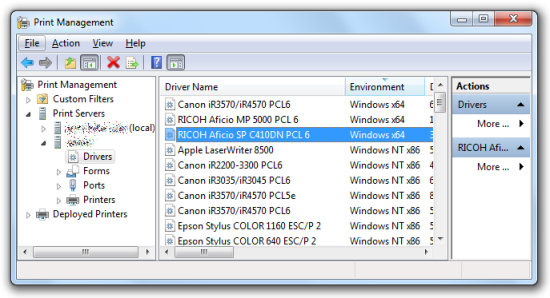
If your print servers are likely to remain on Windows 2003, you will most likely need to find a way of loading Windows 7 drivers for x86 and x64 architectures. You can’t do this on the Windows 2003 host, however you can accomplish this by using a Windows 7 machine and loading Print Management from Administrative Tools. Then right-click on Print Servers branch and add your 2003 print server. Now you can add the necessary drivers.

Print Management

The final problem is an intermittent one. Occasionally you will find that documents won’t print, and when you investigate, you will find a document in front of the print job in the print queue called Local Downlevel Document.

According to this thread, it transpires that Windows Vista and newer introduced a new protocol (Asynchronous RPC) and for some reason the OS is too stupid to actually check whether the remote print server supports it before attempting to use it (Windows 2003 does not support it).

The workaround is to set to disable Async RPC on Vista/Windows 7 clients, again by Group Policy. Set the following Registry value:

HKLM\Software\Policies\Microsoft\Windows NT\Printers\EnabledProtocols
Type: DWORD
Data: 6

DXVA H.264 playback on Intel GMA 500 with subtitles (Windows 7)

Update – This guide was updated on 04/04/2012

Out of the box, Windows 7’s Windows Media Player (WMP) will play HD video using the Intel GMA 500 and DirectX Video Acceleration (DXVA) to do the decode. Using the Matroska Splitter you will also be able to play MKV files. However, they may occasionally stutter and use a fair amount your humble Atom Z series CPU’s power (around 40-50% of 1.33GHz), and you won’t be able to use subtitles.

The PowerDVD H.264 decoder on the other hand will use about 10-20% less CPU, is less prone to locking up, and by using Media Player Classic Home Cinema (MPC-HC) you gain subtitle rendering support. Apparently PowerDVD does itself support MKVs with subtitles but on the several occasions I have attempted this with the trial version it has locked up and crashed. If you don’t have the PowerDVD decoder, you can use the ‘ffdshow tryouts’ open source decoder which is a very good alternative, but seems to suffer some screen tearing during high motion scenes while subtitles are enabled.

Ingredients

  • Media Player Classic Home Cinema (MPC-HC 1.60.4014 at the time of updating this document) – don’t confuse with Media Player Classic, this is a separate version
  • Matroska Splitter (optional) – this reads the MKV container format. MPC-HC has its own implementation included but you could use this if you want to play MKV files in Windows Media Player
  • Optional DirectVobSub subtitle renderer for Windows Media Player (will not work for MKVs), useful for Xvid/DivX files though
  • PowerDVD’s H.264 decoder CyberLink Combo MPEG-2/H.264/VC1 Decoder v.1.0.4960.3320
  • or ffdshow tryouts decoder – don’t use the beta release, it doesn’t have the DXVA decoder. I tested with the SVN build.
  • DirectX End-User Runtimes (June 2010) – required for the EVR Custom Presenter renderer which is needed for subtitle compositing

Method

Firstly disable Aero.

If you want to have subtitles in WMP for Xvid/DivX movies then download and register vsfilter.dll. To do this, copy the DLL to C:\Windows\System32 and open a Command Prompt using right-click & “Run as Administrator”. Then type
regsvr32 c:\windows\system32\vsfilter.dll

If later on you want to remove this, just open the Command Prompt as Administrator and type
regsvr32 /u c:\windows\system32\vsfilter.dll

When it’s registered you can open an Xvid AVI file in WMP and, as long as there’s an SRT subtitle file with the same filename as the AVI then you will see your subtitles. There will be a new icon in the system tray which will allow you to toggle subs, as well as choose the language if there are several sets of subs.

Now install Haali Splitter if you want MKV support in WMP and other players. When you load a MKV, it behaves in a similar way to VSFilter (icon in systray), except it’s even more versatile since MKV containers can have different soundtracks too.

Next, install MPC-HC.

Now use WinRAR to extract the DirectX End-User Runtime file you downloaded. In WinRAR, select File > Open, then change the filename dropdown from All archives to All archives including self-extracting. Browse to your downloaded directx_Jun2010_redist.exe and open it. Inside you will find some more archives. Drag and drop to extract the file Jun2010_d3dx9_43_x86.cab, then open this in WinRAR too. Extract the file d3dx9_43.dll into the folder C:\Program Files\Media Player Classic – Home Cinema.

Finally, install the Cyberlink H.264 decoder or ffdshow. During setup ffdshow will offer a choice of decoders to use, pick libavcodec (not ffmpeg-mt).

Now we need to configure MPC-HC. Load it then go to View -> Options.
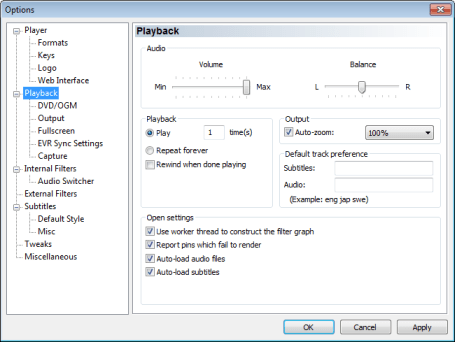
Go to Playback, and make sure Auto-load subtitles is set (assuming you want them). Note that you can also set language code preference orders for audio and subs:

Auto load subtitles

Move to the section called Output. If you will never use subtitles select EVR and don’t touch anything else.
If you do want subtitle support, use EVR Custom Presenter, reduce the EVR buffers from 5 to 4, and check the Alternative Vsync and D3D Fullscreen boxes. With the default settings the additional load of compositing subtitles brings the framerate down below 24fps, however by using these last two options we can just maintain 24fps.

Output settings

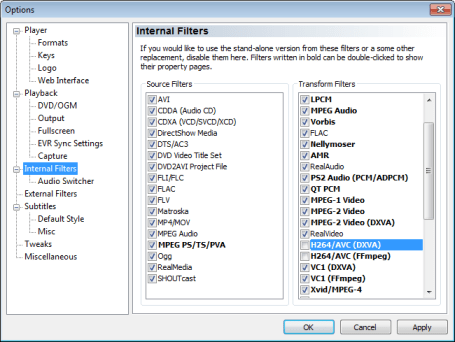
Now select the heading Internal filters and uncheck both H.264 options on the right. This stops MPC-HC using its own support for those features, since we’re going to use external modules for those. If you’re using the CyberLink Video Decoder version I posted above you can optionally uncheck the MP4/MOV and MKV source filters which will cause the CyberLink ones to be used instead (it doesn’t seem to improve performance).

Internal filters

Under the heading External Filters click Add. Then browse to the CyberLink Video Decoder and add it. Make sure to set it to Prefer on the right as shown. If you’re using ffdshow then instead add ffmpeg DXVA video decoder an set to Prefer.
If you installed the Vsfilter.dll subtitle driver (some other media players/codec packs will register this) we need to add DirectVobSub (auto-loading version) too, but select Block on the right. This prevents it from loading, since we’re using MPC-HC’s subtitle renderer. Apparently the way DirectVobSub renders is fundamentally incompatible with DXVA:

External filters

Close MPC-HC for the settings to take effect. At this point it’s a good idea to associate .mkv files with MPC-HC. If videos are launched by double clicking like this, when you pin MPC-HC to your Start Menu it will have that child menu showing you the last ten or so files you launched which is very useful.

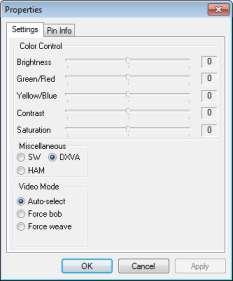
Start an H.264 encoded MKV in MPC-HC and as it starts to play, right-click on the video window and select Filters -> CyberLink Video Decoder. Check that DXVA is selected. I believe that HAM mode uses OpenCL on GPUs that support it (the GMA 500 doesn’t) which if I remember was recommended for ATI GPUs, the early ones having glitchy DXVA implementations apparently. If you’re using EVR Custom Presenter you wont be able to do this with D3D Fullscreen enabled, so toggle it and reload MPC-HC to verify this step.

CyberLink decoder filter settings

Close and reopen MPC-HC and you should be done! Though using D3D Fullscreen reduces tearing and seems to keep the framerate higher when using the EVR Custom Presenter renderer you cannot right-click and see the normal MPC-HC GUI elements. You have to use Ctrl-C to exit playback to modify settings. Two essential keyboard shortcuts are A to switch audio track, and S to switch subtitle track, though shortcut keys do exist for just about everything, and can be customised in the Player > Keys menu in Options.

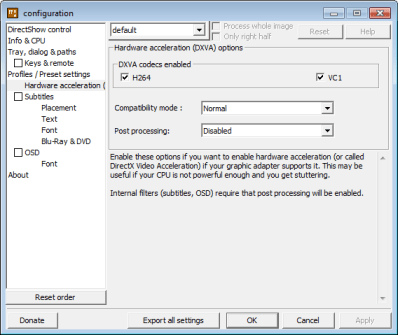
If using ffdshow you also need to enable hardware acceleration by running Start Menu > All Programs > ffdshow > DXVA video decoder configuration:

DXVA decoder settings

ffdshow’s built-in subtitle rendering seems to produce smeary artifacts on the picture so ignore those options and use MPC-HC’s subtitles instead.

If you have a video that won’t playback nicely with this setup then it’s likely that the bitrate is too high for the GMA 500 to cope with (a straight 1:1 rip from Blu-ray for instance) or perhaps the file has not been encoded to be fully DXVA compliant (quite likely with older stuff). Framerates over 24fps cannot really be played unfortunately.
There are some H.264 movie trailers available here for testing.
In my experience the GMA 500 in my VAIO P will play most 1080p content perfectly well, even outputting to a TV at 1920 x 1080. If in doubt about whether it’s dropping frames, while using EVR Custom Presenter you can press CTRL-J several times to view the frame rate (get rid of the graph and verbose text – they slow it down even more!).

Further reading

This handy guide explains in detail what all the options in MPC-HC mean.

Continue to DXVA VC-1 playback on Intel GMA 500 or learn how to get a surround sound experience from ordinary headphones.

Simple batch script for file renaming

Ever ended up with 100 files you need to rename? Like removing  ” copy” from each filename after a batch Photoshop action? Or removing ” (small)” after resizing a big folder of images using the Image Resizer Powertoy? When you start looking online for a tool to do this most of them are commercial software, even for something so outwardly simple.

Here’s something I wrote a while ago for a colleague who runs Photoshop actions. It seemed like an easy challenge but the script actually took a while to figure out, mainly because I was determined that it should call no additional programs. I managed in the end using a couple of neat tricks: delayed variable expansion, and the little-known string replace function of the Set command. I also allowed drag & drop for the target folder containing the files you want renaming.

The script below targets .jpg files but I’ve highlighted the lines you would need to edit to change its behaviour:

::simple batch file renamer
::
::EXPLANATION - delayed variable expansion must be enabled since we want to
::expand the vars on each pass, not just once as the whole FOR loop is parsed.
::The SET command includes some simple string substitution methods (see SET /?)
::Below, I am setting newname=oldname with " (small)" substituted to ""
::The script displays what it's about to do before it does it and also supports
::dragging and dropping of the target folder.
::
@echo off
setlocal ENABLEDELAYEDEXPANSION
set folderpath=
if "%~1"=="" (
  echo No target folder was dragged ^& dropped - using local directory.
) else (
  echo Opening folder %1
  set folderpath=%1\
)
echo.
call :rename echo
echo.
echo Proceed with rename? (CTRL-C to cancel).
pause
call :rename
goto :eof

:rename
for %%i in (%folderpath%*.jpg) do (
  set oldname=%%~ni%%~xi
  ::to replace " (Small)" with ""
  set newname=!oldname: ^(Small^)=!
  %1 ren "%%~fi" "!newname!"
)

Changing IP settings fast

When I need to keep changing TCP/IP settings to test networking configs it’s a real pain to have to keep opening up the adapter properties (especially on Windows 7) and usually I’m in too much of a hurry to lookup up the netsh command syntax. For that reason I’m posting this small script. Save it as ipset.cmd.

Note: using netsh to revert to DHCP seems to be intermittent if no DHCP server is available – e.g. if the adapter has no link.

Windows 7

@echo off
If "%1" == "" (
  echo Configures Local Area Connection
  echo   ipset address/maskbits gateway (dns)
  echo   ipset 192.168.1.99/24 192.168.1.254
  echo   ipset 192.168.1.99/24 192.168.1.254 8.8.8.8
  echo   ipset dhcp
  echo.
  goto :eof
)
If "%1" == "dhcp" (
  netsh interface ip set dnsservers name="Local Area Connection" source=%1
  netsh interface ip set address name="Local Area Connection" source=%1
  goto :eof
)
netsh interface ip set address name="Local Area Connection" source=static address=%1 gateway=%2
If "%3" == "" (
  :: OpenDNS public DNS servers
  netsh interface ip set dnsservers name="Local Area Connection" source=static address=208.67.222.222
  netsh interface ip add dnsservers name="Local Area Connection" address=208.67.222.220
) else (
  netsh interface ip set dnsservers name="Local Area Connection" source=static address=%3
)

Windows XP

@echo off
If "%1" == "" (
  echo Configures Local Area Connection
  echo   ipset address mask gateway
  echo   ipset 192.168.1.99 255.255.255.0 192.168.1.254
  echo   ipset dhcp
  echo.
  goto :eof
)
If "%1" == "dhcp" (
  netsh int ip set address local source=%1
  netsh int ip set dns local source=%1
  goto :eof
) else (
  netsh int ip set address local static %1 %2 %3 1
  :: OpenDNS public DNS servers
  netsh int ip add dns local 208.67.222.222 index=1
  netsh int ip add dns local 208.67.222.220 index=2
)

Moving your SQL 2005 databases ready for VSS off-host backups

Many storage vendors now offer hardware Volume ShadowCopy Service providers for their storage arrays which allow the SAN itself to carry out the snapshot, rather than the underlying OS. These providers are Exchange- and SQL-aware so they will quiesce the transaction logs just before the snapshot.

The big win here is off-host backup – the target server asks the SAN to snap the data volume then carries on as normal. The backup media server meanwhile will mount this SAN snapshot and back it up directly from the SAN. In this way you can backup SQL and Exchange environments in the middle of the day without any performance degradation (assuming of course that you have the IOPS headroom on the SAN). Symantec Backup Exec 12.5 and later supports this technology but it must be purchased as an option – Advanced Disk-based Backup Option or ADBO.

However, to off-host backup Exchange or SQL you will need to have both the databases/mail stores and the transaction logs on the same SAN LUN. This flies in the face of the old wisdom of segregating logs onto RAID1 spindles, but it’s important to realise that a modern SAN makes this perfectly viable. The EqualLogic PS4000XV in my environment for instance has a write latency of <1.0ms in RAID50. Microsoft used to recommend keeping SQL logs on disk with a write latency sub 10ms (now they say 1-5ms).

Moving all of the transaction logs on a crowded SQL server is tricky for several reasons:

  • the Transact-SQL database alter command requires you to know the database’s logical filenames. On an SQL 2005 server, these are largely predictable but it gets complicated when some of the DBs have migrated from SQL 2000 and if some of them were restored from backups of databases with different names (dev or test versions which then went into production for example).
  • the system databases are likely to be on C: and if you want to grab all DBs in one backup job these will need moving too (TempDB is usually ignored by most backup software and can stay where it is).
  • though some guides on the Web suggest detaching and re-attaching the DBs – this is a surefire way to end up with a total disaster since the re-attached DBs will have new GUIDs which will wreck SharePoint amongst others.

Backing up then restoring your databases specifying new file paths is one method but the danger is that you would need to isolate them so that no changes occurred during that time window (which could be a long time).

Moving user databases

The best solution for these is 99% careful preparation work – to build a long list of T-SQL database alter commands to change the SQL file references, and a batch script to move the actual files to the database drive. You can also use this as an opportunity to clean up any badly named files, and move ones that are in the wrong place.

It is highly recommended that if you haven’t already done so, you should set the following registry values on the SQL server which will guard against future inconsistencies. If they already exist, check they’re still valid:

HKEY_LOCAL_MACHINE\SOFTWARE\Microsoft\Microsoft SQL Server\MSSQL.1\MSSQLServer\DefaultData
HKEY_LOCAL_MACHINE\SOFTWARE\Microsoft\Microsoft SQL Server\MSSQL.1\MSSQLServer\DefaultLog
HKEY_LOCAL_MACHINE\SOFTWARE\Microsoft\Microsoft SQL Server\MSSQL.1\MSSQLServer\BackupDirectory
HKEY_LOCAL_MACHINE\SOFTWARE\Microsoft\Microsoft SQL Server\MSSQL.1\MSSQLServer\FullTextDefaultPath

For each database you need to run the following Transact-SQL:

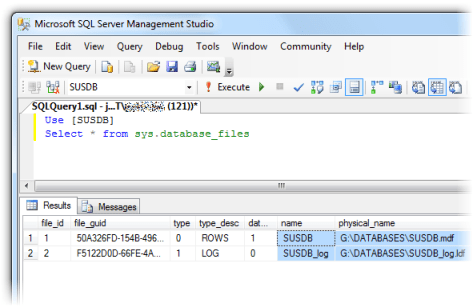
Use [DBname]
Select * from sys.database_files

This will return all the files in the filegroup including full text catalogs (if they exist) together with their logical names (name column):
Database logical filenames

In this example the transaction log is already in the desired location, but it if was in say C:\TRANSACTIONS LOGS we would need to write:

alter database [SUSDB] modify file (name = SUSDB_log, filename = 'G:\DATABASES\SUSDB_log.ldf')

You would then add this to your file move batch script:

move /y "C:\TRANSACTION LOGS\SUSDB_log.LDF" G:\DATABASES\SUSDB_log.ldf

My method was to run a full SQL backup to commit the transaction logs (less data to move), run the alter database commands all at once (which don’t take effect until the SQL Server service next starts), stop the SQL Server service, run the file move batch script, check for any errors, then start the SQL Server service again. Once it’s up, you can try to expand each database in SQL Management Studio. Any databases with damaged file paths will not expand. Refer back to your command prompt window to try and figure out what went wrong (usually a typo).

In this way you should be able to move all of the logs with a bare minimum of downtime – several minutes in my case.

Moving system databases

Moving system databases is fairly straightforward, but it will require a little more downtime. Again, I’d probably leave TempDB where it is to separate its I/O from the rest as it can be high and we don’t need to back it up. If you do want to move it, the procedure is the same as any non-system database. The rest though are special cases.

Run the following and note the current file locations which will probably be in C:\Program Files\Microsoft SQL Server\MSSQL.1\MSSQL\DATA

use model
select * from sys.database_files
use msdb
select * from sys.database_files
use master
select * from sys.database_files

Now close SQL Management Studio and run the following from a Command Prompt (the parameters are case sensitive!):

net stop mssqlserver
net start mssqlserver /c /m /T3608

Open SQL Management Studio again but read this carefully. With these startup parameters, SQL Server will only allow a single connection. The default behaviour of the GUI is to open the Object Explorer window once you connect, which counts as a connection. You need to click on the Disconnect button, and close the Object Explorer child window. You should then be able to open a New Query.
If you closed the Object Explorer without disconnecting you’ll get the error “Server is in single user mode. Only one administrator can connect at this time.” and you’ll need to stop and start the service again, as above, and repeat. Next:

sp_detach_db 'model'
sp_detach_db 'msdb'

Move the files to the new location (logs and databases remember), then run the following taking care to substitute in your new file paths:

sp_attach_db 'model','G:\DATABASES\model.mdf','G:\DATABASES\modellog.ldf'
sp_attach_db 'msdb','G:\DATABASES\msdbdata.mdf','G:\DATABASES\msdblog.ldf'

Stop the SQL Server service. Start it again normally (no parameters) and check you can expand model and msdb in Management Studio.

We just have the master database left to move. Stop the SQL Server service again. Move master’s log and database files to the new location. On the SQL server machine’s console, open Start Menu > Programs > Microsoft SQL Server 2005 > Configuration Tools > SQL Server Configuration Manager.
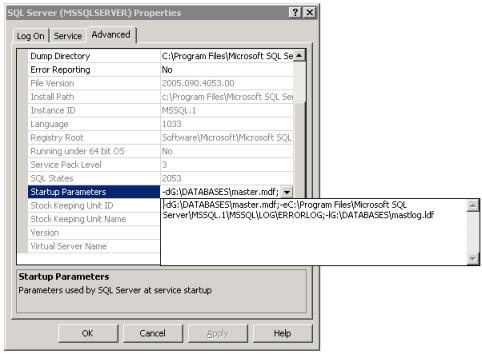
In the category SQL 2005 Services, select SQL Server (MSSQLSERVER) and look at the Properties. Select the Advanced tab. Select Startup Parameters and pull down the dropdown next to it.
Change the value from the defaults of:

-dC:\Program Files\Microsoft SQL Server\MSSQL.1\MSSQL\DATA\master.mdf;-eC:\Program Files\Microsoft SQL Server\MSSQL.1\MSSQL\LOG\ERRORLOG;-lC:\Program Files\Microsoft SQL Server\MSSQL.1\MSSQL\DATA\mastlog.ldf

to your new file paths (don’t change the error log path by accident):

-dG:\DATABASES\master.mdf;-eC:\Program Files\Microsoft SQL Server\MSSQL.1\MSSQL\LOG\ERRORLOG;-lG:\DATABASES\mastlog.ldf

SQL Server Configuration Manager
Finally, start the SQL Server Service. Done!

The trouble with full-text catalogs

If you rely on the EqualLogic Auto-Snaphot Manager to tell you whether your databases now support SAN snapshots you could be in for a surprise when you backup using ADBO in Backup Exec:

V-79-57344-34086 – ADBO: Offhost backup initialization failure on: “myhostname.domain.com”.
Snapshot provider error (0xE0008526): Backup Exec could not locate a Microsoft Volume Shadow Copy Services (VSS) software or hardware snapshot provider for this job. Select a valid VSS snapshot provider for the target computer.
Check the Windows Event Viewer for details.

This is an awful error message because it doesn’t really describe the problem (and you won’t find anything meaningful in the Event Viewer). It almost looks like a registration failure of the Hardware VSS Provider, which is misleading, and caused me about 2 hours of out-of-hours work reinstalling it, taking the server offline, etc. to satisfy Symantec Support. However, run a job with the same selection list but using normal AOFO (Advanced Open File Backup) and you get:

AOFO: Initialization failure on: “myhostname.domain.com”. Advanced Open File Option used: Microsoft Volume Shadow Copy Service (VSS).
V-79-10000-11219 – VSS Snapshot error. The volume or snapped volume may not be available or may not exist. Check the configuration of the snapshot provider, and then run the job again.
The following volumes are dependent on resource: “C:” “D:” “G:”.

Much clearer – there’s a dependency on the D: drive being detected, the drive I migrated from. By chance I changed the backup selection list realised that some databases backed up while others didn’t. The cause turned out to be a full text catalog.

The EqualLogic ASM only checks the database and log files, not full-text catalogs. Moving these seems to be pretty difficult. Microsoft have an MSDN document describing database moves (see section on catalogs further down the page). I have tried following this process to the letter, and when that didn’t work I tried various permutations of stopping the SQL Server service, the SQL FullText Search service (which seems to autorestart), the SQL Server Agent service, copying the files, not copying the files (expecting SQL to move them) etc. No combination seemed to work for me. What I found was that, while it is easy enough to move the catalog path like so:

alter database [ExampleDB] modify file (name = [sysft_ExampleDB], filename = 'G:\DATABASES\FTData\ExampleDB')

there is some meta data that does not get updated and the ADBO backup will still fail when the VSS provider checks all the file dependencies.
sys.database_files shows the correct paths. Eventually I discovered that

Select * from sys.fulltext_catalogs

still showed the old location for the catalogs. The only way I could find to get this to update was to rebuild the full-text catalog in SQL Management Studio – expand the database > Storage > Full Text Catalogs > right-click > Rebuild.

For me this was acceptable and quick, but I imagine some infrastructures might not be so tolerant of a rebuild.

Outlook stationery – scripting default font and HTML signature

Many organizations decide to use a house style for email, and being able to force a default font is the only reliable way to get this consistent. I do this with the login script.

What’s difficult about it is that it’s not just a minor registry edit – the font styles are actually written in HTML and then stored in binary in the registry. The best way to get them modified is to use an Outlook client to make the changes, then grab them from the registry. They’re stored at:

HKEY_CURRENT_USER\Software\Microsoft\Office\12.0\Common\MailSettings

In Outlook you need to edit the stationery in Tools > Options > Mail Format tab > Stationery and Fonts, making sure to change the font for both new messages and replies.

The registry values which are modified are:

  • ComposeFontComplex
  • ComposeFontSimple
  • ReplyFontComplex
  • ReplyFontSimple

Here’s what my ComposeFontComplex looks like converted back to text:

<html>

<head>
<style>

 /* Style Definitions */
 span.PersonalComposeStyle
	{mso-style-name:"Personal Compose Style";
	mso-style-type:personal-compose;
	mso-style-noshow:yes;
	mso-style-unhide:no;
	mso-ansi-font-size:10.0pt;
	mso-bidi-font-size:11.0pt;
	font-family:"Verdana","sans-serif";
	mso-ascii-font-family:Verdana;
	mso-hansi-font-family:Verdana;
	mso-bidi-font-family:"Times New Roman";
	mso-bidi-theme-font:minor-bidi;
	color:windowtext;}
-->
</style>
</head>

</html>

The cleanest way to script this is to export the values from regedit (they will be in hex) and insert them into the script unmodified with the line breaks intact. Then you just quote and line-wrap them, split them into an array on the ”,” character and use a hex-to-binary function before inserting them into the user registry. Here is my example OutlookStationery subroutine for reference  (note that it’s not a working script – some objects are defined elsewhere, e.g. objReg, the Active Directory job title, name, surname etc.):

Sub OutlookStationery
  'Standardized Outlook signature based on AD data
  WScript.Echo "Updating Outlook signature and default font"
  Dim objWord, objDoc, objSelection, objEmailOptions, objSignatureObject, objSignatureEntries, objLink
  Set objWord = CreateObject("Word.Application")
  Set objDoc = objWord.Documents.Add()
  Set objSelection = objWord.Selection
  Set objEmailOptions = objWord.EmailOptions
  Set objSignatureObject = objEmailOptions.EmailSignature
  Set objSignatureEntries = objSignatureObject.EmailSignatureEntries
  objSelection.TypeText strFirstName & " " & strSurname
  objSelection.TypeText(Chr(11))
  objSelection.TypeText strTitle
  objSelection.TypeText(Chr(11))
  objSelection.TypeText(Chr(11))
  objSelection.TypeText "Tel +xx xxx xxxx " & strExtension
  objSelection.TypeText(Chr(11))
  objSelection.TypeText "Fax +xx xxx xxxx xxxx"
  objSelection.TypeText(Chr(11))
  objSelection.TypeText "Web "
  Set objLink = objSelection.Hyperlinks.Add(objSelection.Range,"http://mycompanywebsite.com/",,"My Company Website","companywebsite.com")
  objSelection.TypeText(Chr(11))
  objSelection.TypeText(Chr(11))
  objSelection.TypeText "The Company Name"
  objSelection.TypeText(Chr(11))
  objSelection.TypeText "Address Line 1"
  objSelection.TypeText(Chr(11))
  objSelection.TypeText "Address City"
  objSelection.TypeText(Chr(11))
  objSelection.TypeText(Chr(11))
  objselection.Font.Bold = True
  objSelection.TypeText "Company"
  objselection.Font.Bold = False
  objSelection.TypeText " strapline goes here"
  Set objSelection = objDoc.Range()
  objSelection.Font.Name = "Verdana"
  objSelection.Font.Size = "10"
  objSignatureEntries.Add "Standard Signature", objSelection
  objSignatureObject.NewMessageSignature = "Standard Signature"
  objSignatureObject.ReplyMessageSignature = ""
  objDoc.Saved = True
  objWord.Quit

  'Force the default font for Outlook messages. The hex arrays are captures from a Regedit export, line breaks intact for easy later amendment
  Dim arrComposeFontComplexHex, arrComposeFontComplex, arrReplyFontComplexHex, arrReplyFontComplex
  Dim arrComposeFontSimpleHex, arrComposeFontSimple, arrReplyFontSimpleHex, arrReplyFontSimple

  arrComposeFontComplexHex = Split ("3c,68,74,6d,6c,3e,0d,0a,0d,0a,3c,68,65,61,64,3e,0d,0a," &_
   "3c,73,74,79,6c,65,3e,0d,0a,0d,0a,20,2f,2a,20,53,74,79,6c,65,20,44,65,66,69," &_
   "6e,69,74,69,6f,6e,73,20,2a,2f,0d,0a,20,73,70,61,6e,2e,50,65,72,73,6f,6e,61," &_
   "6c,43,6f,6d,70,6f,73,65,53,74,79,6c,65,0d,0a,09,7b,6d,73,6f,2d,73,74,79,6c," &_
   "65,2d,6e,61,6d,65,3a,22,50,65,72,73,6f,6e,61,6c,20,43,6f,6d,70,6f,73,65,20," &_
   "53,74,79,6c,65,22,3b,0d,0a,09,6d,73,6f,2d,73,74,79,6c,65,2d,74,79,70,65,3a," &_
   "70,65,72,73,6f,6e,61,6c,2d,63,6f,6d,70,6f,73,65,3b,0d,0a,09,6d,73,6f,2d,73," &_
   "74,79,6c,65,2d,6e,6f,73,68,6f,77,3a,79,65,73,3b,0d,0a,09,6d,73,6f,2d,73,74," &_
   "79,6c,65,2d,75,6e,68,69,64,65,3a,6e,6f,3b,0d,0a,09,6d,73,6f,2d,61,6e,73,69," &_
   "2d,66,6f,6e,74,2d,73,69,7a,65,3a,31,30,2e,30,70,74,3b,0d,0a,09,6d,73,6f,2d," &_
   "62,69,64,69,2d,66,6f,6e,74,2d,73,69,7a,65,3a,31,31,2e,30,70,74,3b,0d,0a,09," &_
   "66,6f,6e,74,2d,66,61,6d,69,6c,79,3a,22,56,65,72,64,61,6e,61,22,2c,22,73,61," &_
   "6e,73,2d,73,65,72,69,66,22,3b,0d,0a,09,6d,73,6f,2d,61,73,63,69,69,2d,66,6f," &_
   "6e,74,2d,66,61,6d,69,6c,79,3a,56,65,72,64,61,6e,61,3b,0d,0a,09,6d,73,6f,2d," &_
   "68,61,6e,73,69,2d,66,6f,6e,74,2d,66,61,6d,69,6c,79,3a,56,65,72,64,61,6e,61," &_
   "3b,0d,0a,09,6d,73,6f,2d,62,69,64,69,2d,66,6f,6e,74,2d,66,61,6d,69,6c,79,3a," &_
   "22,54,69,6d,65,73,20,4e,65,77,20,52,6f,6d,61,6e,22,3b,0d,0a,09,6d,73,6f,2d," &_
   "62,69,64,69,2d,74,68,65,6d,65,2d,66,6f,6e,74,3a,6d,69,6e,6f,72,2d,62,69,64," &_
   "69,3b,0d,0a,09,63,6f,6c,6f,72,3a,77,69,6e,64,6f,77,74,65,78,74,3b,7d,0d,0a," &_
   "2d,2d,3e,0d,0a,3c,2f,73,74,79,6c,65,3e,0d,0a,3c,2f,68,65,61,64,3e,0d,0a,0d," &_
   "0a,3c,2f,68,74,6d,6c,3e,0d,0a", ",")

  arrReplyFontComplexHex = Split ("3c,68,74,6d,6c,3e,0d,0a,0d,0a,3c,68,65,61,64,3e,0d,0a," &_
   "3c,73,74,79,6c,65,3e,0d,0a,0d,0a,20,2f,2a,20,53,74,79,6c,65,20,44,65,66,69," &_
   "6e,69,74,69,6f,6e,73,20,2a,2f,0d,0a,20,73,70,61,6e,2e,50,65,72,73,6f,6e,61," &_
   "6c,52,65,70,6c,79,53,74,79,6c,65,0d,0a,09,7b,6d,73,6f,2d,73,74,79,6c,65,2d," &_
   "6e,61,6d,65,3a,22,50,65,72,73,6f,6e,61,6c,20,52,65,70,6c,79,20,53,74,79,6c," &_
   "65,22,3b,0d,0a,09,6d,73,6f,2d,73,74,79,6c,65,2d,74,79,70,65,3a,70,65,72,73," &_
   "6f,6e,61,6c,2d,72,65,70,6c,79,3b,0d,0a,09,6d,73,6f,2d,73,74,79,6c,65,2d,6e," &_
   "6f,73,68,6f,77,3a,79,65,73,3b,0d,0a,09,6d,73,6f,2d,73,74,79,6c,65,2d,75,6e," &_
   "68,69,64,65,3a,6e,6f,3b,0d,0a,09,6d,73,6f,2d,61,6e,73,69,2d,66,6f,6e,74,2d," &_
   "73,69,7a,65,3a,31,30,2e,30,70,74,3b,0d,0a,09,6d,73,6f,2d,62,69,64,69,2d,66," &_
   "6f,6e,74,2d,73,69,7a,65,3a,31,31,2e,30,70,74,3b,0d,0a,09,66,6f,6e,74,2d,66," &_
   "61,6d,69,6c,79,3a,22,56,65,72,64,61,6e,61,22,2c,22,73,61,6e,73,2d,73,65,72," &_
   "69,66,22,3b,0d,0a,09,6d,73,6f,2d,61,73,63,69,69,2d,66,6f,6e,74,2d,66,61,6d," &_
   "69,6c,79,3a,56,65,72,64,61,6e,61,3b,0d,0a,09,6d,73,6f,2d,68,61,6e,73,69,2d," &_
   "66,6f,6e,74,2d,66,61,6d,69,6c,79,3a,56,65,72,64,61,6e,61,3b,0d,0a,09,6d,73," &_
   "6f,2d,62,69,64,69,2d,66,6f,6e,74,2d,66,61,6d,69,6c,79,3a,22,54,69,6d,65,73," &_
   "20,4e,65,77,20,52,6f,6d,61,6e,22,3b,0d,0a,09,6d,73,6f,2d,62,69,64,69,2d,74," &_
   "68,65,6d,65,2d,66,6f,6e,74,3a,6d,69,6e,6f,72,2d,62,69,64,69,3b,0d,0a,09,63," &_
   "6f,6c,6f,72,3a,23,31,46,34,39,37,44,3b,0d,0a,09,6d,73,6f,2d,74,68,65,6d,65," &_
   "63,6f,6c,6f,72,3a,64,61,72,6b,32,3b,7d,0d,0a,2d,2d,3e,0d,0a,3c,2f,73,74,79," &_
   "6c,65,3e,0d,0a,3c,2f,68,65,61,64,3e,0d,0a,0d,0a,3c,2f,68,74,6d,6c,3e,0d,0a", ",")

  arrComposeFontSimpleHex = Split ("3c,00,00,00,1f,00,00,f8,00,00,00,40,c8,00,00,00,00,00," &_
   "00,00,00,00,00,ff,00,22,56,65,72,64,61,6e,61,00,00,00,00,00,00,00,00,00,00," &_
   "00,00,00,00,00,00,00,00,00,00,00,00,00,00,00,00,00", ",")

  arrReplyFontSimpleHex = Split ("3c,00,00,00,1f,00,00,f8,00,00,00,00,c8,00,00,00,00,00,00," &_
   "00,1f,49,7d,00,00,22,56,65,72,64,61,6e,61,00,00,00,00,00,00,00,00,00,00,00," &_
   "00,00,00,00,00,00,00,00,00,00,00,00,00,00,00,00", ",")

  arrComposeFontComplex = ArrayHexToDec(arrComposeFontComplexHex)
  arrReplyFontComplex = ArrayHexToDec(arrReplyFontComplexHex)
  arrComposeFontSimple = ArrayHexToDec(arrComposeFontSimpleHex)
  arrReplyFontSimple = ArrayHexToDec(arrReplyFontSimpleHex)

  objReg.SetBinaryValue HKEY_CURRENT_USER,"Software\Microsoft\Office\12.0\Common\MailSettings", "ComposeFontComplex", arrComposeFontComplex
  objReg.SetBinaryValue HKEY_CURRENT_USER,"Software\Microsoft\Office\12.0\Common\MailSettings", "ReplyFontComplex", arrReplyFontComplex
  objReg.SetBinaryValue HKEY_CURRENT_USER,"Software\Microsoft\Office\12.0\Common\MailSettings", "ComposeFontSimple", arrComposeFontSimple
  objReg.SetBinaryValue HKEY_CURRENT_USER,"Software\Microsoft\Office\12.0\Common\MailSettings", "ReplyFontSimple", arrReplyFontSimple
End Sub

Function ArrayHexToDec(arrHex)
  Dim i, arrDec
  ReDim arrDec(UBound(arrHex))
  For i = 0 to UBound(arrHex)
    If arrHex(i) = "00" Then
      arrDec(i) = 0
    Else
      arrDec(i) = CByte("&H" & arrHex(i))
    End If
  Next
  ArrayHexToDec = arrDec
End Function

Growing a system or boot partition on a live server

I migrated most of the infrastructure I work on to vSphere 4.0 last year and since then have live-resized a fair few disks as needed. For most of these it was the data partition that was increasing so it was a quick case of growing the vmdk, then loading up diskpart in the VM, selecting the partition, and typing extend.

However, as any reader of VMware or Microsoft KB articles will know – you cannot do this to a system/boot volume, only data volumes. Or can you?

I was recently shown a fantastic tool for this purpose – Extpart, which is made by Dell. Amazingly, it’s seven whole years old! If you read this, help spread the word.

If you’re on a 64bit machine you’ll find that it refuses to run. The .exe on the Dell site is actually a self-extracting zip file, not the tool itself. Use an archiver (7-Zip, WinRAR, etc.) and you’ll be able to extract it.

Sony VAIO P Windows 7 clean install guide

Sony VAIO laptops come installed with lots of bloatware and, given the VAIO P series’ low power CPU, this really ruins it. Out of the box running Vista my P11Z was barely usable. Here’s how to clean install Windows 7 and the minimal amount of Sony software, which results in a striking improvement.

I wrote this up for the forum at Pocketables.net (the main forum it seems for the VAIO P), but I’ll post it here too. I once had a bad experience with sudden forum deletion – In 2003 I wrote an IPSec VPN guide on the official Netgear forums and one day when I needed it I discovered that they’d relaunched the forums, and deleted all the old content! Needless to say I didn’t have my own copy and web.archive.org didn’t have it either…

Back to the VAIO:
Sony VAIO P

Before you start, use the GlobeTrotter Connect software to check the firmware version of your Option GTM382 HSDPA + GPS card. If it’s lower than 2.9.5.0, this update will vastly improve your GPS signal strength. Mine went from not working at all, even outside, to being able to get a fix in VisualGPS indoors. You can search for the firmware file by name but it’s not legitimately available – Sony does not distribute the update, despite Option’s official documentation stating that the version they shipped with is non-working. More details in this thread.

You can use the Sony Windows 7 Upgrade media to carry out a clean install.

Using another PC with a DVD drive, make a bootable 4GB USB stick from your Windows 7 upgrade kit DVD 2 using these instructions.

Boot from USB (enable ‘Boot from external’ in the BIOS), select Custom once Windows Setup launches, completely wipe the drive (assuming you no longer care about the Vista recovery partition) and continue. When the Vaio reboots remove the USB stick or it will boot from it and re-launch Setup. Do not enter a product key and make sure you uncheck the Activate Windows Online Automatically option. Next, install Service Pack 1, then once that is done you can remove the uninstall files from the disk to save space. Disabling hibernation will also save you 2GB of disk space:
dism /online /cleanup-image /spsuperseded
powercfg -h off

Now that Windows is fully installed, make sure you have no Windows Updates with pending restarts, and go to right-click on Computer in the Start Menu and select Properties. Scroll down and Activate, using the product key from the DVD case. It took a good few minutes but worked for me.

Use Windows Update and in the Optional Updates select the two Sony devices (Sony Firmware Extension Parser Device, and Sony Programmable I/O Control Device), and the updated Atheros Wifi drivers. Install. These are the same versions that are on the Sony driver site.

Install the most recent Intel GMA 500 driver from Intel.com > Downloads > Graphics > Laptop graphics controllers > Graphics Media Accelerator 500 > Windows 7

Now go to the Sony Vaio support page for your model and download and install the following Windows 7 drivers, in order:

  • Sony Shared Library – restart, as a precaution
  • Setting Utility
  • VAIO Event Service (needed for volume and brightness keys)
  • VAIO Control Center
  • VAIO Smart Network – (needed to enable the Option card) – restart

When Windows reloads, the Option WWAN card will be detected and it will fail to find drivers. Download the Windows 7 Mobile Broadband mode driver package only (not the Globetrotter Connect software) for a P11Z from here. No IMEI is required for this download. Drivers for other Option WWAN cards are available in the Embedded Devices section at the bottom of this page. Windows 7 has a built-in framework for managing mobile broadband connections so we can avoid Option’s terrible GlobeTrotter bloatware, which uses 20% of a 1.33GHz CPU even when idle. In Device Manager, find the non-installed device and select Update Driver, pointing it at the files you just downloaded and unzipped. On the next reboot I think, you’ll have a whole load more unidentified devices. These are all the parts of the Option card like the GPS serial ports, the Network device etc. For each one repeat the same steps as you did for the parent device, pointing it at the downloaded driver folder. Now, when you insert a SIM card you will notice that Windows 7 will offer a new network in the wireless icon in the System Tray which will have your cellular network carrier as its name. All you need is the APN name and username/password – nice and simple. If you want to have the WWAN card disabled by default as Windows starts (to save power) you will need to use the full Smart Network UI to disable both the GPS and the WWAN. This wasn’t clear and took me some considerable time to figure out.

Install the HDD Protection Driver from the Originally Installed downloads section on the Sony site. This adds some options to the VAIO Control Center, and I think is a useful addition for a mobile PC.

Install the Chipset driver, also from Originally Installed too. These Intel chipset drivers aren’t really drivers – they just title up certain devices in the Device Manager to have their correct names. So PCI-PCI Host Device (or whatever) becomes Intel(R) SCH Family PCI Express Root Port 1 – 8110. I had a hunt around for more up to date ones for Poulsbo systems but there are none, not even with Dell, so don’t worry that it’s a Vista driver. On the Sony US support site they’re more organized and both the HDD Protection driver and Chipset drivers are correctly listed in the Windows 7 section (same exact versions).

Do not install the Battery Check. It’s a driver that checks to make sure you are not using a third party battery and wastes system resources. As I also found out, it lacks an uninstall option and it took me a while to remove it from my system last time around.

From the Windows 7 section of the Sony site install Instant Mode, the RealTek audio driver, and the Alps stick pointer driver. Although scrolling by holding the middle button does already work without the Alps driver, it is still useful to install because it offers sensitivity options, and tap-to-click functionality which I find very worthwhile. If you’re using them a lot the button clicks can get tedious and loud. The RealTek audio driver offers one particularly useful feature over the stock Windows audio driver – the ability to use Dynamic Range Compression to amplify very quiet audio, which can often be a problem when watching movies using the speakers. To enable this when you need it, open Sound in Control Panel. In the Playback tab select Speaker/HP and click Properties. In the Enhancements tab scroll down and you’ll find Loudness Equalization.

If you don’t use the LAN connection, open Device Manager and disable Intel(R) SCH Family PCI Express Root Port 1 – 8110 in System Devices. This is how Sony shipped the factory-installed Vista build, so I guess it uses less power that way.

For lean software I recommend:

  • Chromium web browser (open source Google Chrome – no behaviour profiling)
  • Sumatra PDF instead of an increasingly malware-vulnerable/targeted Adobe Reader
  • This fantastic sidebar gadget which shows CPU temp and SpeedStep clockspeed – very useful for a Vaio P user

Additional guides

DXVA H.264 playback on Intel GMA 500 with subtitles (Windows 7)
DXVA VC-1 playback on Intel GMA 500

Windows 7 login scripts and missing network drives

Most Windows sysadmins use a Group Policy object to launch their login script. You may have noticed that Windows 7 and Vista fail to connect network drives defined in the login script if the user is a local admin and UAC is enabled. The script completes successfully and no error condition is encountered, but no drive mappings. Run it again manually and everything’s fine.

This is in fact by design, and it’s caused by the way UAC works. When you’re a member of the Administrators group and you log in, your account is busted down to a non-privileged user by UAC. This running context is completely separate from the context you get when you right-click Command Prompt and launch as an administrator. As you’ll probably have noticed, network drives connected in one context are not visible in the other. The problem is that GPO-based login scripts are being executed in the Administrator context – not the ordinary user context.

So, how do we get it working? Microsoft offer an unsupported kludge in KB937624 – getting around the issue by weakening Windows security and forcing network connections to be common to both user contexts. They carefully designed this not to be the case, so modifying the behaviour does seem like a bad idea.

However, Microsoft’s preferred solution (example launchapp.wsf script in the appendix of that page) is to use the GPO-triggered script to set a Scheduled Task to run immediately in the other (non-admin) context, and run your login script from there – much better.
The reasons I’m writing all this up are that:

  • Microsoft’s example script has some illegal character/line-wrap in there – copying and pasting it won’t work!
  • This method doesn’t work with XP so some forking logic is needed if you have mixed clients.
  • They make no allowances for multiple admin/non-admin users sharing the same PC.
  • This appears to be Microsoft’s sole example document of how to program using the Task Scheduler 2.0 API, and it neglects to define several absolutely essential object properties if you want to do something more useful than simply open Notepad.

My particular problem was that I needed to launch a script with a space character in the path, e.g.:

cscript.exe //nologo "\\domain.com\netlogon\departmentX users\logon.vbs"

For me changing this path name was not an option as there were many other dependencies. I spent a long time wondering why the API was eating my quotes as I fed it the above string and I tried various ways to escape them. Eventually I launched the Scheduled Tasks MMC tool (click on the root of Task Scheduler Library to see the job). Looking in the Action properties I realised that there are separate fields for the starting directory and for the arguments. Manually editing the job to use these got it working:
Task Properties Dialog
Frustratingly, there don’t seem to be any examples on the Web showing you how to populate these fields programmatically. Guessing the Arguments property was straighforward but StartIn is not a valid propery name. I read on Wikipedia that Task Scheduler 2.0 uses XML to store its jobs so I exported the job and viewed it. Luckily they used consistent property names in the XML (Arguments and WorkingDirectory) and I was able to set them in VBScript (see highlighted lines below).

There was an additional complication though. Once a user has run the Scheduled Task, it’s left behind on the system. In my initial testing this wasn’t a problem because I was testing admin users, but I soon discovered that a non-privileged user cannot delete and recreate the task if one created by another user already exists. So we need only schedule the task if the current user is running in an elevated security context. By far the simplest method is to parse the output of the whoami /groups command, as explained in this post:
http://blogs.technet.com/b/jhoward/archive/2008/11/19/how-to-detect-uac-elevation-from-vbscript.aspx

UPDATE – added some logic to prevent the login script from launching for RemoteApp sessions to Terminal Servers.

'launchapp.vbs, modified from Microsoft's launchapp.wsf
'launches a process as interactive user, NOT as the elevated privilege user context

Option Explicit

Const TriggerTypeRegistration = 7
Const ActionTypeExecutable = 0
Const FlagTaskCreate = 2
Const LogonTypeInteractive = 3

Dim strWorkingDirectory, strHostname, strOSVer, colProcessList, strUser, strDomain
Dim objNetwork, objComputer, objShell, objExec, objWMI, objItem, strScriptName, strStdOut

strWorkingDirectory = "\\domain.com\netlogon\DepartmentX Users"

'launch this login script
strScriptName = "logon.vbs"

Set objNetwork = CreateObject("WScript.Network")
Set objShell = CreateObject("WScript.Shell")
Set objWMI = GetObject("winmgmts:{impersonationLevel=impersonate}!\\.\root\cimv2") 
strHostname = objNetwork.ComputerName
Set objComputer = GetObject("WinNT://" & strHostname & ",computer")
strOSVer = objComputer.OperatingSystemVersion

If strOSVer >= "6.0" Then
  If IsElevated() Then
    'Machine has UAC and user is elevated so use LAUNCHAPP.WSF Task Scheduler method based
    'on appendix from http://technet.microsoft.com/en-us/library/cc766208(WS.10).aspx

    'Are we launched in a RemoteApp session on a Terminal Server? If so, quit.
    Set colProcessList = objWMI.ExecQuery("Select * from Win32_Process Where Name = 'rdpshell.exe'")
    For Each objItem In colProcessList
      objItem.GetOwner strUser, strDomain
      'If we're an admin we can see all users' processes so we need to check only our own
      If strUser = objNetwork.UserName Then
        WScript.Quit
      End If  
    Next

    LaunchApp
  Else
    'User is not elevated, so launch the script normally
    objShell.Run "cscript.exe //nologo " & Chr(34) & strWorkingDirectory & "\" & strScriptName & Chr(34), 1
  End If
Else
  'This is a Windows XP/2003 machine, so launch the script normally
  objShell.Run "cscript.exe //nologo " & Chr(34) & strWorkingDirectory & "\" & strScriptName & Chr(34), 1
End If

Set objNetwork = nothing
Set objComputer = nothing
Set objShell = nothing

Function IsElevated()
  IsElevated = False
  strStdOut = ""
  Set objExec = objShell.Exec ("whoami /groups")
  Do While (objExec.Status = 0)
    WScript.Sleep 100
    If Not objExec.StdOut.AtEndOfStream Then
      strStdOut = strStdOut & objExec.StdOut.ReadAll
    End If
  Loop
  If InStr(strStdOut,"S-1-16-12288") Then
    IsElevated = True
  End If
  Set objExec = nothing
End Function

Sub LaunchApp
  Dim objTaskService
  Dim strTaskName, rootFolder, taskDefinition, triggers, trigger, Action

  'Create the TaskService object
  Set objTaskService = CreateObject("Schedule.Service")
  Call objTaskService.Connect()
  strTaskName = "Launch App As Interactive User"

  'Get a folder to create a task definition in
  Set rootFolder = objTaskService.GetFolder("\")

  'Delete the task if already present
  On Error Resume Next
  Call rootFolder.DeleteTask(strTaskName, 0)
  Err.Clear

  'Create the new task
  Set taskDefinition = objTaskService.NewTask(0)

  'Create a registration trigger
  Set triggers = taskDefinition.Triggers
  Set trigger = triggers.Create(TriggerTypeRegistration)

  'Create the action for the task to execute
  Set Action = taskDefinition.Actions.Create(ActionTypeExecutable)
  Action.Path = "cscript.exe"
  Action.Arguments = "//nologo " & strScriptName
  Action.WorkingDirectory = strWorkingDirectory

  'Register (create) the task
  call rootFolder.RegisterTaskDefinition(strTaskName, taskDefinition, FlagTaskCreate,,, LogonTypeInteractive)

  Set objTaskService = nothing
End Sub